Figure 14 shows an example of the PC's main menu screen after starting AFRemote and
selecting one of the pull-down menus. Along the top of the screen are the main menu's
choices: "File", "Setup", "Commands", "Analysis", and "Plots". The bottom line of the
screen is a status line which indicates "AFRecorder Disconnected" or AFRecorder
Connected" during program operation. The status line displays a copyright notice when
AFRemote is first started. The rest of the screen is used for other menus, dialog boxes, and
measured or recorded data.
A selection from the main menu is made either by typing the first letter of the selection (ex.
"F" for File) or by clicking the mouse left button with its cursor on the selection's name.
After making a selection, the menu will unfold showing further choices related to that
selection.
The cursors (arrow keys) or mouse are used to highlight a selection which can be chosen by
pressing the "Enter" key or clicking the mouse's left button. Pressing the escape key ("Esc")
or the left mouse button (while not on a selection) will exit from a menu. To exit AFRemote,
select "File" followed by "Exit".
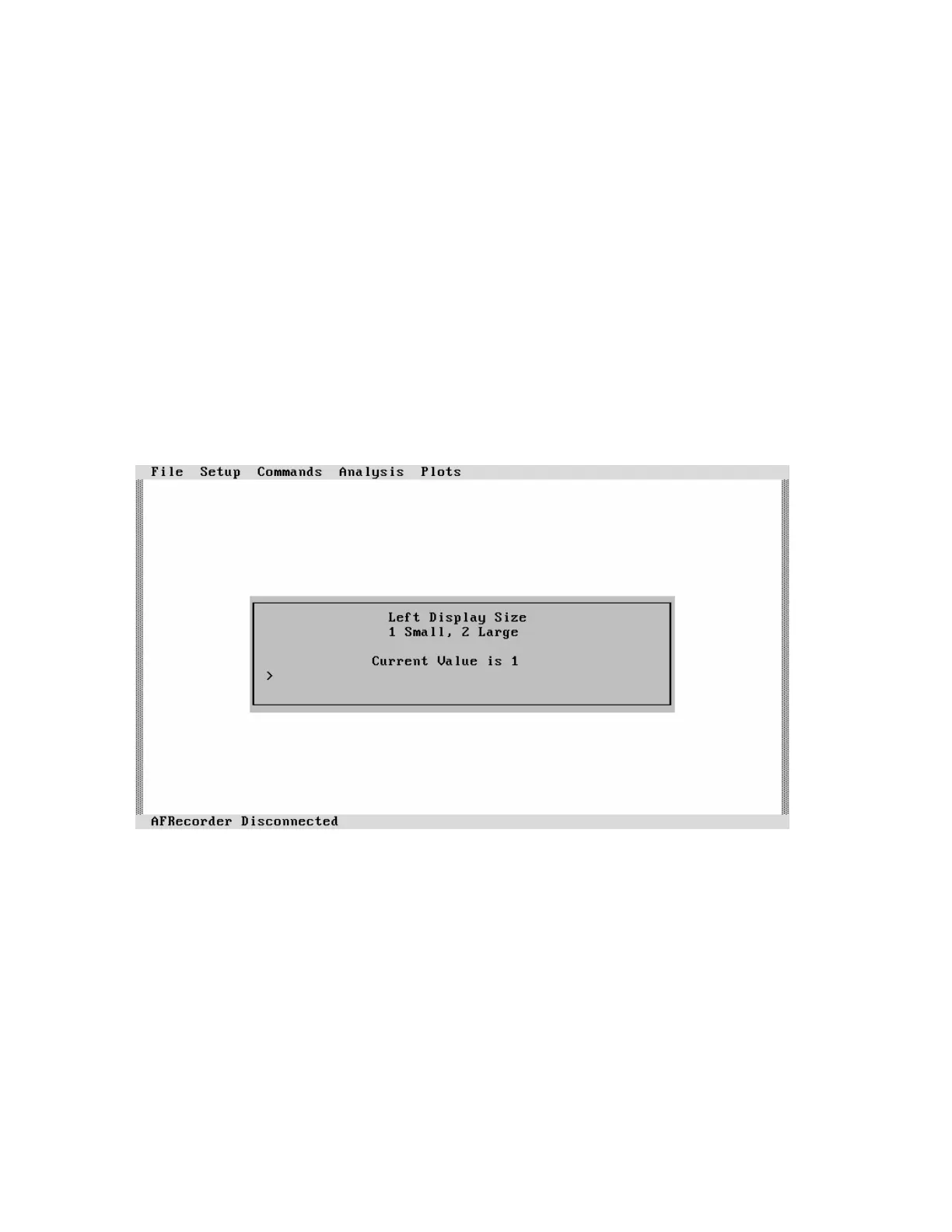
Figure 15: A Dialog Box
In some cases, a dialog box will appear in the center of the screen (see Figure 15). Dialog
boxes request the entry of alphanumeric data (which must be followed by the pressing of the
"Enter" key) or indicate that an error has been made. The mouse will not operate while in a
dialog box.
Entering and Leaving Remote Mode
● To enter remote mode:
1. Turn off the AFRecorder and the PC.
26



 To Next Page