Dehumidier Level
Select this option to program the desired set point for
your dehumidifier.
Ventilator Max
If your system is equipped with a ventilation system,
you can manually switch the ventilator to the maximum
setting directly from your Smart Thermostat.
When you select this, the ventilator switches into the
maximum mode for 20 minutes then switches back
to its normal operating state. The system fan is also
activated.
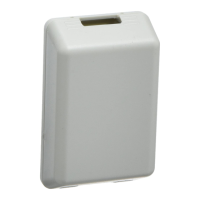
NEW Viewing Sensor (optional EB-RSM)
If you have the optional remote sensor module installed,
when you press the More icon from the homesreen a new
Sensor icon will be displayed.. This feature will allow you to
view the readings of all the sensors connected. In addition
for any of the sensor congured as a Control Sensor, you
will be able to select which temperature or sensors will be
used as the set temperature. If more than one is chosen
the thermostat will take the average of those sensors. The
same logic applies for indoor humidity sensors.
Resetting the Smart Thermostat
At some point during the life of the thermostat you may
want to quickly recongure or restore it to the default state.
Reset Registration
Resets the connection between your Smart Thermostat
and your personalized web portal.
Note: After this reset, you must re-register your Smart
Thermostat if you want to continue to use your
Web Portal.
All other preferences and settings will remain the same.
Reset Preferences/Program
Resets all your preferences, reminders, alerts and
programming to the original factory default state.
WiFi settings and registration are not aected.
To Reset your thermostat:
From the Home
screen, press More.
Press Settings and
select Reset from
the list. Choose the
Reset option that
suits your needs.
27 Using you Smart Thermostat Using your Smart Thermostat 28
What to do if you move
If you move there a few things to consider about your
ecobee system:
If you did not activate your personalized web portal, you
can simply take the Smart Thermostat with you or leave
it in the house.
If you registered with ecobee.com, you need to update
your web portal to reect your new address.
Leaving it behind
Log onto your web account and delete the device you
are leaving behind. This terminates the association
between your Smart Thermostat and your personalized
web portal.
You can always choose to add another device for your
new home with this same account.
The new homeowners will need to register the Smart
Thermostat and set up their own web portal.
Taking it with you
If you’re taking the Smart Thermostat with you, you’ll need
to re-connect it to the Internet and possibly re-register
if your IP information changes. To re-register, follow the
original web registration procedure in this manual.



 To Next Page
 Loading...