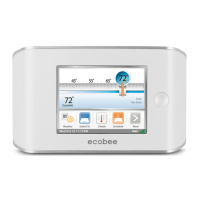
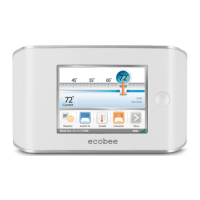
Feature Buttons
Feature buttons allow you to quickly access the various
features of your ecobee Smart Thermostat.
Register
Use this button to register your Smart Thermostat, as well
as your personalized web portal at www.ecobee.com.
Refer to Creating Your Personal Web Portal on page 8 for
details. Once you’ve successfully registered, this button
will be replaced by the Weather button.
Weather
This button displays the current outdoor temperature
and weather conditions for your registered location. Press
it to see the full ve-day forecast. Please note when you
register your thermostat, it’s important to select your
location accurately, as ecobee will use your local weather
data to better control your heating and cooling. You must
register your Smart Thermostat for this feature to operate.
Details
Press the Details button to see system details such as
humidity levels and furnace fan settings. If you have a
ventilator, humidier or dehumidier connected, Details
displays the current settings for those, as well.
Program
Press Program to set the desired temperatures throughout
the day for each day of the week. The icon on this button
changes to show which period of the day (awake, away,
home, sleep) is currently in eect.
Resume
If your thermostat has been manually adjusted, the
Resume button will be displayed. Pressing this button will
cause the system to revert back to the scheduled program.
Quick Save
Pressing the Quick Save button as you leave your home
will put your thermostat into energy savings mode. To
return your thermostat to its previous settings simply
press OK on the touch screen. See page 12 for more
information on this function.
More
Press this button to navigate to more features available
on your Smart Thermostat.
Cleaning the touch screen
Press the Clean me button to deactivate your touch
screen. You can clean the Smart Thermostat touch
screen by spraying water or any mild, non-abrasive
household cleaner on to a clean cloth. Wipe the surface
of the touch screen with the dampened cloth.
Note: Do not spray any liquids directly onto your
Smart Thermostat.
The touch screen will be deactivated for 20 seconds. The
time to reactivation of the touch screen will count down.
About your Smart Thermostat
The About section of your thermostat displays
useful information about the Smart Thermostat and
the contractor who installed it. You may need this
information if you are having diculties or need
technical support.
To clean the touch screen:
From the Home
screen, press More.
Press Clean Me.
To display the About screen:
From the Home
screen, press More.
Press Settings and
select About from
the Menu.
5 Using the Touch Screen Using the Touch Screen 6





 To Next Page
