22|
Connect the system to a router using a network cable,
wait a minute before proceeding. Then click "Ethernet to
set DHCP/Static mode. (Both modes are available)
• By default, the IP setting is DHCP mode, which assigns
dynamic IP address to the device (recommended).
• Static mode requires manual configuration of the IP
address. Please make sure the IP address is not in conflict
with other devices, you can visit the router to check the IP
addresses of other devices.
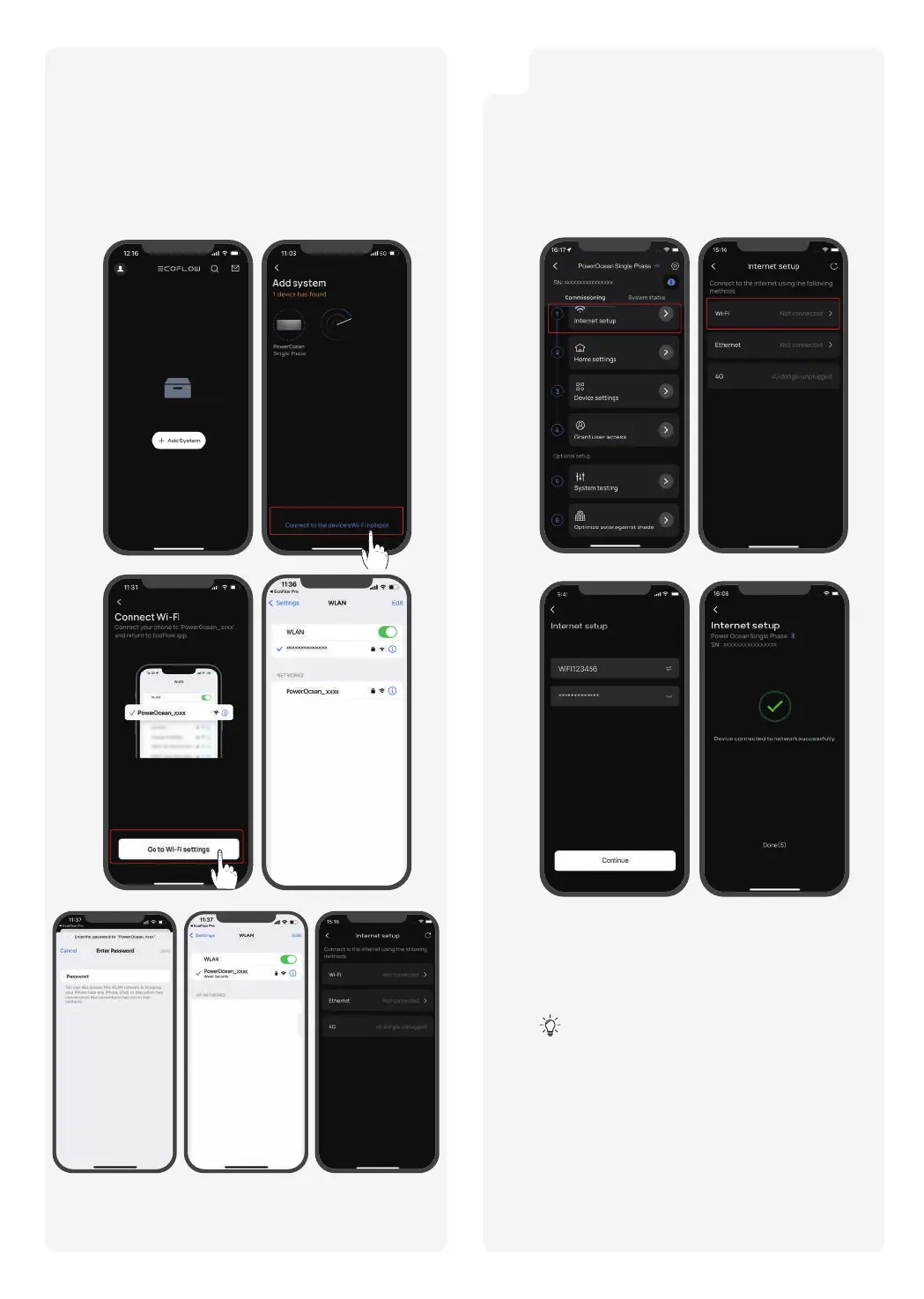
After bound device successfully, the device enters the
four-step commissioning process.
click to start the network configuration.
Click,select the appropriate WiFi name and enter
the password and click .
5
1. Click "Add System" and then click "Or connect to the
system's Wi-Fi" to access to your phone's Wi-Fi settings.
2. Find "PowerOcean_xxxx" and click it to enter the password
for the Wifi, then click "Join".
3. After successfully connected your phone to "PowerOcean_
xxxx", tap the "EcoFlow Pro" on the top left of your
phone's Wi-Fi setting page to shift back and proceed to
commissioning.


 To Next Page