22
TO SET THE REMOTE TO ENGLISH
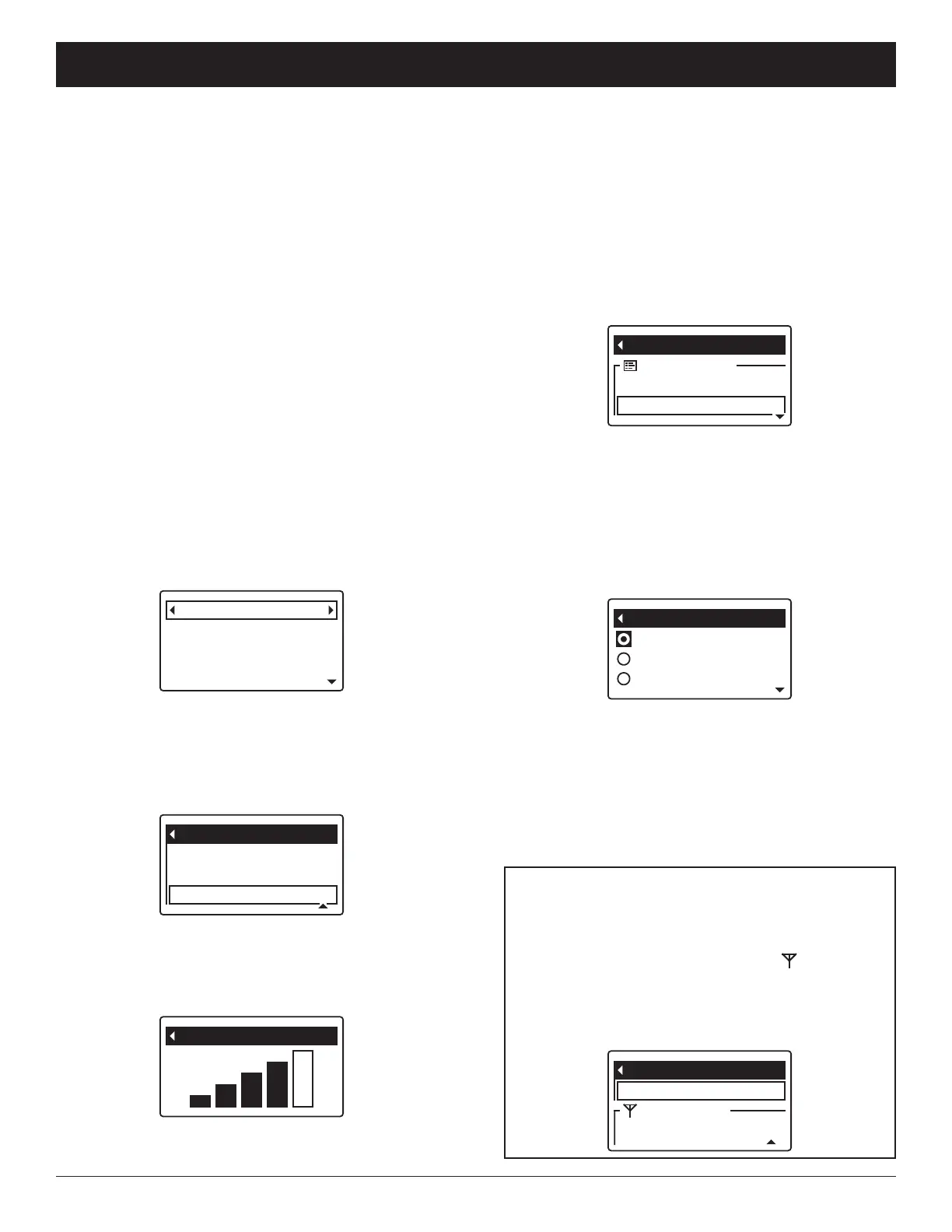
IF ANOTHER LANGUAGE IS DISPLAYED:
From the rolling status screens, press SELECT (¡).
Press DOWN (6) to scroll through the list until the
line immediately above the antenna ( ) symbol
is highlighted (See Figure 57), then press SELECT
(¡). Press UP (5) to scroll to English at the top of
the list, then press SELECT (¡) twice. Press LEFT
(3) to exit the menu.
SETTING THE LANGUAGE
L
anguage is set independently on the remote and con-
ditioner/refiner (See Page 34 to set the conditioner/
refiner’s language). Fewer languages are available on
the remote. To change the remote’s language:
1. Press the remote’s SELECT (¡) button to display a
Menu screen.
2. Press the DOWN (6) button to scroll through the
menu options until Set language is highlighted in a
box (See Figure 55). Press the SELECT (¡) button.
5. Press the DOWN (6) or UP (5) buttons to scroll
through the list to the desired language, then press
SELECT (¡) to choose it.
6. Press the SELECT (¡) button. The display will go
back to the menu shown in Figure 55, in the newly
set language.
7. To exit this menu, press the LEFT (3) button or wait
30 seconds for it to exit automatically.
Español
Set language
English
Français
FIG. 55
D
rinking water message
Menu
Display options
Set language
FIG. 56
ECOWATER
S Y S T E M S
Non-Wi-Fi Systems Only: Remote Operation
3. Depending on which devices are added, you could
see a message saying “This will delete all devices!
Continue?” If so, you would need to add the devices
again after changing the language. Press the RIGHT
(4) button to continue (or skip to Step 4 if this mes-
sage is not displayed).
4. The Set language menu is displayed (See Figure
56). The current language has a dot next to it.
Taal instellen
Netwerkopties
Menu
Nieuw toestel toevoegen
FIG. 57
EWS 3700
Status OK
43 daysOut of salt in
88 gallons
Water used
FIG. 52
Add new device
RF signal strength
EWS 3700
Delete current device
FIG. 53
FIG. 54
2. Press the remote’s SELECT (¡) button to display the
device menu.
3. Press the DOWN (6) button to scroll through the
menu options until RF signal strength is highlighted
in a box (See Figure 53).
4. Press the SELECT (¡) button, and the screen shown
in Figure 54 will appear. The more bars that are
filled in black, the stronger the signal. The signal
strength display updates every 15 seconds.
5. To exit this screen, press the LEFT (3) button.
CHECKING RF SIGNAL STRENGTH
During installation of a system, it is useful to check the
strength of the signal from a water treatment device. If
y
ou check the signal strength of a device communicat-
ing with the remote indirectly through another device,
the display will show the strength of the “weakest link”
in the chain of communication to the remote.
Begin by checking the signal strength between the con-
ditioner/refiner and the remote. If the signal is weak (2
bars or less on the display shown in Figure 54), move
the remote to a different location to try improving the
signal strength.
When adding additional devices, such as battery-oper-
ated drinking water systems (RO), keep in mind that the
signal strength display shows the “weakest link” in the
chain of communications. If the link between the RO
and the conditioner/refiner is weak, move the RO (if
possible) to a location closer to the conditioner/refiner
or remove metal objects between the two.
To check the signal strength for a particular device:
1. Press the remote’s LEFT (3) or RIGHT (4) buttons
to manually advance to the status screen for the
device you want to check. The device name will
show in the header. (See Figure 52).



 To Next Page