29
Installing the driver (Windows)
Crackling may occur in the sound if you omit making this
setting. To ensure that audio and MIDI are processed
smoothly, make the setting as follows.
1
Open the
System Properties
dialog box.
1.
From the Windows start menu, choose
Control
Panel
.
2.
In
“Pick a category,”
click
“Performance and
Maintenance”
.
3.
In
“or Pick a Control Panel icon,”
click the
System
icon.
2
Click the
Advanced
tab.
3
Click
[Settings]
located at the right of the
Performance
area.
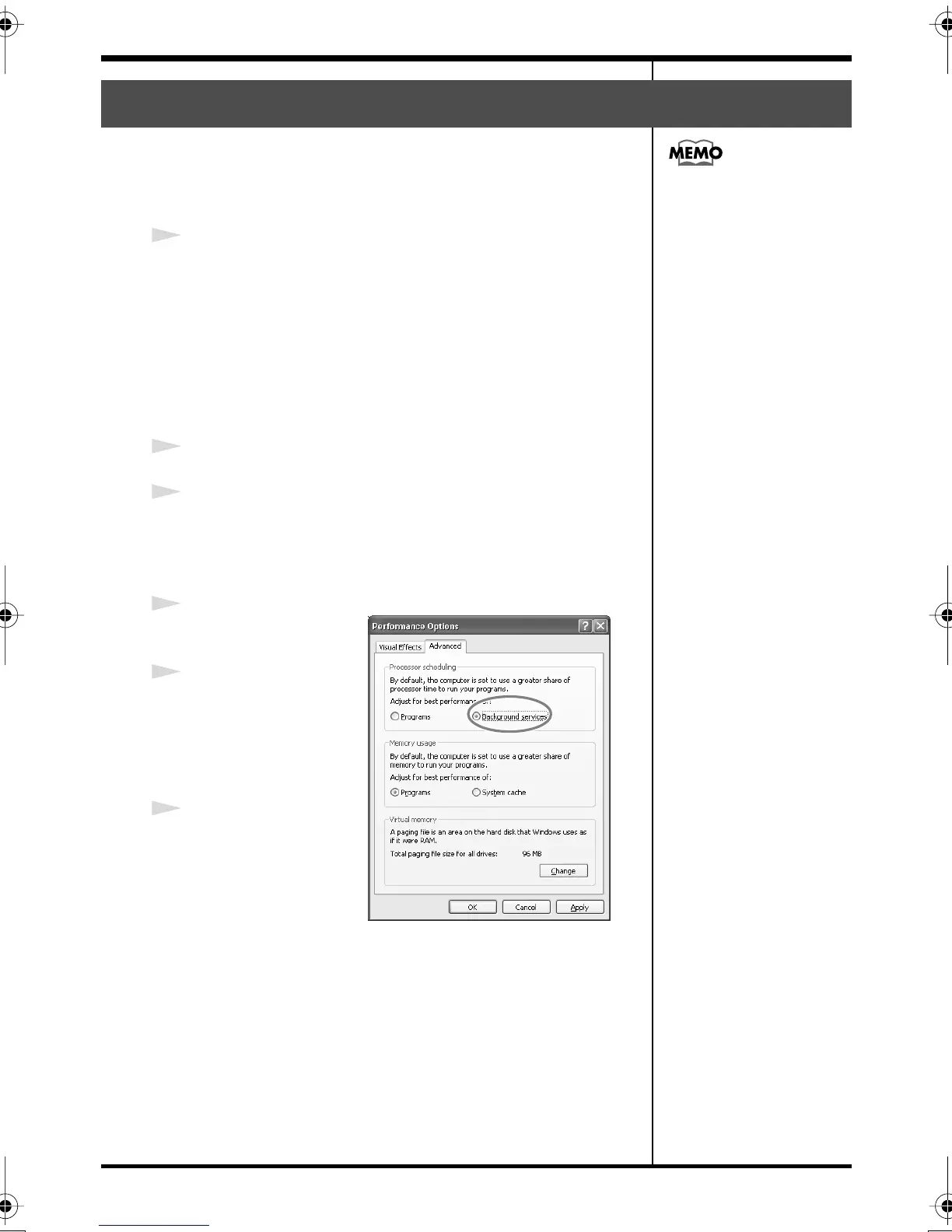
The
Performance Options
dialog box appears.
fig.background
4
Click the
Advanced
tab.
5
In
Processor
Scheduling
, choose
“Background
services,”
and click
[OK]
.
6
In the System
Properties dialog box,
click [OK]. The
System Properties
dialog box closes.
Next, you need to make audio device and MIDI device
settings.
(->
“Driver settings”
(p. 30))
Giving priority to background services
Depending on your system,
the System icon may be
displayed directly in the
Control Panel (Classic view).
If so, double-click the System
icon.
FA-66_e.book 29 ページ 2006年1月12日 木曜日 午前11時32分


 To Next Page