EasyManua.ls Logo

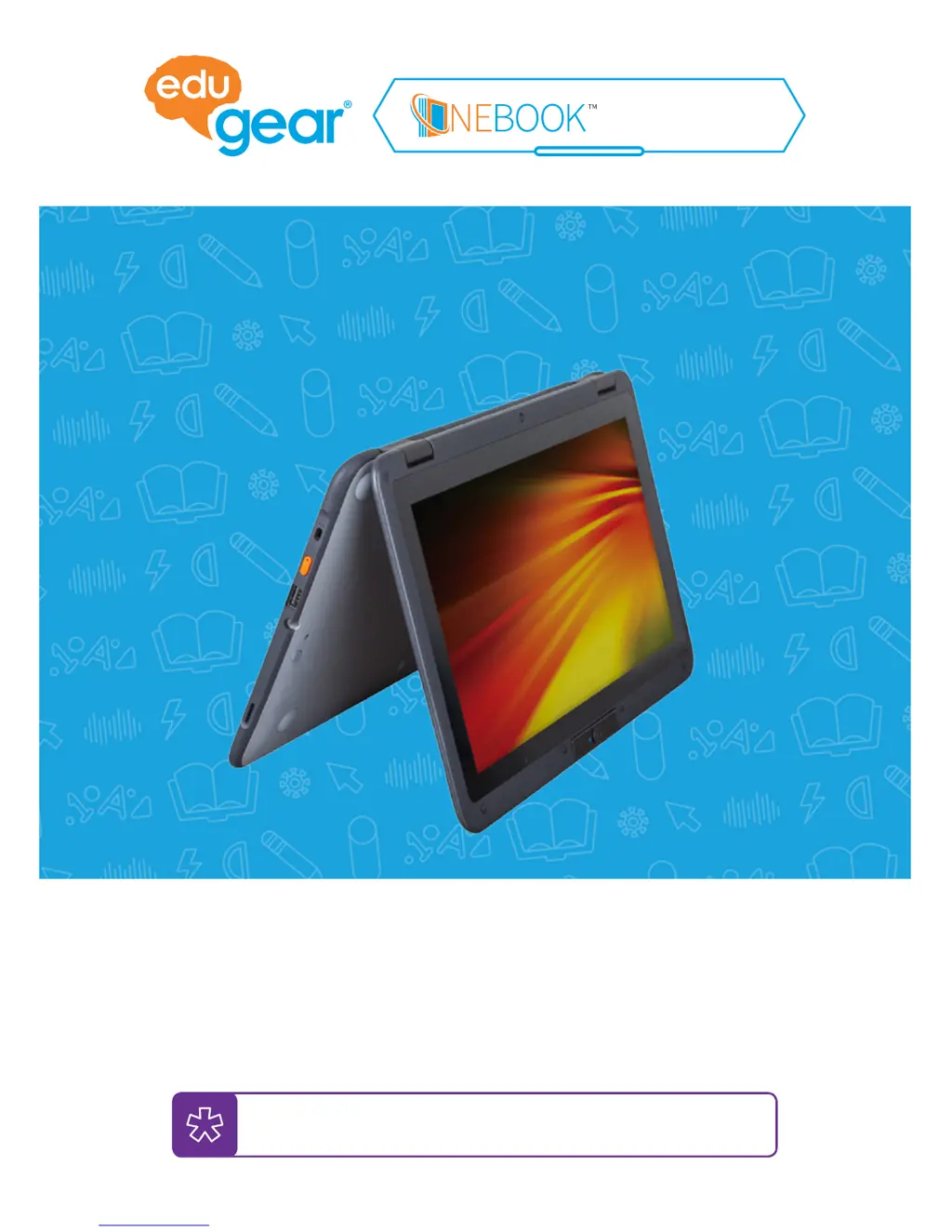
EDUGEAR Onebook Flex360B4 - User Manual

Default Icon
33 pages
Print Icon
To Next Page IconTo Next Page
Loading...
Owner’s Manual
Any misuse of the product will void the warranty.
Before using, please read these operating instructions carefully.
They contain important advice concerning the use and safety of your
notebook. Please use it for its intended purpose in accordance with
these operating instructions.
www.edugear.com
FLEX 360B4

Questions and Answers

  • S
    singhkristenAug 16, 2025
    How to fix a blank screen on my EDUGEAR Laptop when I turn it on?
    • R
      rramosAug 16, 2025
      If your EDUGEAR Laptop screen is blank when you turn it on, ensure the AC adapter is connected and plugged into a working outlet, and that the computer is powered on. You can try pressing the power button for 6 seconds to force it off, then power it on again. If the screen remains blank after these steps, the computer may require servicing.
  • S
    Stephen RosarioAug 19, 2025
    What to do if my EDUGEAR Laptop does not respond?
    • D
      David FordAug 19, 2025
      If your EDUGEAR Laptop stops responding, try pressing and holding the power button for at least 6 seconds to turn it off. If it still doesn't respond, remove the AC adapter. Also, your computer might lock up if it enters sleep mode during network communication, so disable the sleep timer when working on a network.
  • R
    Robert BeardAug 22, 2025
    Why does my EDUGEAR Onebook Flex360B4 screen go blank while the computer is on?
    • D
      douglassmithAug 22, 2025
      If your EDUGEAR Laptop screen goes blank while it's on, it's likely due to power management being enabled. To resume, press any key for 2-3 seconds, press the power button, or press the Windows key.
  • L
    Luis Mcintosh DDSAug 26, 2025
    What to do if the screen on my EDUGEAR Laptop is blank?
    • A
      Ashley ElliottAug 26, 2025
      If the screen of your EDUGEAR Laptop is blank, try the following: * If using the AC adapter or battery and the battery status indicator is on, press Fn+F8 to increase brightness. * If the power indicator is blinking, press the power button to resume from sleep mode. * If the problem continues, refer to the solution for “The screen is unreadable or distorted.”
  • P
    Pamela KimAug 28, 2025
    Why is there no sound from my EDUGEAR Onebook Flex360B4 Laptop speaker even when the volume is up?
    • R
      rosariodouglasAug 29, 2025
      If you can't hear any sound from your EDUGEAR Laptop's speakers even with the volume up, ensure that: * The Mute function is off. * The combo audio jack is not in use. * Speakers are selected as the playback device.
  • S
    Sarah OwensAug 31, 2025
    What to do when the critical low-battery error message appears and the EDUGEAR Onebook Flex360B4 Laptop turns off?
    • S
      Samantha RandolphAug 31, 2025
      If your EDUGEAR Laptop displays a critical low-battery error and turns off, it means the battery is low. Connect the AC adapter to the computer to resolve this.
  • D
    david20Sep 3, 2025
    How to fix an unreadable or distorted screen on my EDUGEAR Onebook Flex360B4 Laptop?
    • E
      Emma MaldonadoSep 3, 2025
      If the screen on your EDUGEAR Laptop is unreadable or distorted, verify that the screen resolution and color quality are correctly set, and that the monitor type is correct.
  • G
    gcoxSep 6, 2025
    What to do if my EDUGEAR Onebook Flex360B4 Laptop does not return from sleep mode?
    • D
      David AcostaSep 6, 2025
      If your EDUGEAR Laptop doesn't exit sleep mode and isn't working, connect the AC adapter and then press the power button.
  • D
    Danielle MullinsSep 9, 2025
    Why does my EDUGEAR Onebook Flex360B4 Laptop enter sleep mode immediately after power-on?
    • K
      Katelyn DavisSep 9, 2025
      If your EDUGEAR Laptop enters sleep mode right after being powered on, it could be due to a charged battery and a high operating temperature. Move to a cooler area and try to wake the computer.
  • A
    alfredbairdSep 12, 2025
    What causes incorrect characters to appear on the screen of my EDUGEAR Onebook Flex360B4?
    • H
      Harold WrightSep 12, 2025
      If incorrect characters appear on the screen of your EDUGEAR Laptop, and the operating system or programs are installed and configured correctly, have the computer serviced.

EDUGEAR Onebook Flex360B4 Specifications

General IconGeneral
ProcessorIntel Celeron N4020
RAM4GB
Storage64GB eMMC
Display Size11.6 inches
Display Resolution1366 x 768
TouchscreenYes
ConvertibleYes
Operating SystemWindows 10 Pro
Battery LifeUp to 8 hours
RAM TypeDDR4
ColorBlack
ConnectivityWi-Fi 5, Bluetooth
Ports1 x HDMI, 1 x MicroSD card reader, 1 x Audio combo jack
Battery2-cell lithium-ion