Call: 888.505.8878 Online: edugear.com Email: support@edugear.com
23
Inspecting Your Battery Status
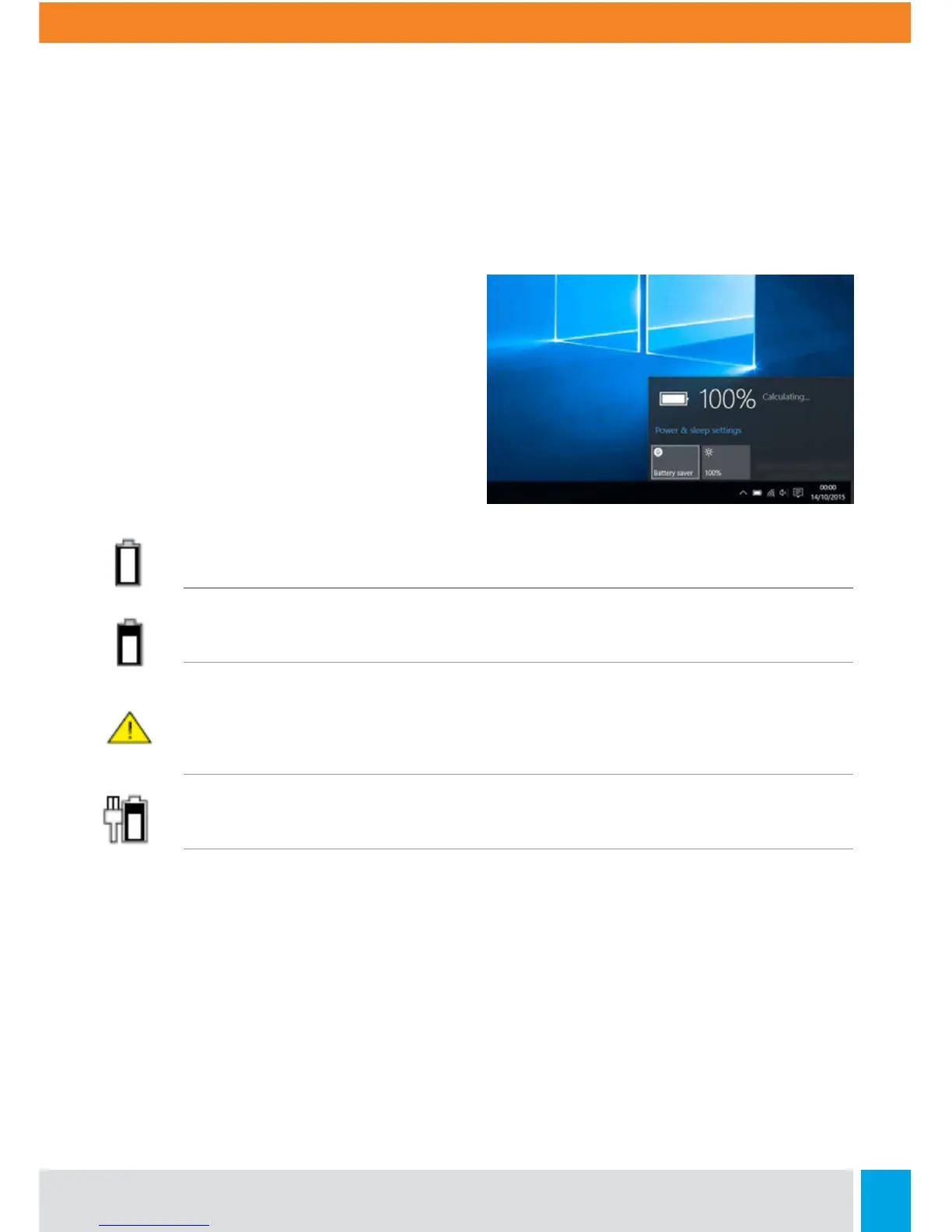
In Desktop, move the cursor to the battery
icon in the taskbar. A pop-up dialog box
appears and shows you the remaining
battery percentage, as shown.
The battery icon reveals the status of your
battery, which described as below.
Battery is fully charged
Battery is starting to drain
Battery is about to completely drain, and you should stop using your
notebook and charge it at once
Battery is being charged
By Inspecting the Battery Indicator:
When your laptop is not powered by the adapter, the color of the battery indicator shows
you the approximate status of your battery:
Battery Low : Blinking in red Battery High: Solid Red or LED dark.



 To Next Page