
 To Next Page
P
Patrick PenaSep 5, 2025
Why does the brightness of my Eizo Monitor change automatically?
- MMichael PadillaSep 5, 2025
If the brightness of your Eizo monitor changes automatically, try changing the Auto EcoView setting to “Off”.

Why does the brightness of my Eizo Monitor change automatically?
If the brightness of your Eizo monitor changes automatically, try changing the Auto EcoView setting to “Off”.
How to display images over the entire screen area on my Eizo FlexScan EV2485-WT Monitor?
To display images over the entire screen area on your Eizo monitor, try changing the “Picture Expansion” setting in the Setting menu. Also, ensure that the resolution setting on your PC matches the native resolution of the monitor.
How to fix blurred characters and images on my Eizo FlexScan EV2485-WT Monitor?
If characters and images appear blurred on your Eizo monitor, verify that your PC is configured to meet the monitor's resolution and vertical scan frequency requirements. You can also try setting the magnification of display on the OS to “100%”. When using multiple monitors, try setting the magnification of display to “100%” on all monitors.
Why is the power indicator on my Eizo FlexScan EV2485-WT Monitor flashing orange and white?
The power indicator on your Eizo monitor might flash orange and white if the PC is connected to the DisplayPort connector. Try using a recommended signal cable and turn the monitor off and on. Also, check the connection and condition of the USB devices connected to the monitor. You can also try turning off the main power switch on the rear side of the monitor, and then turning it on again.
Why doesn't the Setting menu appear on my Eizo FlexScan EV2485-WT Monitor?
If the Setting menu does not appear on your Eizo monitor, check whether the switch operation lock function is active.
How to fix Eizo FlexScan EV2485-WT USB ports?
If USB devices connected to your Eizo monitor aren't working, consider these steps: * Verify the USB cable is correctly connected between your PC and the monitor, and between the peripheral and the monitor. * Try a different USB port on both the monitor and the PC. * Reboot your PC. * If “Compatibility Mode” is “Off” in the “Administrator Settings” menu, change it to “On”. * Ensure “USB” is set to “On” in the “Administrator Settings” menu. * If the devices work when directly connected to the PC, contact your local EIZO representative. * Update to the latest USB driver or connect the monitor to the USB 2.0 port. * Check the PC’s BIOS setting for USB.
What to do if my Eizo FlexScan EV2485-WT says 'no signal input'?
If your Eizo monitor displays a 'no signal input' message, attempt the following troubleshooting steps: * Ensure that your PC is powered on. * Verify the signal cable is properly connected. * Try switching the input signal. * Turn the monitor off and then on again. * Set “Auto Input Detection” in the “Administrator Settings” menu to “Off” and switch the input signal manually. * Confirm your PC's resolution and vertical scan frequency meet the monitor's requirements. * Reboot your PC. * Check whether the connected cable is a signal cable recommended. * Check whether the USB-C of the connected device supports video signal output (DisplayPort Alt Mode). For details, contact the manufacturer of the device. * Connect a DisplayPort cable or an HDMI cable.
What to do if USB devices don't work when connected to my Eizo FlexScan EV2485-WT?
If USB devices connected to your Eizo monitor aren't working, consider these steps: * Verify the USB cable is correctly connected between your PC and the monitor, and between the peripheral and the monitor. * Try a different USB port on both the monitor and the PC. * Reboot your PC. * If “Compatibility Mode” is “Off” in the “Administrator Settings” menu, change it to “On”. * Ensure “USB” is set to “On” in the “Administrator Settings” menu. * If the devices work when directly connected to the PC, contact your local EIZO representative. * Update to the latest USB driver or connect the monitor to the USB 2.0 port. * Check the PC’s BIOS setting for USB.
 General
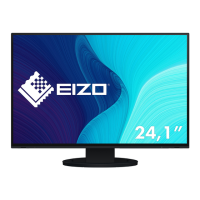
| Screen Size | 24.1 inches |
|---|---|
| Panel Type | IPS |
| Brightness | 350 cd/m² |
| Contrast Ratio | 1000:1 |
| Viewing Angles | 178° / 178° |
| Aspect Ratio | 16:10 |
| Color Gamut | sRGB |
| VESA Mount | 100 x 100 mm |
| Response Time | 5 ms |
| Connectivity | HDMI, DisplayPort |
| Adjustability | Height, Tilt, Swivel |
| Resolution | 1920 x 1200 (WUXGA) |