EasyManua.ls Logo

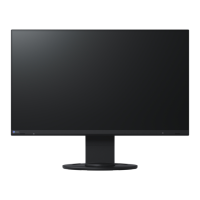
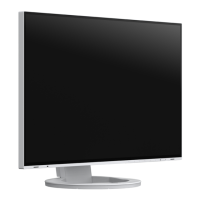
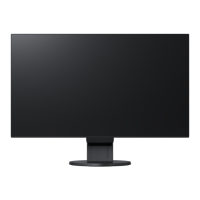
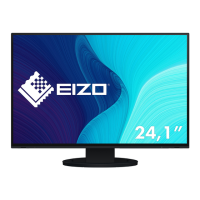
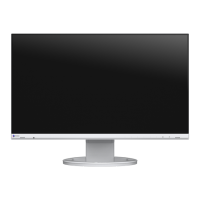
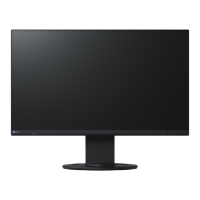
Eizo FlexScan EV2430 - User Manual

Eizo FlexScan EV2430
49 pages
Print Icon
To Next Page IconTo Next Page
Loading...
Important
Please read this “Users Manual, and “PRECAUTIONS” (separate
volume) carefully to familiarize yourself with safe and effective usage.
Refer to the “Setup Guide” for information on the installation /
connection of the monitor.
For the latest product information including the “User’s Manual”,
refer to our web site :
http://www.eizoglobal.com
Color LCD Monitor
Users Manual

Table of Contents

Questions and Answers

  • D
    Derrick AndrewsAug 18, 2025
    How to adjust brightness on Eizo Monitor?
    • F
      ffloresAug 19, 2025
      If the screen on your Eizo monitor is too bright or too dark, use the Brightness or Contrast settings in the Setting menu to adjust it. If the screen is too bright, you can also turn on Auto EcoView, which automatically adjusts the screen brightness based on the environmental brightness.
  • G
    glassmaryAug 20, 2025
    What to do if USB devices connected to Eizo FlexScan EV2430 Monitor do not work?
    • K
      Kyle PattersonAug 21, 2025
      If USB devices aren't working when connected to your Eizo monitor, start by checking the USB cable connection. Try using a different USB port on both your PC and the monitor. Reboot your PC. Also, verify that your PC and operating system are USB compliant and check the PC’s BIOS settings for USB.
  • H
    hayesgaryAug 23, 2025
    What to do if Eizo Monitor says input signal is out of range?
    • H
      halelindaAug 23, 2025
      This message appears when the signal is not input correctly even when the monitor functions properly. Check whether the PC is configured to meet the resolution and vertical scan frequency requirements of the monitor. Reboot the PC. Select an appropriate setting using the graphics board’s utility.
  • M
    maria33Aug 26, 2025
    Why EcoView Sense is not working correctly on my Eizo FlexScan EV2430?
    • W
      William CombsAug 26, 2025
      If you're using EcoView Sense on your Eizo monitor and the images aren't appearing or disappearing correctly, check the monitor's environment. The Presence Sensor may not work correctly if the monitor is in a windy place, near a heat-emitting device, or if there's an obstacle in front of the sensor. Ensure there is no dirt on the sensor, and that you are in front of the monitor. In high temperature conditions, the monitor may not recover from the power saving mode. If the screen is not displayed even after moving the mouse or pressing any key on the keyboard, turn the monitor off and on using its power button. If the screen is displayed, increase the detection sensitivity value.
  • E
    Emily PerryAug 28, 2025
    How to stop screen flickering on Eizo FlexScan EV2430?
    • A
      Andrea DiazAug 28, 2025
      If the whole screen is flickering or blurring on your Eizo monitor, use the Phase setting in the Setting menu to adjust it.
  • D
    Dale AguilarAug 30, 2025
    Why Setting menu does not appear on my Eizo Monitor?
    • J
      James HammondAug 30, 2025
      If the Setting menu does not appear on your Eizo monitor, check whether the operation lock function is active.
  • J
    justinjamesSep 1, 2025
    How to fix blurred characters on Eizo Monitor?
    • M
      Mary BryantSep 1, 2025
      If characters are blurred on your Eizo monitor, ensure your PC is configured to meet the monitor's resolution and vertical scan frequency requirements. If the image is displayed with a resolution other than recommended, use the Smoothing and Screen Size settings in the Setting menu to adjust the display.
  • A
    Ashley CampbellSep 3, 2025
    How to adjust display position on Eizo FlexScan EV2430?
    • J
      John CalderonSep 4, 2025
      If the display position is incorrect on your Eizo monitor, use the Position setting in the Setting menu to correct it. If the problem persists, use the graphics board’s utility, if available, to change the display position.
  • A
    Adam YoungSep 6, 2025
    Why Eizo FlexScan EV2430 Monitor configuration is changed to single under multiple monitor configuration?
    • F
      Frederick TurnerSep 6, 2025
      When two monitors are connected to one PC using DisplayPort, and the power to one of the monitors is turned off with the power button, the screen setting may be changed to the single monitor configuration. Enable the DP HotPlug function with the following procedures: 1. Press to turn off the monitor. 2. Hold down while pressing to turn on the monitor. Each time the operation enables / disables this function alternatively. Enabling this function may increase the power consumption.
  • C
    Cassandra PalmerSep 8, 2025
    How to prevent afterimages on Eizo Monitor?
    • G
      Gregory HarringtonSep 8, 2025
      To prevent afterimages on your Eizo monitor, avoid displaying the same image for a long time. Use the screen saver or power save function to avoid displaying the same image for extended periods.

Summary

Chapter 1 Introduction

Product Features Overview

Details on the FlexScan EV2430's 24.1-inch wide format, resolution, and key functionalities like Color Mode and power saving.

Chapter 2 Adjusting Screens

Compatible Display Resolutions

List of supported resolutions for Analog (D-Sub), DVI-D, and DisplayPort inputs.

Setting the Resolution

Procedure for changing the monitor's display resolution across different operating systems.

Chapter 3 Setting Monitor

Chapter 4 Power Saving Functions

Setting Power Saving

Configuring the monitor to enter power saving mode based on PC status and signal input.

Automatic Brightness and Presence Detection

Enabling Auto EcoView for automatic brightness adjustment and EcoView Sense for power saving based on user presence.

Chapter 5 Troubleshooting

No Picture or Indicator Issues

Resolving problems related to the power indicator status and lack of display.

Imaging Problems (General)

Addressing common display issues like brightness, blurred characters, afterimages, and defective pixels.

Eizo FlexScan EV2430 Specifications

General IconGeneral
Energy efficiency scaleA to G

Related product manuals