EasyManua.ls Logo

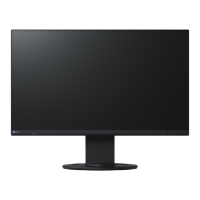
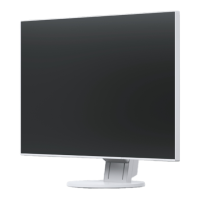
Eizo FlexScan EV2730Q-BK - User Manual

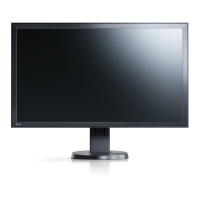
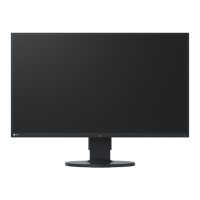
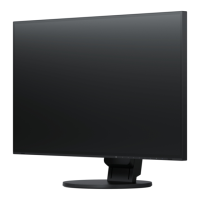
Eizo FlexScan EV2730Q-BK
62 pages
Print Icon
To Next Page IconTo Next Page
Loading...
Important
Please read PRECAUTIONS, this User’s Manual, and the Setup Guide
(separate volume) carefully to familiarize yourself with safe and
effective usage.
Please refer to the Setup Guide for basic information ranging from
connection of the monitor to a PC to using the monitor.
The latest User’s Manual is available for download from our web site:
http://www.eizoglobal.com
Color LCD Monitor
Users Manual

Table of Contents

Questions and Answers

  • M
    Mark MoranSep 12, 2025
    What to do if there are interference patterns on Eizo FlexScan EV2730Q-BK Monitor?
    • A
      Alex Malone DDSSep 12, 2025
      If you notice interference patterns or pressure marks on your Eizo Monitor screen, leave the monitor displaying a white or black screen. This symptom may disappear over time.
  • J
    Justin PowersSep 13, 2025
    How to troubleshoot Eizo FlexScan EV2730Q-BK no audio?
    • M
      Michael LivingstonSep 13, 2025
      If you are not getting any audio output from your Eizo Monitor, first check whether the stereo mini jack cable is connected properly. Then, ensure that the volume is not set to 0. Also, check the audio settings on your PC and within the audio playback software. If you are using a DisplayPort signal input, verify the “Source” setting.
  • M
    Mr. Stuart Camacho Jr.Sep 15, 2025
    Why does my Eizo Monitor have dead pixels?
    • A
      alan73Sep 15, 2025
      This is due to LCD panel characteristics and is not a failure.

Summary

Chapter 1 Introduction

1-3. Basic Operations and Functions

Guides users on fundamental operations like menu navigation, setting adjustments, and exiting menus.

Chapter 2 Adjusting Screens

2-2. Setting the Resolution

Provides step-by-step instructions for changing the screen resolution in different OS.

2-3. Adjusting Color

Covers selecting display modes and performing various color adjustments like brightness, contrast, and temperature.

Chapter 3 Setting Monitor

3-8. Resetting the Monitor to the Default Settings

Guides on resetting color adjustments, EcoView settings, or all monitor settings to factory defaults.

Chapter 4 Power Saving Functions

4-1. Setting Power Saving

Details how to enable/disable power saving modes for the monitor and audio output.

4-3. Enabling; Disabling Automatic Brightness Adjustment

How to use the ambient light sensor for automatic brightness control via Auto EcoView.

4-4. Setting the power saving mode when a person leaves the monitor

Configures the EcoView Sense feature for automatic power saving based on user presence.

Chapter 5 Troubleshooting

5-1. No picture

Addresses issues where the screen remains blank or shows error messages, with possible solutions.

5-2. Imaging problems

Solutions for common display issues like brightness, blurriness, afterimages, and defective pixels.

5-3. Other problems

Covers various other issues like menu access, audio output, EcoView Sense, and USB functionality.

Chapter 6 Reference

6-7. Specifications

Technical specifications of the monitor's hardware, performance, and environmental conditions.

Appendix

LIMITED WARRANTY

Details the terms and conditions of the product warranty, including coverage and exclusions.

Eizo FlexScan EV2730Q-BK Specifications

General IconGeneral
Screen Size27 inches
Panel TypeIPS
Aspect Ratio16:9
Contrast Ratio1000:1
Color Depth8-bit
Refresh Rate60 Hz
Resolution2560 x 1440
Response Time5 ms
Brightness300 cd/m²
Viewing Angle178° horizontal / 178° vertical
Color GamutsRGB
Input TerminalsHDMI, DisplayPort, DVI-D
USB HubYes
VESA MountYes
Weight8.5 kg

Related product manuals