EasyManua.ls Logo

Eizo Foris FS2434-BK - User Manual

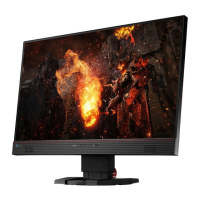
Eizo Foris FS2434-BK
74 pages
Print Icon
To Next Page IconTo Next Page
Loading...
Important
Please read PRECAUTIONS, this User’s Manual, and the Setup Guide
(separate volume) carefully to familiarize yourself with safe and
effective usage.
Please refer to the Setup Guide for basic information ranging from
connection of the monitor to a PC or external device to using the
monitor.
The latest User’s Manual is available for download from our web site:
http://www.eizoglobal.com
Users Manual
Color LCD Monitor

Table of Contents

Questions and Answers

  • B
    Brandon HoustonSep 13, 2025
    Why Eizo Foris FS2434-BK shows message below?
    • J
      Joseph NewmanSep 13, 2025
      To resolve the message appearing on your Eizo monitor, verify that your PC is configured to meet the resolution and vertical scan frequency requirements of the monitor. Try rebooting your PC. Alternatively, select an appropriate setting using the graphics board’s utility.
  • A
    Andrew MorganAug 25, 2025
    How do I adjust the brightness on my Eizo Monitor if the screen is too bright or dark?
    • P
      Patricia LloydAug 25, 2025
      To adjust the brightness on your Eizo monitor, if the screen is too bright or too dark: * Use “Brightness” or “Contrast” in the Setting menu to adjust it. * If the screen is too bright, turn on Auto EcoView and EcoView Optimizer.
  • B
    Belinda Kim MDAug 25, 2025
    What to do if Eizo Foris FS2434-BK power indicator is lighting orange?
    • K
      Kelly MccallAug 26, 2025
      If the power indicator on your Eizo monitor is orange, check the signal cable connection, and ensure the external device connected to the monitor is turned on. Try operating the mouse or keyboard, or switch the input signal. If connected to an external device, alter the power-saving mode exit method by turning the power off, pressing the monitor's power button for five seconds or more, and then turning it back on. If using HDMI, change the authentication method by powering off, pressing the monitor for five seconds or more, and then turning it on again.
  • C
    Christopher SmithSep 23, 2025
    How to fix whitish or blackish screen on Eizo Foris FS2434-BK Monitor (for HDMI input)?
    • C
      ccarterSep 23, 2025
      If your Eizo monitor displays a whitish or blackish screen when using HDMI input, use the Screen – Color Space settings under the Setting menu to adjust it.
  • K
    Keith MasonSep 13, 2025
    Why Eizo Foris FS2434-BK volume of the speaker with built-in amplifier attached to the line output connector cannot be adjusted?
    • V
      Victoria GomezSep 13, 2025
      The volume of an external speaker cannot be adjusted directly through this Eizo product. Please adjust the volume on the external speaker itself.
  • K
    Kathryn HardySep 23, 2025
    What to do for green/red/blue/white dots or defective dots remain on Eizo Foris FS2434-BK screen?
    • G
      Gregory DeleonSep 23, 2025
      This is due to LCD panel characteristics and is not a failure.
  • C
    Carrie BurnsSep 6, 2025
    Why won't my Eizo Foris FS2434-BK change to the power saving mode?
    • T
      tranjodiSep 6, 2025
      If your Eizo monitor will not change to the power saving mode: * When all the conditions below are met, the monitor does not change to the power saving mode even if “Power Save” is set to “Enable”: “Power Save” for Sound is set to “Sound On” In the mute state In these cases, reset the mute. * Perform the procedure described under “To change the exiting method from the power saving mode”.
  • M
    Matthew SmithSep 7, 2025
    Why are there green, red, blue, or white dots on my Eizo Foris FS2434-BK screen?
    • C
      crossSep 7, 2025
      This is due to LCD panel characteristics and is not a failure.
  • J
    James BarnettSep 23, 2025
    How to fix noise appears on Eizo Monitor screen?
    • K
      Kevin RiceSep 23, 2025
      To resolve the noise on your Eizo monitor screen, set “Overdrive” to “Off” in the Setting menu. Note that when entering the HDCP signals, the normal images may not be displayed immediately.
  • N
    Nathan BushAug 31, 2025
    Why is the screen whitish or blackish on my Eizo Monitor when using HDMI input?
    • B
      Bruce MillerAug 31, 2025
      If the screen is whitish or blackish on your Eizo monitor when using HDMI input, use “Screen” – “Color Space” under the Setting menu to adjust it.

Eizo Foris FS2434-BK Specifications

General IconGeneral
Screen Size24 inches
Panel TypeIPS
Refresh Rate60 Hz
Brightness250 cd/m²
Contrast Ratio1000:1
Response Time5 ms
ConnectivityHDMI, DisplayPort, DVI-D
Built-in SpeakersYes
USB HubYes
Resolution1920 x 1080
Color GamutsRGB
Viewing Angle178° (H / V)
VESA Mount100 x 100 mm

Related product manuals