EasyManua.ls Logo

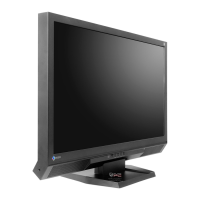
Eizo FORIS FS2434 - User Manual

Eizo FORIS FS2434
76 pages
Print Icon
To Next Page IconTo Next Page
Loading...
Important
Please read PRECAUTIONS, this User’s Manual, and the Setup Guide
(separate volume) carefully to familiarize yourself with safe and
effective usage.
Please refer to the Setup Guide for basic information ranging from
connection of the monitor to a PC or external device to using the
monitor.
The latest User’s Manual is available for download from our web site:
http://www.eizo.com
Users Manual
Color LCD Monitor

Table of Contents

Other manuals for Eizo FORIS FS2434

Questions and Answers

  • H
    heather48Sep 13, 2025
    Why Eizo FORIS FS2434 shows message below?
    • J
      Jaime AllenSep 13, 2025
      To resolve the message appearing on your Eizo monitor, verify that your PC is configured to meet the resolution and vertical scan frequency requirements of the monitor. Try rebooting your PC. Alternatively, select an appropriate setting using the graphics board’s utility.
  • S
    Stephanie ZimmermanAug 25, 2025
    How do I adjust the brightness on my Eizo FORIS FS2434 Monitor if the screen is too bright or dark?
    • A
      Andrew GoodmanAug 25, 2025
      To adjust the brightness on your Eizo monitor, if the screen is too bright or too dark: * Use “Brightness” or “Contrast” in the Setting menu to adjust it. * If the screen is too bright, turn on Auto EcoView and EcoView Optimizer.
  • W
    wholmesAug 25, 2025
    What to do if Eizo FORIS FS2434 Monitor power indicator is lighting orange?
    • J
      Jessica JordanAug 26, 2025
      If the power indicator on your Eizo monitor is orange, check the signal cable connection, and ensure the external device connected to the monitor is turned on. Try operating the mouse or keyboard, or switch the input signal. If connected to an external device, alter the power-saving mode exit method by turning the power off, pressing the monitor's power button for five seconds or more, and then turning it back on. If using HDMI, change the authentication method by powering off, pressing the monitor for five seconds or more, and then turning it on again.
  • M
    Michael RoachSep 23, 2025
    How to fix whitish or blackish screen on Eizo Monitor (for HDMI input)?
    • G
      greenjoshuaSep 23, 2025
      If your Eizo monitor displays a whitish or blackish screen when using HDMI input, use the Screen – Color Space settings under the Setting menu to adjust it.
  • T
    tsmithSep 13, 2025
    Why Eizo Monitor volume of the speaker with built-in amplifier attached to the line output connector cannot be adjusted?
    • S
      Sherry StephensSep 14, 2025
      The volume of an external speaker cannot be adjusted directly through this Eizo product. Please adjust the volume on the external speaker itself.
  • E
    Emily GarciaSep 22, 2025
    What to do for green/red/blue/white dots or defective dots remain on Eizo FORIS FS2434 screen?
    • A
      Ann SingletonSep 22, 2025
      This is due to LCD panel characteristics and is not a failure.
  • S
    stephanie73Sep 6, 2025
    Why won't my Eizo FORIS FS2434 change to the power saving mode?
    • L
      Linda WongSep 6, 2025
      If your Eizo monitor will not change to the power saving mode: * When all the conditions below are met, the monitor does not change to the power saving mode even if “Power Save” is set to “Enable”: “Power Save” for Sound is set to “Sound On” In the mute state In these cases, reset the mute. * Perform the procedure described under “To change the exiting method from the power saving mode”.
  • A
    Andrew AndersonSep 7, 2025
    Why are there green, red, blue, or white dots on my Eizo FORIS FS2434 screen?
    • Y
      ywilsonSep 7, 2025
      This is due to LCD panel characteristics and is not a failure.
  • M
    Marie DiazSep 23, 2025
    How to fix noise appears on Eizo FORIS FS2434 screen?
    • B
      briveraSep 23, 2025
      To resolve the noise on your Eizo monitor screen, set “Overdrive” to “Off” in the Setting menu. Note that when entering the HDCP signals, the normal images may not be displayed immediately.
  • R
    raymondrobertsonAug 31, 2025
    Why is the screen whitish or blackish on my Eizo FORIS FS2434 Monitor when using HDMI input?
    • H
      hrodgersAug 31, 2025
      If the screen is whitish or blackish on your Eizo monitor when using HDMI input, use “Screen” – “Color Space” under the Setting menu to adjust it.

Summary

Chapter 1 Introduction

1-1. Features

Overview of the monitor's key features and capabilities.

1-2. Controls and Functions

Description of monitor controls and their functions on the front panel.

Chapter 2 Adjusting Screens

2-2. Setting the Resolution

Step-by-step guide to change monitor resolution on various OS.

2-3. Adjusting Color

How to select display modes (Color Mode) for optimal viewing.

2-4. Setting the Color Space for the HDMI input signal

How to specify color space for HDMI input signals.

2-5. Screen Size Changing

Adjusting the screen size for PC and video signals.

Chapter 3 Setting Monitor

3-8. Resetting the Monitor to the Default Settings

How to reset color adjustments or all settings to factory defaults.

Chapter 4 Using Smart Function

4-2. Setting “Smart Resolution”

How to adjust image sharpness, skin tone, and text clarity.

4-3. Setting “Smart Insight 2”

How to improve dark area visibility and color saturation.

Chapter 5 Power Saving Functions

5-1. Setting Power Saving

How to enable or disable monitor power saving modes.

5-3. Enabling;Disabling Automatic Brightness Adjustment “Auto EcoView”

How to automatically adjust screen brightness based on ambient light.

5-4. Reducing Glare “EcoView Optimizer”

How to optimize brightness and reduce glare using EcoView Optimizer.

Chapter 6 Connecting Cables

Chapter 7 Troubleshooting

7-1. No picture

Troubleshoots issues related to the display not showing an image or power indicator status.

7-2. Imaging problems

Solves common image display issues like brightness, blurriness, and color problems.

7-3. Other problems

Addresses other issues like no audio, unadjustable volume, or function errors.

LIMITED WARRANTY

Eizo FORIS FS2434 Specifications

General IconGeneral
BrandEizo
ModelFORIS FS2434
CategoryMonitor
LanguageEnglish

Related product manuals