EasyManua.ls Logo

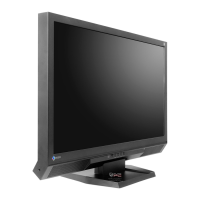
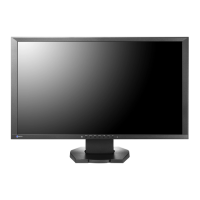
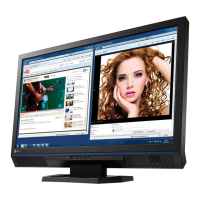
Eizo FORIS FS2332 - User Manual

Eizo FORIS FS2332
63 pages
Print Icon
To Next Page IconTo Next Page
Loading...
Important
Please read PRECAUTIONS, this Users Manual, and Setup Guide
(separate volume) carefully to familiarize yourself with safe and
effective usage.
Please refer to the Setup Guide for basic information ranging from
connection of the monitor to a PC or external device to using the
monitor.
The latest Users Manual is available for download from our web site:
http://www.eizo.com
Cover

Table of Contents

Other manuals for Eizo FORIS FS2332

Questions and Answers

  • R
    Rebecca HarrisAug 19, 2025
    How to adjust brightness on Eizo Monitor?
    • P
      Phillip LeAug 19, 2025
      If your Eizo monitor screen appears too bright or too dark, you can adjust it using the “Brightness” or “Contrast” settings in the Setting menu. Also, consider turning on the Auto EcoView function, which automatically adjusts the screen brightness based on the environmental brightness.
  • A
    Angela ColonAug 21, 2025
    Why my Eizo FORIS FS2332 Monitor has no picture?
    • J
      jonathanvincentAug 21, 2025
      If your Eizo monitor displays no picture and the power indicator does not light, check whether the power cord is properly connected and ensure the main power switch is turned on. If the problem persists, try turning off the main power, and then turning it on again after a few minutes.
  • A
    Anthony MorrowAug 23, 2025
    Why Eizo FORIS FS2332 auto adjustment function doesn't work?
    • C
      Carrie ReedAug 23, 2025
      The auto adjustment function of your Eizo monitor does not work during digital signal input. This function is intended for use on the Macintosh and on AT-compatible PC running Windows. It does not work properly when an image is displayed only on a part of the screen (command prompt window, for example) or when a black background (wallpaper, etc.) is in use. This function also does not work correctly with some graphics boards.
  • G
    Gordon OwensAug 26, 2025
    How to fix incorrect color on Eizo FORIS FS2332 Monitor HDMI input?
    • W
      Wendy BoyerAug 26, 2025
      If the color shown on your Eizo monitor is not correct when using HDMI input, try changing the color space of the video signal in “Screen” - “Color Space” under the Setting menu.
  • Z
    Zachary TaylorAug 28, 2025
    How to fix blurred characters on Eizo FORIS FS2332?
    • B
      Benjamin PenaAug 28, 2025
      If your Eizo monitor displays characters that appear blurred, ensure that the PC is configured to meet the resolution and vertical scan frequency requirements of the monitor. You can also adjust the “Smoothing” setting in the Setting menu.
  • O
    opettyAug 30, 2025
    How to fix no audio output on Eizo FORIS FS2332 Monitor?
    • N
      nolsonAug 30, 2025
      If you are experiencing no audio output from your Eizo monitor, check whether the stereo mini jack cable is properly connected and ensure the volume is not set to 0. Also, verify the settings of the current external device and audio playback software. If using HDMI input, check the external device and the “Source” setting in the Setting menu.
  • M
    Michele SantiagoSep 1, 2025
    How to prevent afterimages on Eizo FORIS FS2332 Monitor?
    • D
      donnajohnsonSep 1, 2025
      If your Eizo monitor displays afterimages, avoid displaying the same image for a long time. Use the screen saver or power save function to prevent displaying static images for extended periods.
  • A
    Alan MontesSep 3, 2025
    Why is my Eizo FORIS FS2332 screen whitish?
    • B
      Brandy MillerSep 3, 2025
      If your Eizo monitor screen is whitish or blackish, use “Color Space” of the “Screen” submenu (for the HDMI input), “Black Level”, and “Contrast” in the Setting menu to adjust it.
  • J
    john84Sep 5, 2025
    How to remove noise from Eizo Monitor screen?
    • T
      tammy15Sep 5, 2025
      If noise appears on the screen of your Eizo monitor, set “Overdrive” to “Off” in the Setting menu. When entering the signals of HDCP system, the normal images may not be displayed immediately.
  • D
    Derrick WebbSep 7, 2025
    How to correct display position on Eizo FORIS FS2332 Monitor?
    • J
      Jeremy PetersonSep 7, 2025
      If the display position on your Eizo monitor is incorrect, use the “Position” setting in the Setting menu to correct the image position. If the problem persists, use the graphics board’s utility to change the display position.

Eizo FORIS FS2332 Specifications

General IconGeneral
Screen Size23 inch
Resolution1920 x 1080
Panel TypeIPS
Brightness250 cd/m²
Contrast Ratio1000:1
Viewing Angles178° horizontal / 178° vertical
ConnectivityHDMI, DVI-D, DisplayPort
Aspect Ratio16:9
Color Support16.7 million colors

Related product manuals