EasyManua.ls Logo

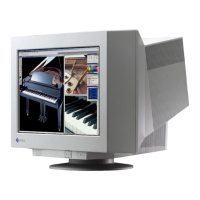
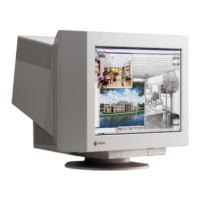
Eizo FLEXSCAN T1751 - User Manual

Eizo FLEXSCAN T1751
57 pages
Print Icon
To Next Page IconTo Next Page
Loading...
Important
Please read PRECAUTIONS, this Users Manual, and Setup Guide
(separate volume) carefully to familiarize yourself with safe and
effective usage.
Please refer to the Setup Guide for basic information ranging from
connection of the monitor to a PC to using the monitor.
The latest Users Manual is available for download from our web site:
http://www.eizo.com
Cover

Table of Contents

Other manuals for Eizo FLEXSCAN T1751

Questions and Answers

  • P
    Paul JohnsonAug 13, 2025
    How to adjust brightness on Eizo FLEXSCAN T1751?
    • P
      Patricia LoweAug 13, 2025
      If your Eizo Monitor screen is too bright or too dark, use the or settings in the Adjustment menu to fine-tune the display. Alternatively, turn on the Auto EcoView function for automatic optimization.
  • J
    Jason MolinaAug 16, 2025
    What to do if my Eizo FLEXSCAN T1751 has no picture and the power indicator is lighting orange?
    • A
      anthony56Aug 16, 2025
      If your Eizo Monitor displays no picture and the power indicator is orange, try the following: * Switch the input signal using the designated button. * Ensure your PC is turned on. * Try operating the mouse or keyboard.
  • H
    hroweAug 20, 2025
    Why does my Eizo FLEXSCAN T1751 have no picture and the power indicator does not light?
    • H
      hancockjenniferAug 20, 2025
      If your Eizo Monitor has no picture and the power indicator doesn't light up, check that the power cord is properly connected. Also, make sure you press the power button.
  • C
    Catherine RodriguezAug 25, 2025
    What to do if my Eizo Monitor has no picture and the power indicator is lighting blue?
    • C
      Christopher DelgadoAug 25, 2025
      If your Eizo Monitor displays no picture but the power indicator is blue, increase the , , and/or settings in the Adjustment menu.
  • M
    Mr. Anthony GutierrezAug 28, 2025
    What to do if a message appears on my Eizo Monitor?
    • D
      Daniel FowlerAug 28, 2025
      If your Eizo Monitor displays a message on the screen, ensure that the PC is turned on and the signal cable is properly connected. You may also need to switch the input signal using the appropriate button.
  • A
    Alan LiAug 31, 2025
    How to prevent afterimages on Eizo FLEXSCAN T1751 Monitor?
    • K
      Kelsey JonesAug 31, 2025
      To prevent afterimages on your Eizo Monitor, avoid displaying the same static image for extended periods. Utilize a screen saver or the power save function to vary the displayed content.
  • L
    Lori SteinSep 4, 2025
    What to do if interference patterns or pressure marks remain on the screen of my Eizo FLEXSCAN T1751 Monitor?
    • A
      Angela YatesSep 4, 2025
      If you notice interference patterns or pressure marks on your Eizo Monitor screen, leave the monitor displaying a white or black screen. This may resolve the issue over time.
  • B
    Brittany PetersonSep 8, 2025
    Why does noise appear on the screen of my Eizo FLEXSCAN T1751?
    • S
      simmonszacharySep 8, 2025
      When using HDCP signals with your Eizo Monitor, normal images may not display immediately. This is normal behavior during the signal acquisition process.

Eizo FLEXSCAN T1751 Specifications

General IconGeneral
BrandEizo
ModelFLEXSCAN T1751
CategoryMonitor
LanguageEnglish

Related product manuals