
 To Next Page
J
James BurnsSep 9, 2025
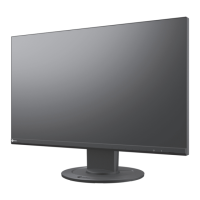
How to remove noise from Eizo FlexScan EV3237 screen?
- TTiffany BoothSep 9, 2025
If noise appears on your Eizo monitor screen, set “Overdrive” to “Off” in the inputting menu.

How to remove noise from Eizo FlexScan EV3237 screen?
If noise appears on your Eizo monitor screen, set “Overdrive” to “Off” in the inputting menu.
What to do if the Eizo FlexScan EV3237 Monitor power indicator is orange?
If the power indicator on your Eizo monitor is orange, try these steps: * Switch the input signal. * Move the mouse or press any key on the keyboard. * Verify that your PC is turned on. * If connected via DisplayPort, attempt to change the DisplayPort version. * If connected via HDMI, try changing the “HDMI HPD Control” setting to “On”. * If EcoView Sense is enabled, ensure you are close to the monitor; if not, move the mouse or press a key.
Why are USB devices not working on my Eizo FlexScan EV3237?
If USB devices connected to your Eizo monitor aren't working, consider these solutions: * Ensure the USB cable is correctly connected. * If a device is connected to the “CHARGE” port, check the “USB CHARGE Port” setting; ensure it is not set to “Charging Only”. * Try a different USB port. * Reboot your PC. * Check that your PC and OS are USB compliant. * Check the PC’s BIOS setting for USB when using Windows.
What to do if Eizo Monitor says input signal is out of range?
If your Eizo monitor displays a message indicating that the input signal is out of the specified frequency range, take these steps: * Check if your PC is configured to meet the monitor's resolution and vertical scan frequency requirements. * Reboot your PC. * Select an appropriate setting using the graphics board’s utility.
Why EcoView Sense is not working correctly on my Eizo FlexScan EV3237 Monitor?
If the EcoView Sense feature on your Eizo monitor isn't working correctly, consider the following: * Check the monitor's installation environment for wind, heat sources, or obstacles. * Ensure the sensor is clean. * Make sure you are directly in front of the monitor. * In high-temperature conditions, the monitor may not recover from power saving mode; try turning it off and on. * Increase the detection sensitivity value in the EcoView Sense settings.
What does it mean when Eizo Monitor power indicator is flashing orange?
If the power indicator on your Eizo monitor is flashing orange, it indicates that the device connected to the DisplayPort has a problem. Resolve the issue, turn off the monitor, and then turn it back on.
Why brightness controls are disabled on Eizo FlexScan EV3237 Monitor?
Brightness adjustment may not be possible when the installation environment of the monitor is excessively bright or dark. In this case, try changing the maximum and minimum values for “Ambient Light” in the Auto EcoView advanced settings or set Auto EcoView to “Off”.
Why is text blurred in PbyP/PinP mode on Eizo FlexScan EV3237?
If text appears blurred or smudged during PbyP/PinP display on your Eizo monitor, try changing the text color or background color. If accurate color display is required, use the single screen display mode.
How to fix blurred text on Eizo Monitor?
If the text on your Eizo monitor appears blurred, try these solutions: * Ensure your PC is configured to meet the monitor's resolution and vertical scan frequency requirements. * If using a resolution other than recommended, adjust the “Super Resolution” setting in the Setting menu.
How to troubleshoot no audio output on Eizo FlexScan EV3237 Monitor?
If there is no audio output from your Eizo monitor, try the following: * Ensure the stereo mini jack cable is properly connected. * Check that the volume is not set to 0. * Verify that your PC and audio playback software are configured correctly. * Check the “Source” setting when using DisplayPort or HDMI input.
Procedures for keeping the monitor clean.
Advice for user comfort and eye strain.
Lists the monitor's primary capabilities and specifications.
Describes the physical buttons, sensors, and indicators on the monitor.
Details the various resolutions the monitor can display.
Step-by-step guide to changing the monitor's resolution.
Explains how to navigate menus using the monitor's buttons.
How to select the active video input source.
Customizing the display's color and appearance settings.
Setting up simultaneous multi-window display.
Utilizing EcoView functions to reduce power consumption.
Fine-tuning the monitor's backlight intensity.
Controlling the speaker or headphone audio level.
Navigating and interacting with the advanced settings menu.
Detailed descriptions of advanced color and signal adjustment options.
How to access and perform basic operations in the administrator menu.
Detailed explanation of administrator-specific settings.
Solutions for scenarios where the screen remains blank.
Addressing issues like brightness, text blur, and afterimages.
Solutions for non-display issues like menu access or USB functionality.
Instructions for mounting the monitor with external arms.
Procedures for removing and reattaching the monitor's stand base.
Guide for organizing monitor cables using the provided holder.
Connecting peripheral devices via the monitor's USB ports.
Comprehensive technical details of the monitor.
Lists registered trademarks and copyright details.
Statements regarding compliance with FCC and Canadian regulations.
Guidelines for ergonomic setup and choosing monitor arms.
Explains the terms and conditions of the product warranty.
Instructions for environmentally responsible product disposal.
Information regarding hazardous substance compliance in China.
 General
| 3D | No |
|---|---|
| Pixel pitch | 0.1815 x 0.1815 mm |
| Aspect ratio | 16:9 |
| Screen shape | Flat |
| Display diagonal | 31.5 \ |
| Display technology | LED |
| Viewable size, vertical | 392 mm |
| Contrast ratio (typical) | 1000:1 |
| Display number of colors | 16.78 million colors |
| Viewable size, horizontal | 696.9 mm |
| Display brightness (typical) | 300 cd/m² |
| Supported graphics resolutions | 720 x 400, 800 x 600 (SVGA), 1280 x 1024 (SXGA), 1680 x 1050 (WSXGA+), 1920 x 1200 (WUXGA), 2560 x 1440, 3840 x 2160 |
| On/off switch | Yes |
| DVI-D ports quantity | 1 |
| Headphone connectivity | 3.5 mm |
| USB upstream port type | USB Type-B |
| VGA (D-Sub) ports quantity | 0 |
| USB Type-A downstream ports quantity | 3 |
| Product color | Black |
| Market positioning | - |
| Tilt angle range | -5 - 35 ° |
| Panel mounting interface | 100 x 100 mm |
| On Screen Display (OSD) languages | CHI (SIMPL), CHI (TR), DEU, ENG, ESP, FRE, ITA, JPN, SWE |
| AC input voltage | 100 - 240 V |
| AC input frequency | 50 - 60 Hz |
| Power consumption (max) | 105 W |
| Annual energy consumption | 57 kWh |
| Power consumption (standby) | 0.5 W |
| Power consumption (typical) | 39 W |
| Operating temperature (T-T) | 5 - 35 °C |
| Operating relative humidity (H-H) | 20 - 80 % |
| Sustainability certificates | EPEAT Gold, ENERGY STAR |
 Weight and Dimensions
| Depth (with stand) | 245 mm |
|---|---|
| Height (with stand) | 578 mm |
| Weight (with stand) | 10600 g |
| Depth (without stand) | 59.5 mm |
| Width (without stand) | 731 mm |
| Height (without stand) | 428 mm |
| Weight (without stand) | 7800 g |