39 / EN
User Menu
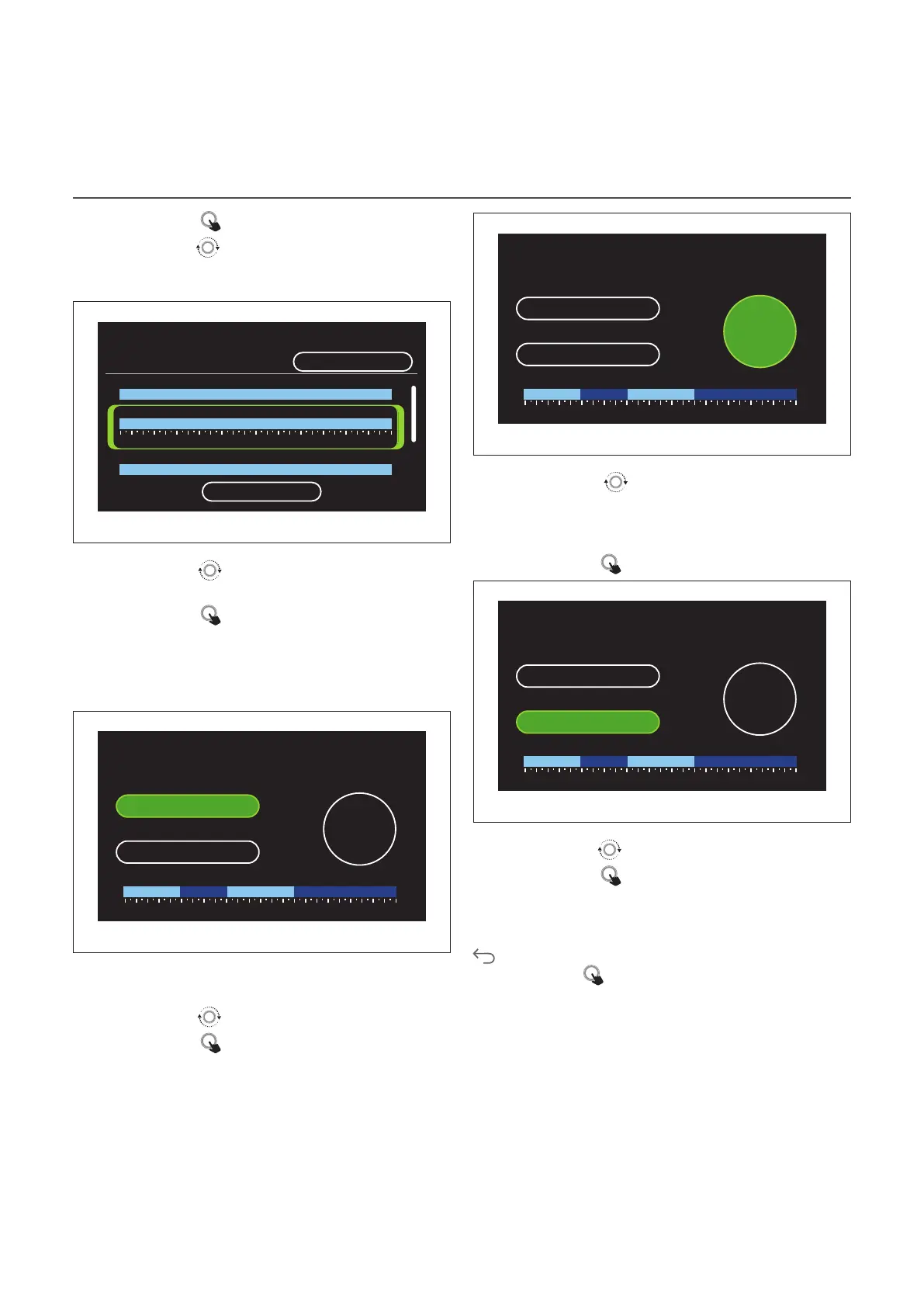
– Press the selector to confirm “Scenario”.
– Turn the selector
to move to the selection of the day of
the week to be scheduled.
Selecting the day of the week
DHW
Scenario
Free
55°
55°
0 2 4 6 8 10 12 16 20 14 18 22 24
Sunday
Monday
Tuesday
55°
Save
Fig. 37
– Turn the selector
to scroll the days of the week. A pre-
view of the current time schedule will be displayed.
– Press the selector
to select the day.
– In this way you can define the time slot for the selected
day.
Defining the time slot
DHW
Scenario Free Sunday
Start 09:00
35°
,0
End 15:00
35,0° 55,0° 35,0° 55,0°
0 2 4 6 8 10 12 16 20 14 18 22 24
Fig. 38
Once the day of the week has been selected, the time slot
scheduling page opens up.
– Turn the selector
to change the “Start” time.
– Press the selector
to confirm.
DHW
Scenario Free Sunday
Start 09:00
35°
,0
End 15:00
35,0° 55,0° 35,0° 55,0°
0 2 4 6 8 10 12 16 20 14 18 22 24
Fig. 39
– Turn the selector
to change the temperature of the
corresponding time slot. You can select the set-point
temperature by choosing between two values: com-
fort or reduced.
– Press the selector
to confirm.
DHW
Scenario Free Sunday
Start 09:00
35°
,0
End 15:00
35,0° 55,0° 35,0° 55,0°
0 2 4 6 8 10 12 16 20 14 18 22 24
Fig. 40
– Turn the selector
to change the “End” time.
– Press the selector
to confirm.
Up to 4 daily comfort time slots can be selected.
To return to one of the previous items, press the “Back” button
.
Press the selector to go to the next page.


 To Next Page
 Loading...