www.elcometer.com
en-18
R
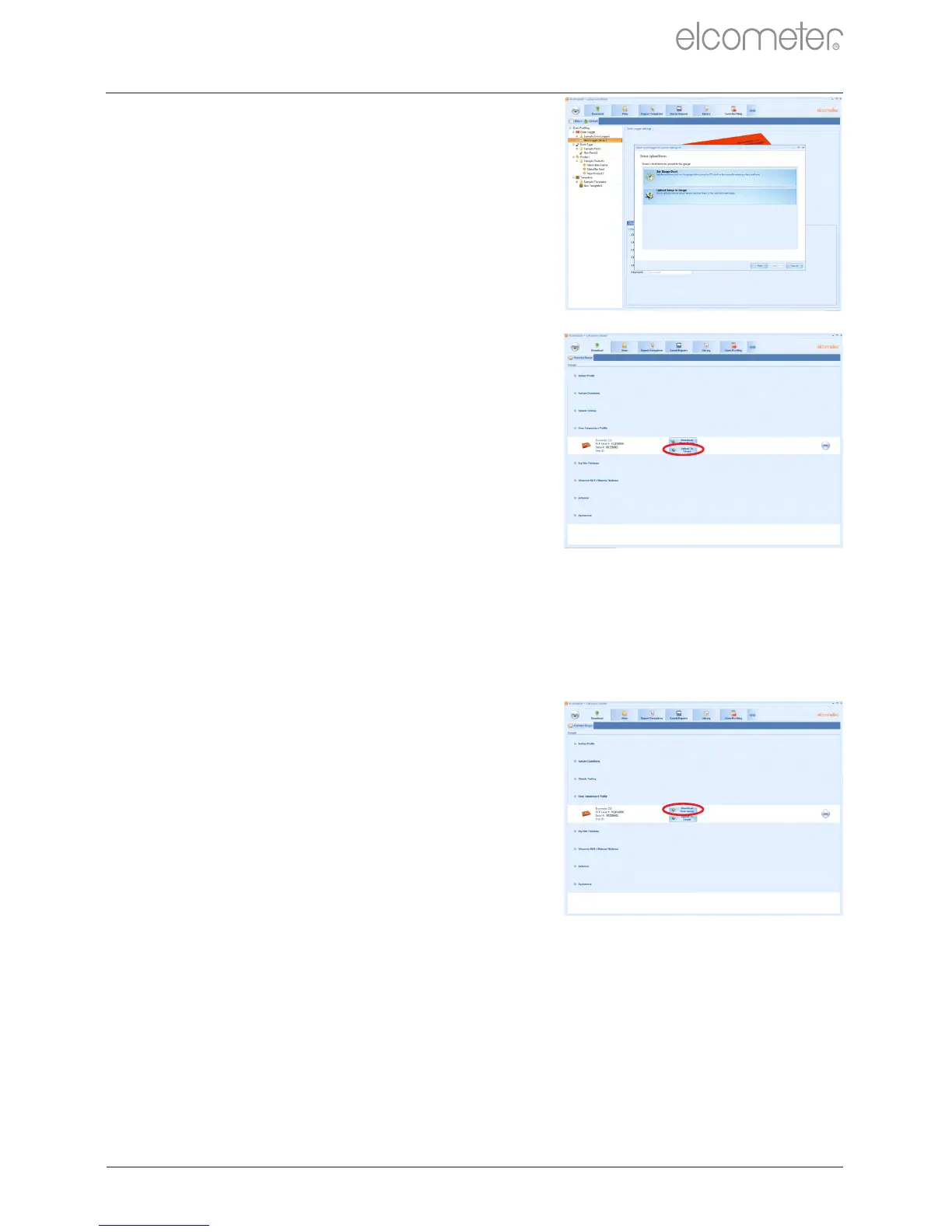
5 A window will appear with the
options to ‘Set Gauge Clock’
(recommended) and ‘Upload
Setup to Gauge’.
6 Click ‘Upload Setup to Gauge’ to
upload the selected settings file or
template.
To upload via the ‘Download’ Tab:
1 Connect the logger to the PC using
the USB cable supplied and click
on the ‘Download’ tab.
®
2 Connect the logger to ElcoMaster
using the ‘Connect Gauge’ wizard.
3 Click on ‘Upload to Gauge’ and
follow the on-screen instructions.
A.7 DOWNLOADING DATA
When one or more ‘runs’ have been recorded, the data can be
downloaded to PC for further analysis and reporting.
To download data:
1 Connect the logger to the PC using
the USB cable supplied and click
on the ‘Download’ tab.
®
2 Connect the logger to ElcoMaster
using the ‘Connect Gauge’ wizard.
3 Click on ‘Download from Gauge’
and follow the on-screen
instructions.
® ®
Data can be downloaded to an ElcoMaster batch file, Excel
spreadsheet or text file.
®
Note: To view the data in ElcoMaster and generate reports using the report wizard,
®
the data must be downloaded to an ElcoMaster batch file.
®
APPENDIX A: USING ELCOMASTER (continued)



 To Next Page