The Download Wizard will now
guide the user through the simple
download readings process.
ElcoMaster™ 2.0 allows users to
download their gauge readings:
Directly into ElcoMaster™ 2.0
Di re ct ly into a n Ex ce l
Spreadsheet, bypassing
ElcoMaster™ 2.0
into a text file for use in other
software programs, or
into a CQATK XML file
Select the appropriate option
Select or create a new project
folder as required (ElcoMaster
Batch File users)
Users wishing to export directly into
Excel will also be asked to select a
single or multiple spreadsheet
option. Single; all batches selected
will be downloaded into a single
spreadsheet. Multiple; each batch
will be downloaded into a separate
spreadsheet tab.
Select one or more individual
batches or click on ‘All Files’ and
press ‘Next >’
Downloading Data from the Elcometer 130 (T)
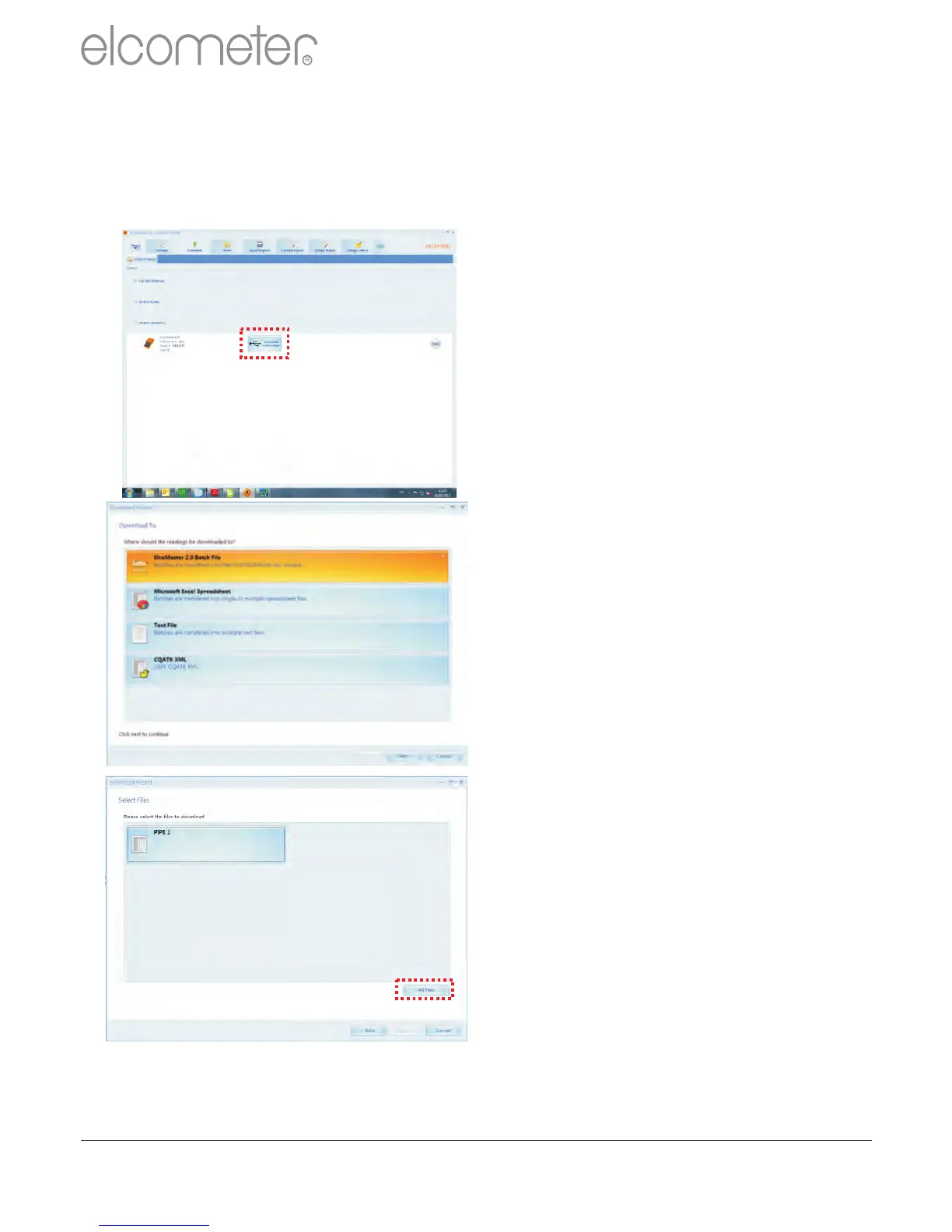
Once the gauge has been connected to ElcoMaster™ 2.0 (see pages
34 - 36), switch on your gauge and click the ‘Download from Gauge’
button for the relevant gauge and connection method.
R
en
www.elcometer.com
37
When downloading data into ElcoMaster™ 2.0 (as opposed to directly into
a spreadsheet or a text file), downloaded data is stored in Projects -
allowing users to clearly identify inspections.


 To Next Page