Doc# E145701 6-1
6: Using the Shark® 100 Meter
Electro Industries/GaugeTech
™
6: Using the Shark® 100/50 Meter
If you have a Shark® 100/100B/50/50B meter, you can use the Elements and
Buttons on the meter’s face to view meter readings, reset and/or configure the meter,
and perform related functions. Since the Shark® 100T/100BT transducer does not
have a faceplate, you configure the transducer through communication (see Chapter
5 for an explanation of meter/transducer communication options) using Communica-
torPQA® software. You can also use this software to configure the Shark® 100/100B/
50/50B meters through communication.
The following sections explain meter programming, first by using the faceplate and
then with CommunicatorPQA® software.
6.1: Programming the Shark® 100/100B/50/50B Meter Using the
Faceplate
The following sections explain meter programming using the buttons and elements on
the meter’s faceplate.
6.1.1: Understanding Meter Face Elements
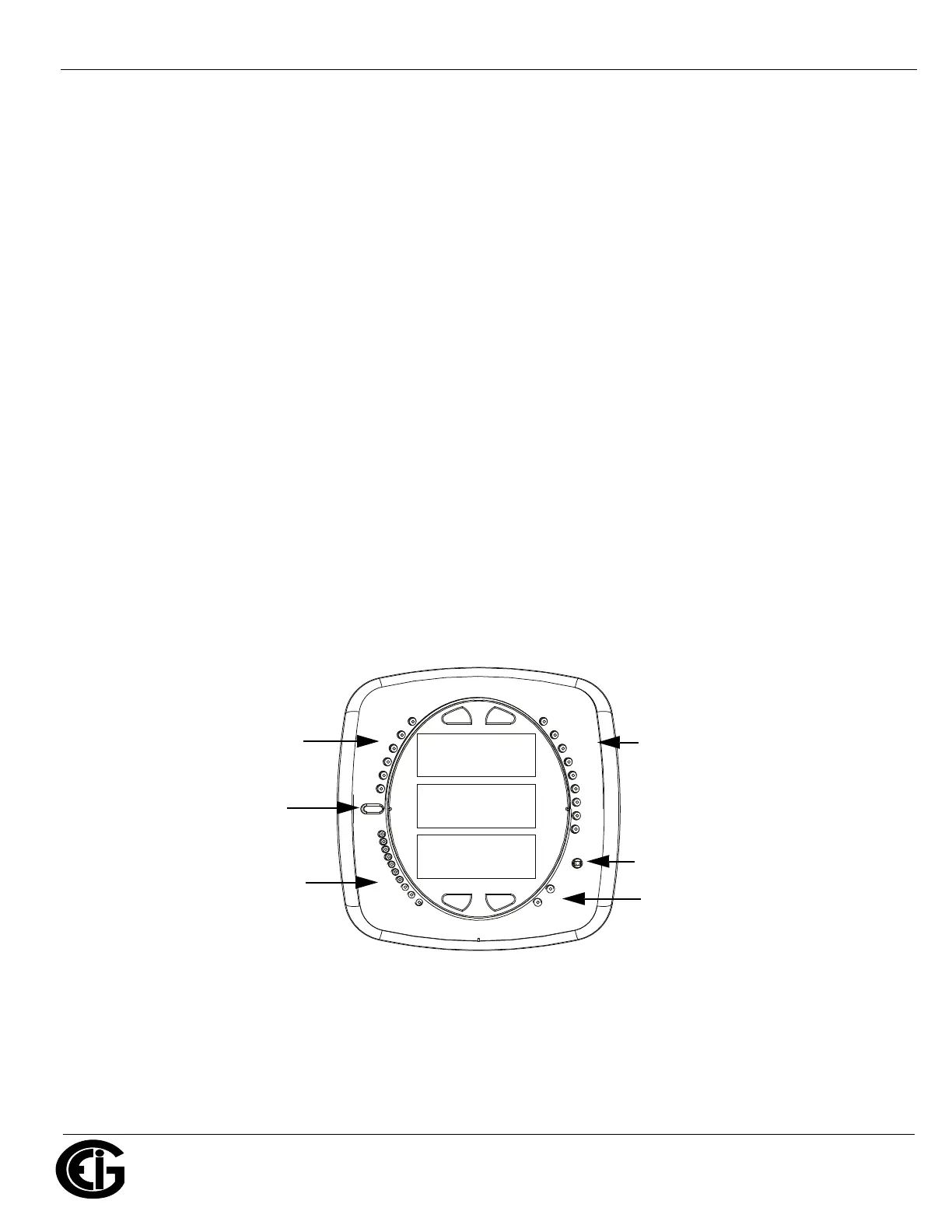
Figure 6.1: Faceplate with Elements
The meter face features the following elements:
• Reading Type Indicator: e.g., Max (The Shark® 50/50B meter has Max and Min
only.)
0000
-
-
-
A
B
C
MENU ENTER
MAX
MIN
LM1
LM2
%THD
PRG
VOLTS L-N
VOLTS L-L
AMPS
WNARP
VA/Hz
lrDA
Wh
VARh
VAh
120%-
90%-
60%-
30%-
%LOAD
MEGA
KILO
Wh Pulse
IrDA Com
Port
Reading
Type
Indicator
Parameter
Designator
Watt-hour
Test Pulse
Scaling
Factor
% of Load
Bar


 To Next Page