Lesson 1 Add Libraries and Open Serial Monitor
Installing Additional Arduino Libraries
Once you are comfortable with the Arduino software and using the built-in functions,
you may want to extend the ability of your Arduino with additional libraries.
What are Libraries?
Libraries are a collection of code that makes it easy for you to connect to a sensor,
display, module, etc. For example, the built-in LiquidCrystal library makes it easy to
talk to character LCD displays. There are hundreds of additional libraries available
on the Internet for download. The built-in libraries and some of these additional
libraries are listed in the reference. To use the additional libraries, you will need to
install them.
How to Install a Library
Using the Library Manager
To install a new library into your Arduino IDE you can use the Library Manager
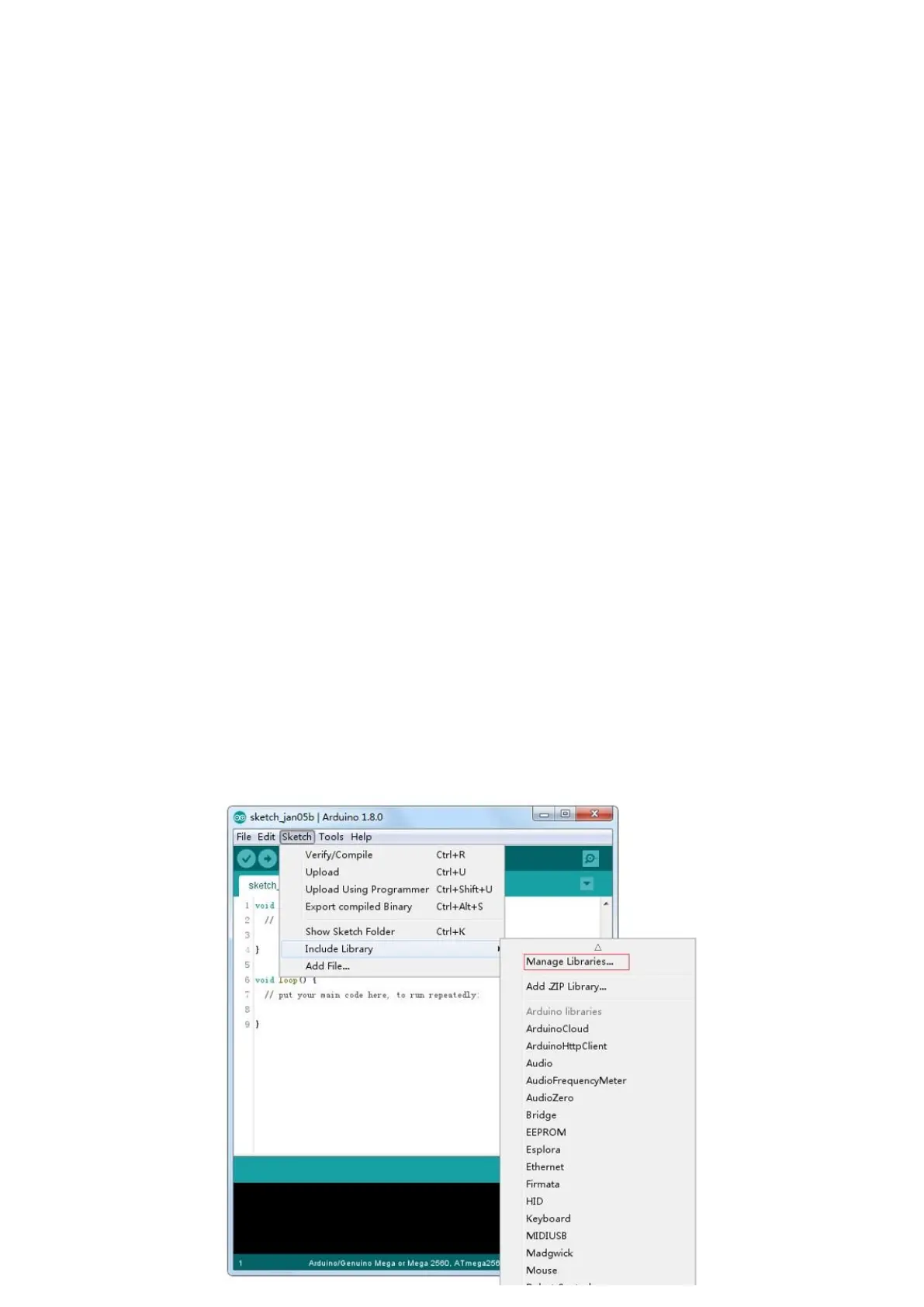
(available from IDE version 1.8.0). Open the IDE and click to the "Sketch" menu and
then Include Library > Manage Libraries.


 To Next Page