17
Operating Your Television
Caption
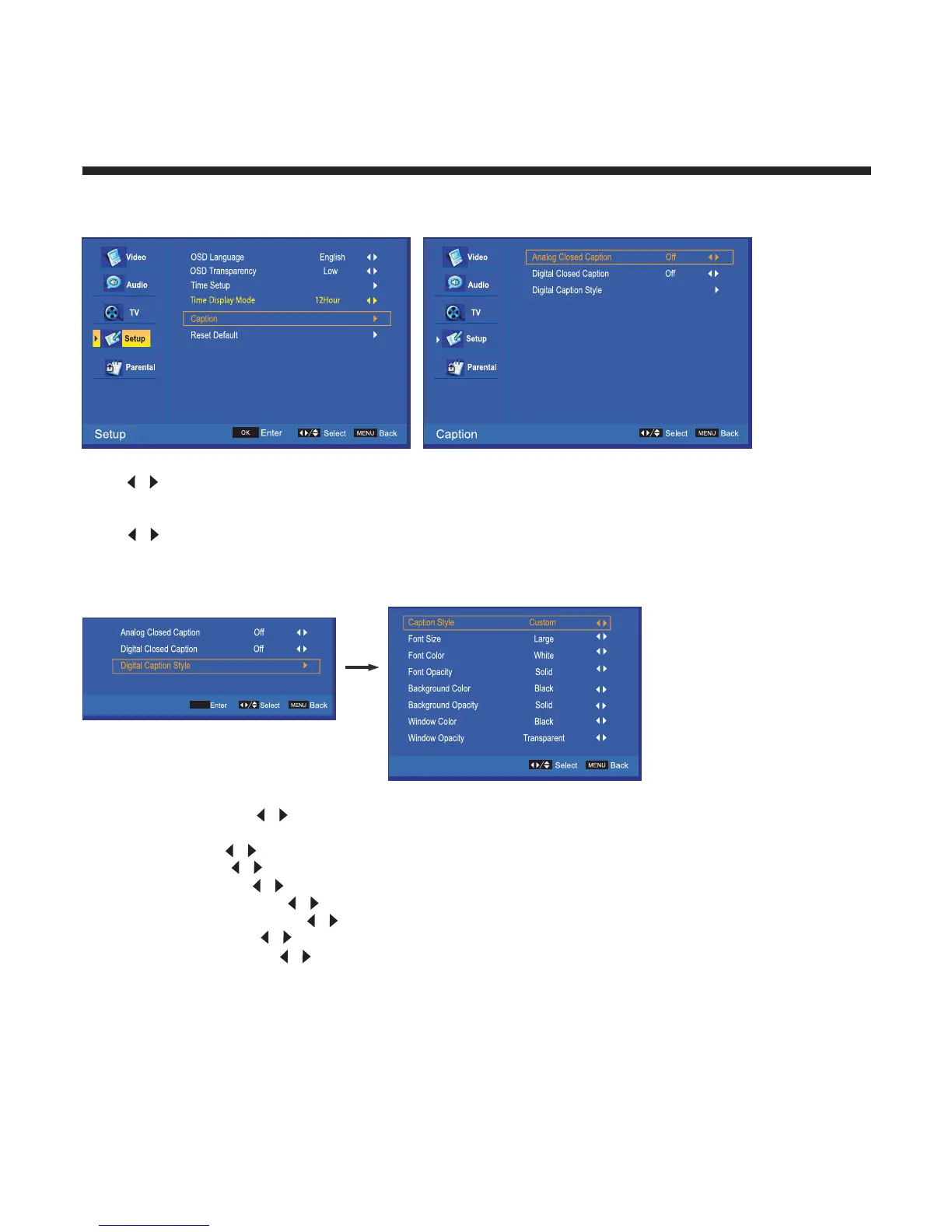
Select “Caption”, press OK to enter the submenu (see below)
Analog Closed Caption
Press
/ to select CC1/CC2/CC3/CC4/TEXT1/TEXT2/TEXT3/TEXT4, or select Off.
Digital Closed Caption
Press
/ to select Service1/Service2/Service3/Service4/Service5/Service6, or select Off.
Digital Caption Style
This item allows you to set the closed caption, press OK to enter Digital Caption style menu:
Caption Style: press
/ to select As Broadcaster or Custom. When you select As Broadcaster, all other
options are disabled and can not be adjusted.
Font Size: press / to select Medium/Large or Small.
Font Color: press / to select Red/Green/Blue/Yellow/Magenta/Cyan/Black or White.
Font Opacity: press / to select Solid/Transparent or Translucent.
Background Color: press
/ to select Black/White/Red/Green/Blue/Yellow/Magenta/ or Cyan.
Background Opacity: press / to select Solid/Transparent or Translucent.
Window Color: press / to select Black/White/Red/Green/Blue/Yellow/Magenta/ or Cyan.
Window Opacity: press / to select Solid/Transparent or Translucent.
OK


 To Next Page