EasyManua.ls Logo

Embisphere embiScan - Product Description; Hardware Configuration

Embisphere embiScan
19 pages
Print Icon
To Next Page IconTo Next Page
To Previous Page IconTo Previous Page
Loading...
embiScan| HOW TO CONFIGURE THE EMBISCAN ?
E m b i s p h e r e C o n f i d e n t i a l & P r o p e r t y
P a g e 4 | 18
1 P r o d u c t d e s c ri p t i o n
2 H a r d wa r e c o n f i g u r a t i o n
* Barcode must be used following an update of the embiScan firmware
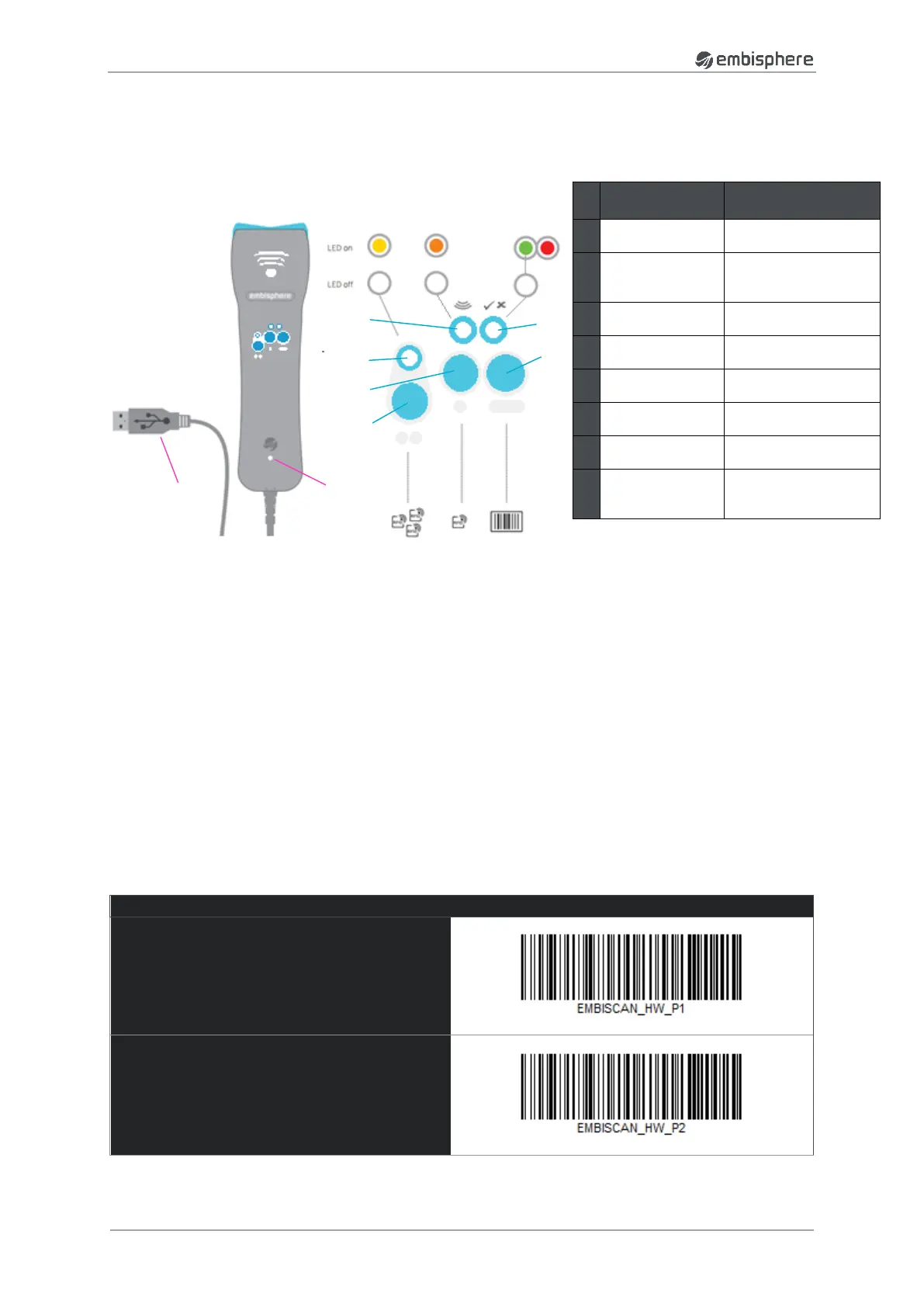
After an update of the embiScan, it’s necessary to scan the Barcode which corresponding to the hardware
used. While the hardware configuration is not done, the embiScan blinks in red with bip.
The hardware used can be known looking at the label located below the product.
If EMSCAN-A-EU scan EMBISCAN_ANTENNA_BOARD_EU_HW06
If EMSCAN-A-CN scan EMBISCAN_ANTENNA_BOARD_CN_HW08

EMBISCAN_MOTHER_BOARD_HW04
EMBISCAN_ANTENNA_BOARD_EU_HW06
EMBISCAN_ANTENNA_BOARD_CN_HW08
#
Description
Function
1
Orange LED
RFID activity
indicator light
2
Red/Green LED
Red Error
Green Read
confirmed
3
Yellow LED
RFID multiple mode
indicator light.
4
RFID single
mode switch
RFID single mode
activation button
5
Barcode
Switch
To read barcode
6
RFID multiple
mode switch
RFID multiple mode
activation button
7
Blue LED
Lights up when the
product is ON
8
USB connector
USB cable interface
for computer
connection
1
3
2
6
4
5
7
8