17
|
ENGLISH
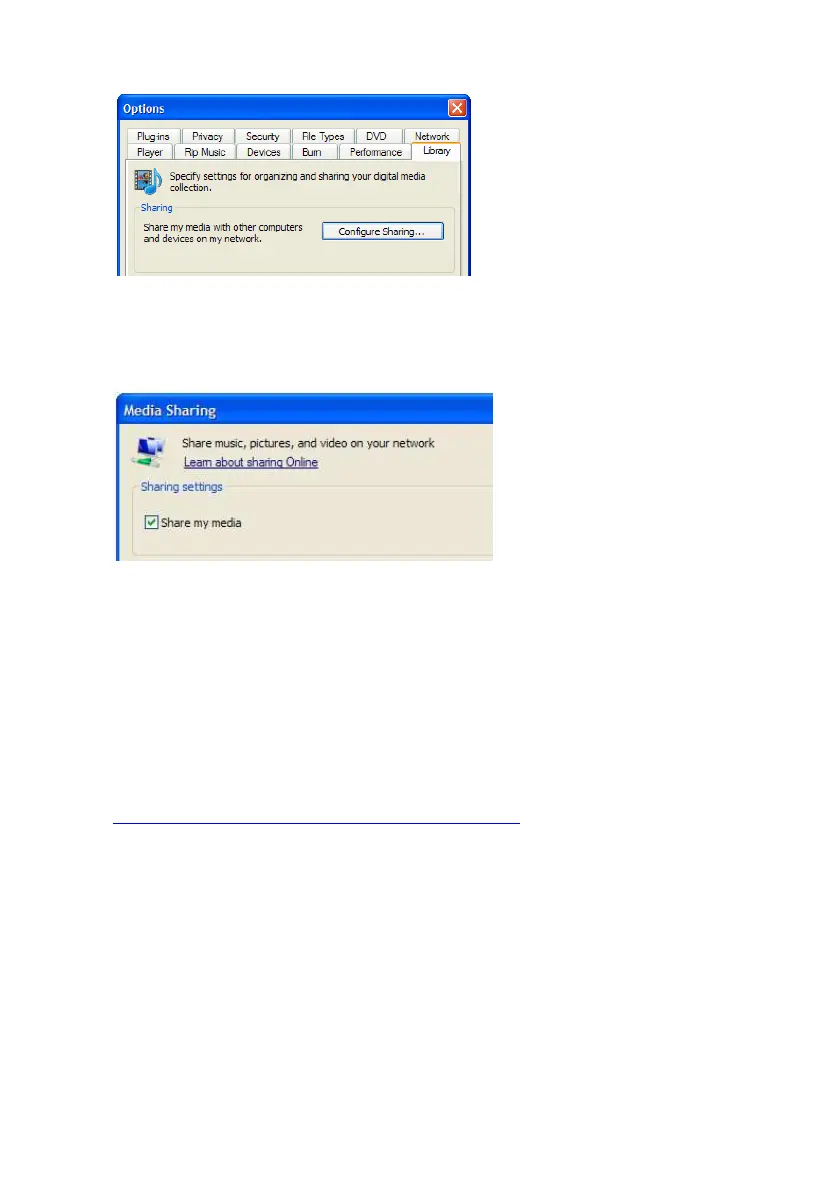
5. Go to the ‘Library’ tab in the left upper corner of the options window.
6. Now click ‘Configure sharing’.
7. Check the “Share my media” checkbox and click OK.
8. A list with detected devices will appear within a few seconds.
9. Click the name of your media player.
10. Click ‘Allow’.
11. Click ‘Ok’.
12. Click ‘Ok’.
13. All files in the media library of Windows Media Player will be shared with your
media player from now on. The media library will be accessible using the remote
control and screen of the media player.
Note: Steps above are taken with Windows Media Player 11, available for download at
http://www.microsoft.com/windows/windowsmedia/player/
10.2 Setting up Windows media player 12 as UPnP server
(Windows 7)
Windows 7 is usually equipped with Windows Media Player 12. If streaming does not
succeed directly, you can refer to the help function in Windows Media Player 12.
Windows Media Player 12 has an extensive help function which can be used as a
guide to setup your computer as a UPnP media server.
1. Open Windows Media player 12.
2. If Windows Media Player starts in the ‘Now Playing’ mode, click the ‘Switch to
Library’ button located in the upper right corner of Windows Media Player.



 To Next Page