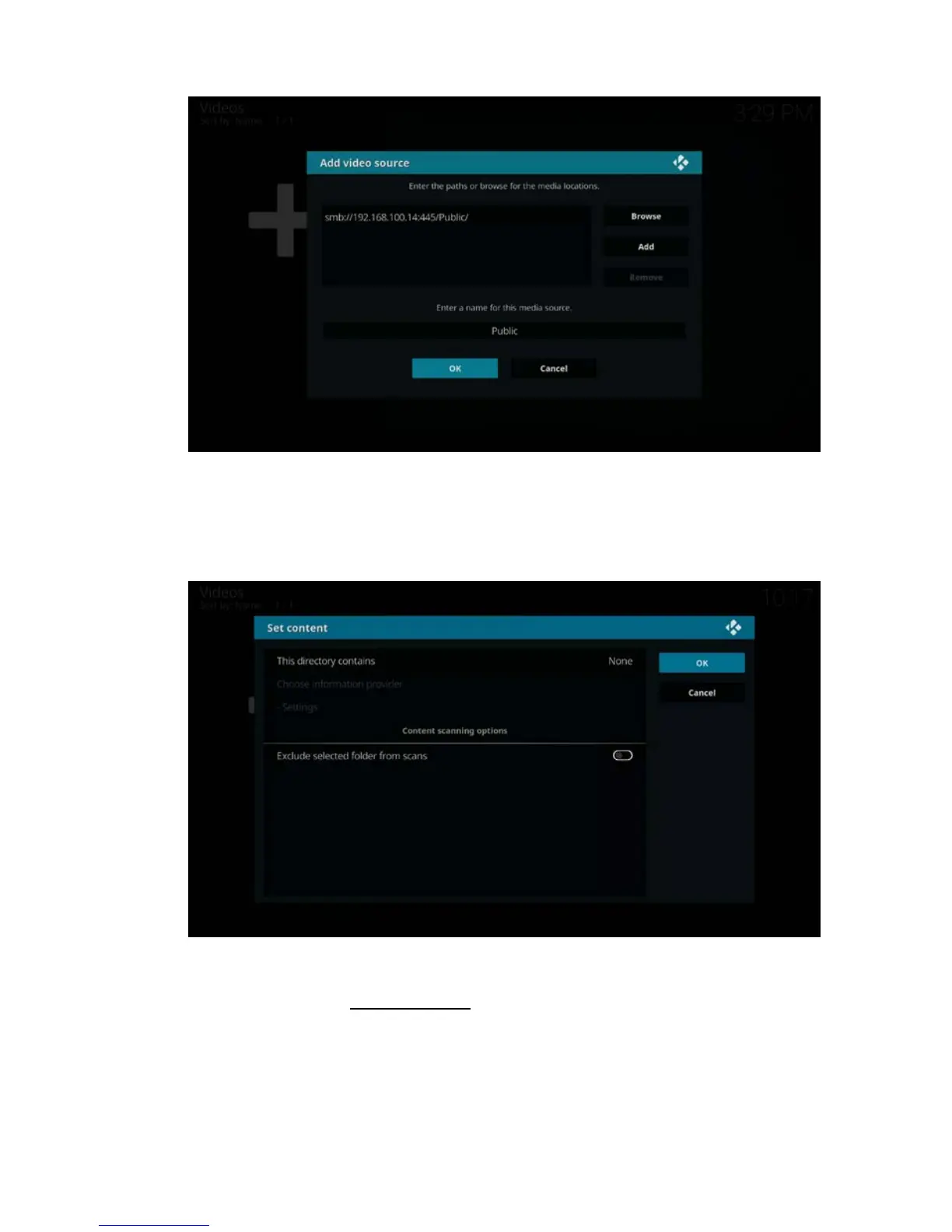
8. You will notice the full network path of “your media directory” you have added in
the previous steps. By default Kodi will leave the name of the media source the
same as your original media directory. You will also notice that Kodi will give you
the option to change the name of the media source. You are free to enter a name
at your will. Select “OK” to add your video source. The following screen appears:
9. It is not necessary but you have the option to set a movie database to collect info
about your video files. For more info about how to set content for your video files
use the following link: http://kodi.wiki/
10. Press “OK”. You will be redirected to the "Movies" section where your new share
is saved. The following screen appears::



 To Next Page