© 2024 EMM Labs, All Rights Reserved. EMM Labs reserves the right to amend specifications & design without notice.
022
Network & Streaming
DA2i STEREO D/A CONVERTER OWNER’S MANUAL
Network & Streaming
mConnect Control App - Sync, Volume (DV2i only) & Mute Features
1. Once playback is initiated using the mConnect app, the DA2i/DV2i will sync and
automatically switch to the “NET” (network) input. Prior stored volume settings
will be used, or the initial factory default volume setting will be set.
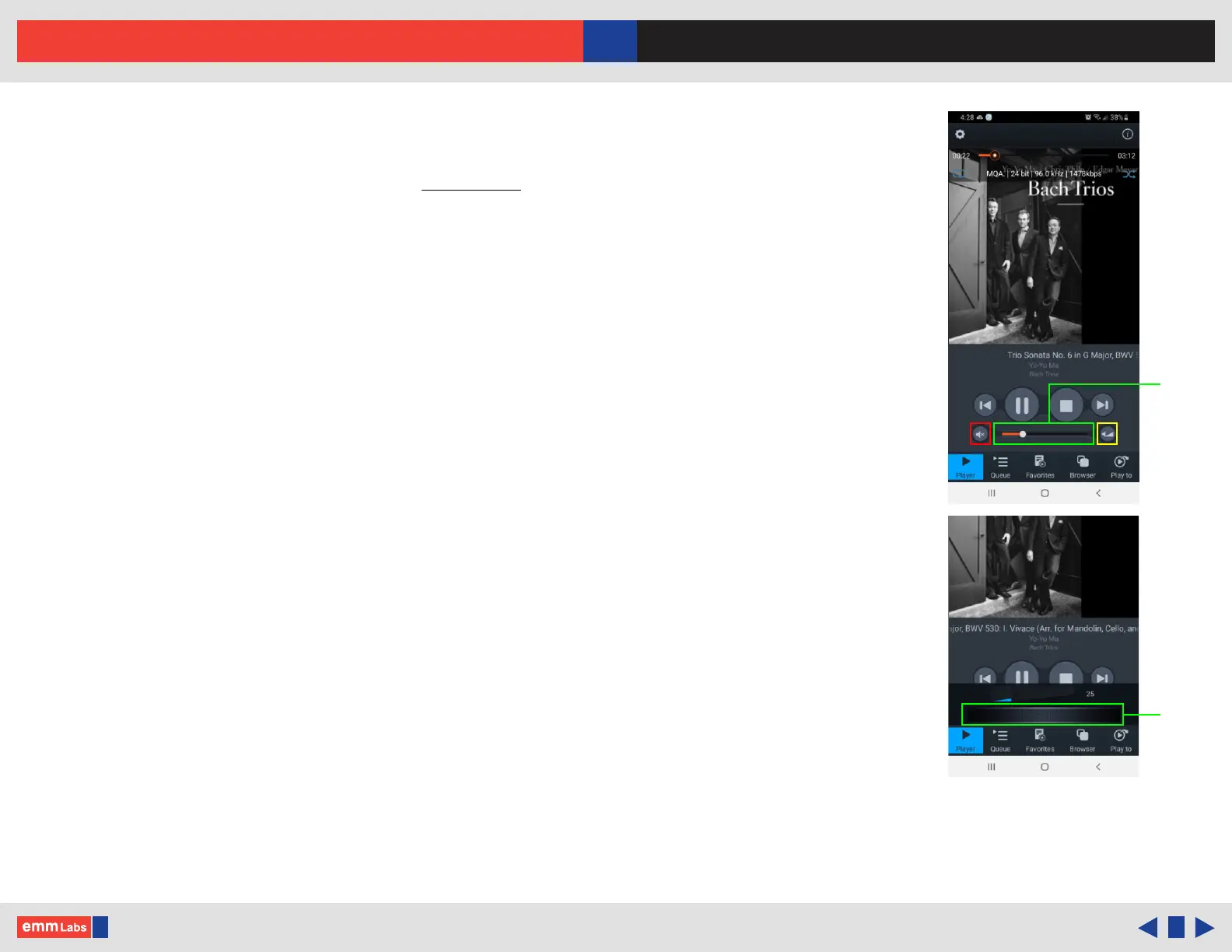
2. Please see mConnect interface pictures to the right:
• Mute control button (outlined in red), mutes and un-mutes the DA2i/DV2i
• Coarse volume control (outlined in green). Please note: Coarse volume
control is touch/click based. Accidentally setting the volume to maximum or
a high setting may cause damage to your speakers or system. It is strongly
recommend to use the ne volume interface, remote or volume knob to more
precisely control volume settings
• Enables the ne volume control interface (outlined in yellow). Touch and
drag style interface for ne volume control (bottom picture)
3. Volume and mute control is bi-directional, any change made using the app will be
reected on the DA2i/DV2i’s display. Similarly, changes made using the volume
knob or remote will be shown on the app.
4. If the input is switched away from the “NET” input while playing a track, playback
of that track will be paused. Track playback can then be resumed using mConnect
with the last stored “NET” input volume/mute settings.
5. Sync, volume and mute functions using the Roon app behave the same way when
using the DA2i/DV2i as a Roon Endpoint. For DA2i, Roon should be set for
“xed volume”.
Coarse
touch
volume
DV2i only
Fine
drag
volume
DV2i only
EMM-DA2i



 To Next Page