31
5. Select a variety of saving and printing options.
6. Enter custom fuel information.
7. Retrieve and save stored data.
Visit out website,
www.enerac.com, for the latest software packages.
Consult the manual for Enercom for Windows for installation instructions and
details on the available software.
Connection Configuration
• Turn on your Enerac and connect using a USB cable or RS-232 cable or
Bluetooth.
• An RS-232 connection is the 9-pin, male DB-9 connector on your computer.
It is usually COM1 or COM2. Modern computers are often without an RS-
232 connection.
• For USB and Bluetooth connections, you must connect your Enerac
BEFORE starting the Enercom software. This is because the port does not
appear until the device is connected.
• If your Enerac analyzer does not have an integrated USB port, you can use a
USB-to-Serial adapter.
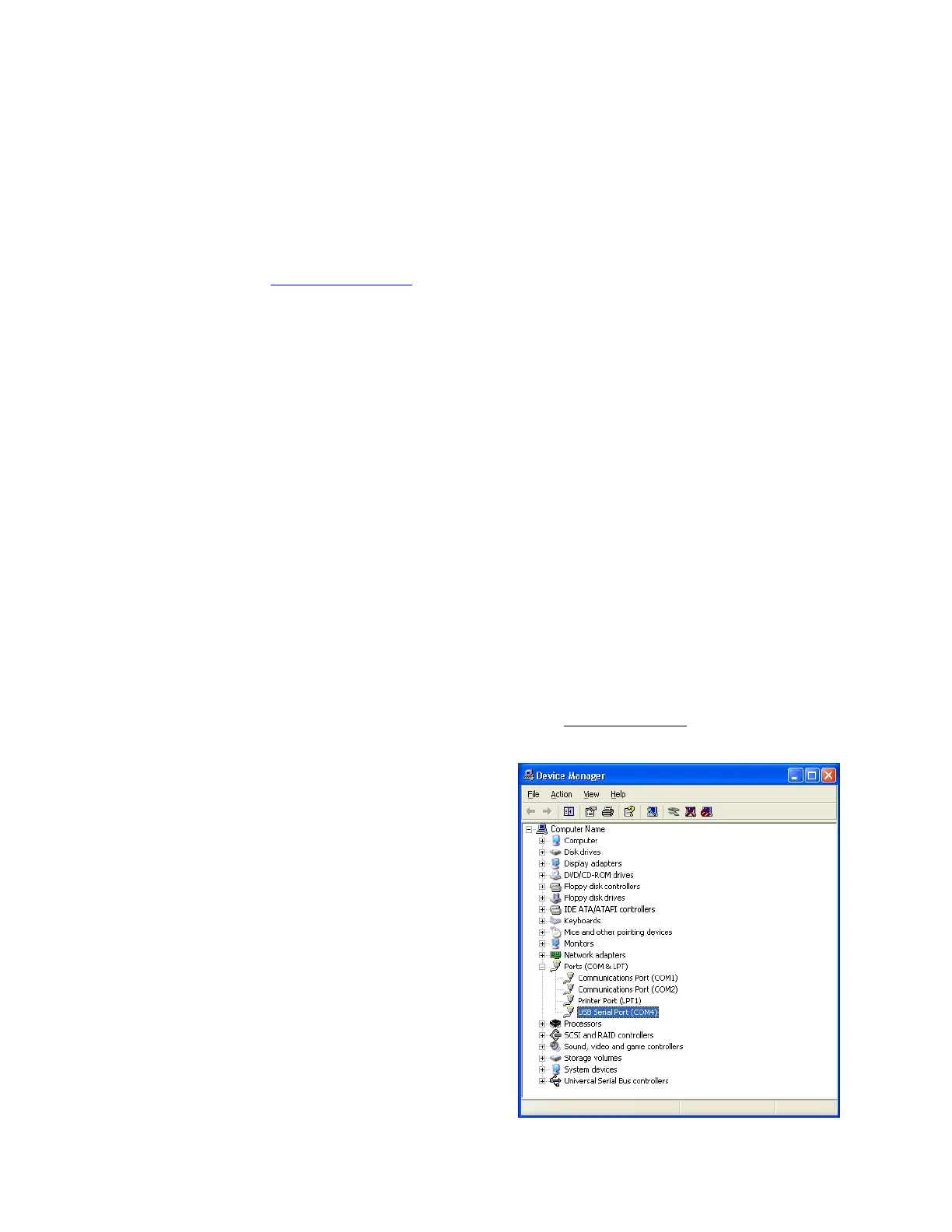
• For USB connections, enter the assigned COM port number in Enercom.
Use the Windows Device Manager, to find the COM port number. The
Device Manager can be launched by running devmgmt.msc
from the
Windows’ Start, Run menu. The USB COM port will be listed under the
PORTS section.


 To Next Page