32
• Start Enercom. Click on Add Port under the Connections menu and enter
the COM port number.
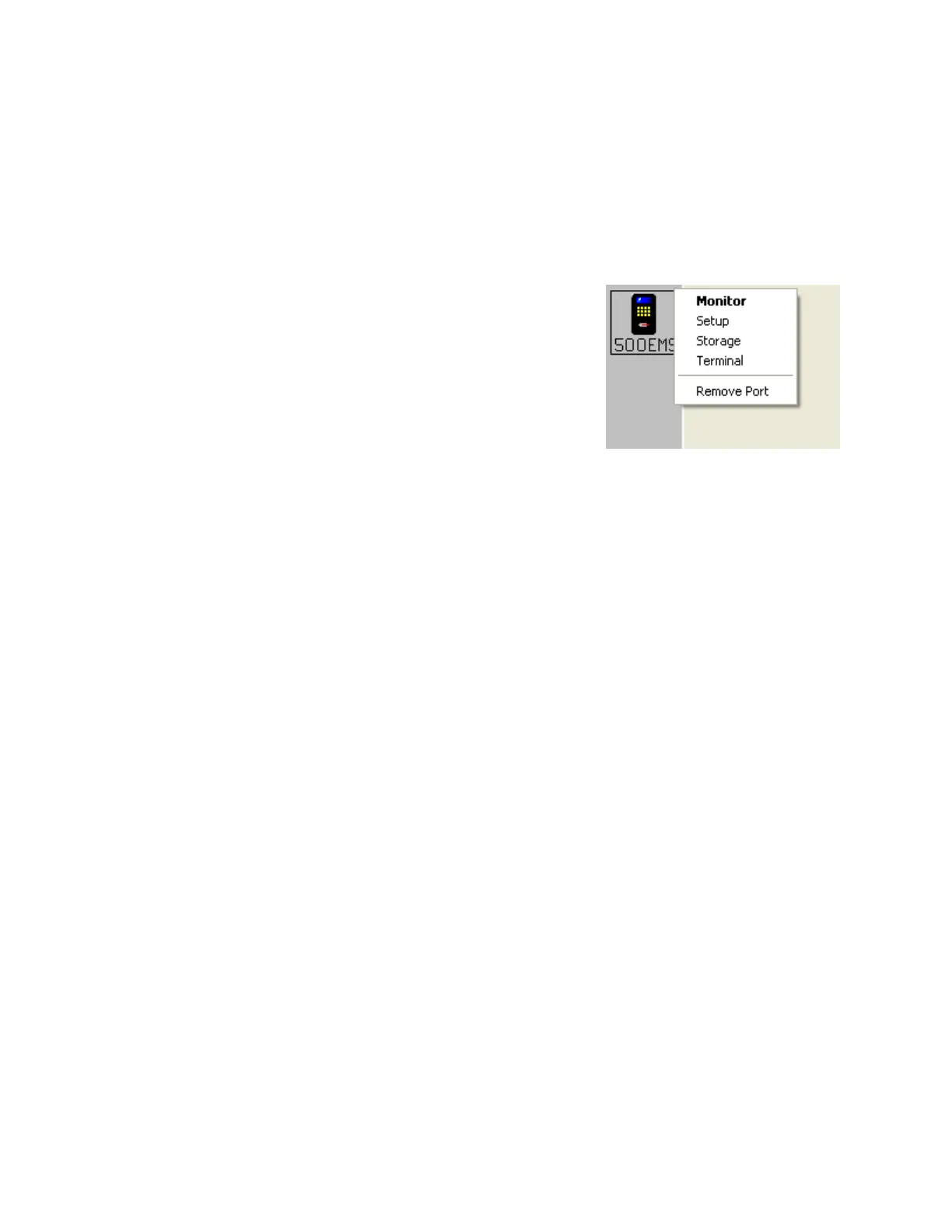
• Your Enerac icon should appear on the screen. Click on the Enerac icon to
display the analyzer menu.
Monitor
Opens the Monitor window. All real-time
testing, data logging, graphing, and charting is
done here.
Setup
Opens the Setup window. Set the time & date,
temperature & emission units, fuel, and oxygen
reference here.
Storage
Opens the Storage window. The analyzer’s stored data is displayed, in a list.
Terminal
Opens a Terminal window for direct communication with the Enerac. A
complete list of serial port commands is provided in the next section.
Wireless Options
Connect a Bluetooth USB adapter or use your computer’s internal Bluetooth
capability. First, connect to the Enerac in your Bluetooth adapter’s software
package. Then add the assigned COM port by clicking Add Port on the
Connections menu in Enercom.
PDA Options
EnercomCE software is available for PocketPCs running WindowsCE. EnerPlam
software is available for PalmOS devices. These devices connect to the
ENERAC’s serial port and offset similar functionality as the desktop software,
including real-time monitoring of data, additional storage, and remote control.


 To Next Page