1. On the Windows taskbar, click Start, click Control Panel, and then click Network and
Internet Connections.
2. Click the Network Connections icon.
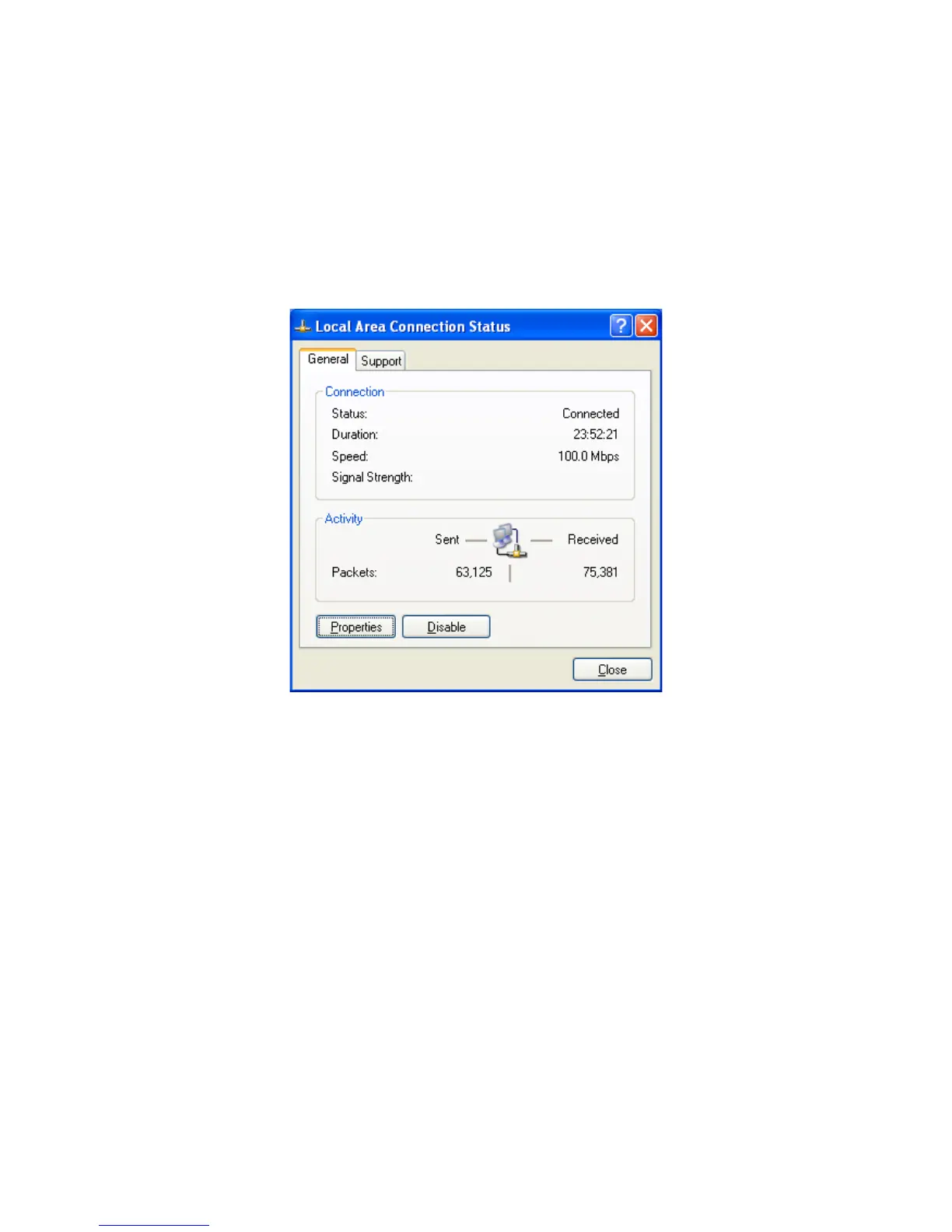
3. Click Local Area Connection for the Ethernet adapter connected to the ENH500. The
Local Area Connection Status dialog box appears.
4. In the Local Area Connection Status dialog box, click the Properties button. The Local
Area Connection Properties dialog box appears.
5. In the Local Area Connection Properties dialog box, verify that Internet Protocol
(TCP/IP) is checked. Then select Internet Protocol (TCP/IP) and click the Properties button.
The Internet Protocol (TCP/IP) Properties dialog box appears.
6. In the properties dialog box, click Use the following IP address: to configure your
computer for Static TCP/IP. Enter an IP address (i.e. 192.168.1.10), the subnet mask of the
ENH500, and the default gateway which is the ENH500’s IP address, 192.168.1.1. Note: the
subnet mask must match that of the ENH500 and the IP address must be on that subnet.
7. Click the OK button to save your changes and close the dialog box.
8. Click the OK button again to save your changes.
4.4 Configuring Apple Mac OS X
The following procedure describes how to configure TCP/IP on an Apple Macintosh running
Mac OS 10.2 or later. Note: The menu titles and placement vary in each OS X 10.x operating
system but are typically similar.





 To Next Page