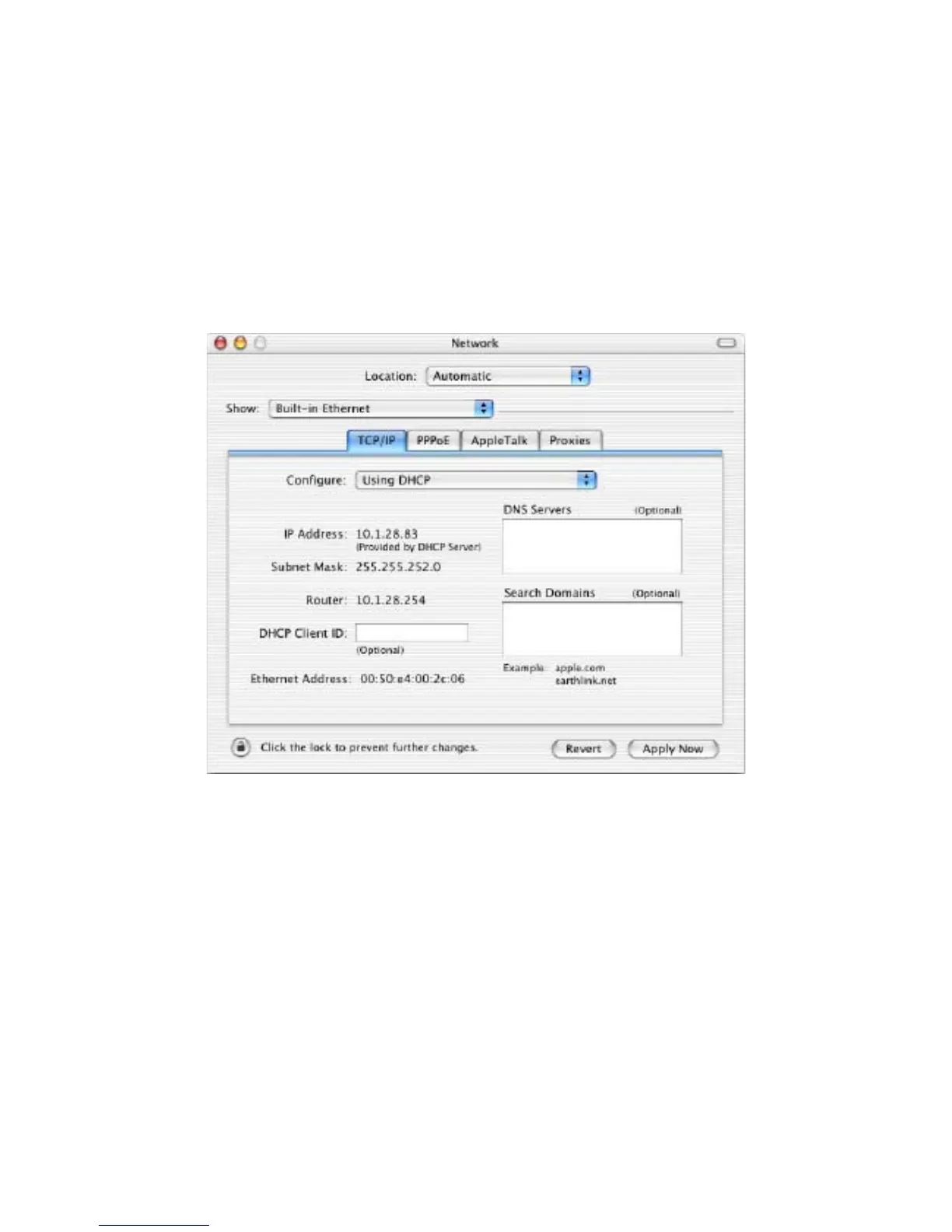
1. Pull down the Apple Menu, click System Preferences, and select Network.
2. Verify that the NIC connected to the ENH500 is selected in the Show field.
3. In the Configure field on the TCP/IP tab, select Manually.
4. Click Apply Now to apply your settings and close the TCP/IP dialog box.
5. Enter an IP address (i.e. 192.168.1.10), the subnet mask of the ENH500, and the Router
which is the ENH500’s IP address, 192.168.1.1. Note: the subnet mask must match that of
the ENH500 and the IP address must be on that subnet.
6. Click Apply Now to apply your settings and close the TCP/IP dialog box.
4.5 Logging into the ENH500
After completing the TCP/IP settings from the beginning of the Chapter, you can now access
the web-based configuration menu.





 To Next Page