EasyManua.ls Logo

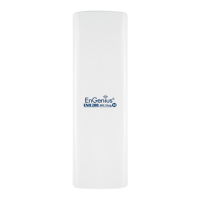
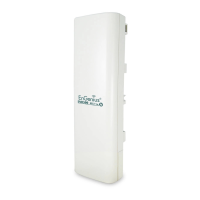
EnGenius ENH202 - User Manual

EnGenius ENH202
88 pages
Print Icon
To Next Page IconTo Next Page
Loading...
WIRELESS ACCESS POINT / CLIENT BRIDGE
Model: ENH202
User Manual
Version: 1.0

Table of Contents

Other manuals for EnGenius ENH202

Questions and Answers

  • M
    Melissa MorganJul 26, 2025
    How to reset EnGenius Wireless Access Point ENH202?
    • L
      Lance ZimmermanJul 26, 2025
      There are two ways to reset the ENH202 to its factory default configuration: a hardware method and a software method. For the hardware method, press the reset button behind the hole of the PoE injector for 10 seconds, or open the cover on the bottom panel of the ENH202 and find the Reset button (see section 2.1). Using a flat object such as a pencil, press the Reset button for approximately 10 seconds and then stop pressing. For the software method, click Restore to Factory Default in the Management menu.
  • C
    Charles PerezAug 3, 2025
    What to do if EnGenius Wireless Access Point ENH202 does not turn on when PoE is connected?
    • S
      salascesarAug 3, 2025
      If the ENH202 unit does not turn on when you plug the PoE into the Ethernet port, ensure you connect the Ethernet cable to the PoE injector and connect the power adapter that comes with the package to the “DC IN” port on the PoE injector.
  • C
    Carrie WilliamsAug 10, 2025
    Why is there no traffic after connecting EnGenius Wireless Access Point ENH202 to a PoE switch?
    • M
      mrileyAug 10, 2025
      If you don't see traffic pass after connecting the ENH202 to a PoE switch, it is because the ENH202 uses a proprietary PoE injector and will not work with standard 802.3af-compliant PoE switches.
  • T
    tgoodAug 17, 2025
    What kind of PoE should I use for EnGenius Wireless Access Point ENH202?
    • K
      Katherine SullivanAug 17, 2025
      When installing the PoE connection to the ENH202, note that it uses a proprietary PoE injector and will not work with standard 802.3af-compliant PoE switches.

Summary

1 Product Overview

1.1 Features

Details the design and scope of the ENH202, highlighting its capabilities and use cases in various environments.

2 Installation

2.2 Installing the ENH202

Provides step-by-step instructions for physically mounting and connecting the ENH202 unit.

3 Wireless Network Modes

4 Configuring Your Computer for TCP;IP

4.1 Configuring Microsoft Windows 7

Guides users through setting up TCP/IP static IP addresses for Windows 7.

4.2 Configuring Microsoft Windows Vista

Provides instructions for configuring TCP/IP static IP addresses on Windows Vista.

4.3 Configuring Microsoft Windows XP

Details the steps for setting up TCP/IP static IP addresses on Windows XP.

4.4 Configuring Apple Mac OS X

Explains how to configure TCP/IP settings on Apple Macintosh computers running Mac OS X.

5 Status

6 System

6.1 Switching the Operation Mode

Explains how to change the operating mode of the ENH202 among its four available modes.

7 Wireless Configuration

7.1 Wireless Settings

Configures basic wireless parameters, including SSIDs, channel, and isolation settings.

7.2 Wireless Security Settings

Covers various wireless security modes like WEP, WPA-PSK, WPA2-PSK, and their configurations.

8 LAN Setup

8.1 IP Settings

Configures the IP address, subnet mask, and DNS settings for the LAN interface.

9 Router Settings

9.1 WAN Settings

Configures various WAN connection types (Static IP, DHCP, PPPoE, PPTP) for internet access.

9.2 LAN Settings (Router Mode)

Configures LAN settings and DHCP server options when the device is in Router Mode.

10 Management Settings

10.1 Administration

Manages device administrator credentials and remote access settings for security.

10.5 Firmware Upgrade

Provides instructions for upgrading the device's firmware to the latest version.

11 Network Configuration Examples

11.1 Access Point

Provides an example configuration for setting up the ENH202 as an Access Point.

Appendix A - Troubleshooting

A.1 Problem Solving

Addresses common questions and provides solutions for troubleshooting the ENH202.

EnGenius ENH202 Specifications

General IconGeneral
5 GHzNo
Modulation16-QAM, 64-QAM, BPSK, QPSK
Frequency band2.4 GHz
Operating modesAccess Point (AP), Client Bridge, Client Router, WDS
Channel bandwidth40 MHz
Channels quantity11 channels
Transmitting power15 dBmW
Networking standardsIEEE 802.11b, IEEE 802.11e, IEEE 802.11g, IEEE 802.11n, IEEE 802.1x, IEEE 802.3, IEEE 802.3u
Virtual LAN featuresTagged VLAN
Spread spectrum methodDSSS
Ethernet LAN data rates10, 100 Mbit/s
Maximum data transfer rate300 Mbit/s
Quality of Service (QoS) supportYes
Antenna featuresIntegrated antenna
Antennas quantity2
Antenna gain level (max)10 dBi
PlacementWall
CertificationFCC, CE, IC
Product colorWhite
International Protection (IP) codeIP65
Networking featuresFast Ethernet
Vertical beam width21 °
Horizontal beam width70 °
USB 2.0 ports quantity0
Security algorithms128-bit WEP, 256-bit WEP, 64-bit WEP, SSID, WPA, WPA2
Number of SSID supported8
Operating temperature (T-T)-20 - 70 °C
Storage relative humidity (H-H)-30 - 80 %
Operating relative humidity (H-H)0 - 90 %
AC input voltage24 V
Power requirements24V AC / 0.6A
Output power description800 mW
Flash memory8 MB
Internal memory32 MB
Processor modelQualcomm Atheros AR7240
Weight and Dimensions IconWeight and Dimensions
Depth260 mm
Width84 mm
Height55 mm
Weight380 g
Dimensions (WxDxH)84 x 260 x 55 mm

Related product manuals