Installation and Operation Manual
●
Fan Coil Controller – EZstat
EC-EZstat
Date: 9-2014 Supersedes: NEW
Engineered Comfort reserves the right to change any information concerning product or specification without notice or obligation.
Page 18 of 36
6.3 Setupthecommunicaons
Seng BACnet communicaons properes is required only if the EZstat is integrated into a network with other BACnet
controllers. Entering the communicaons properes requires entering Password 2.
See the topic Connecng to MS/TP network for network wiring details.
Procedure Steps Display
Starng Display
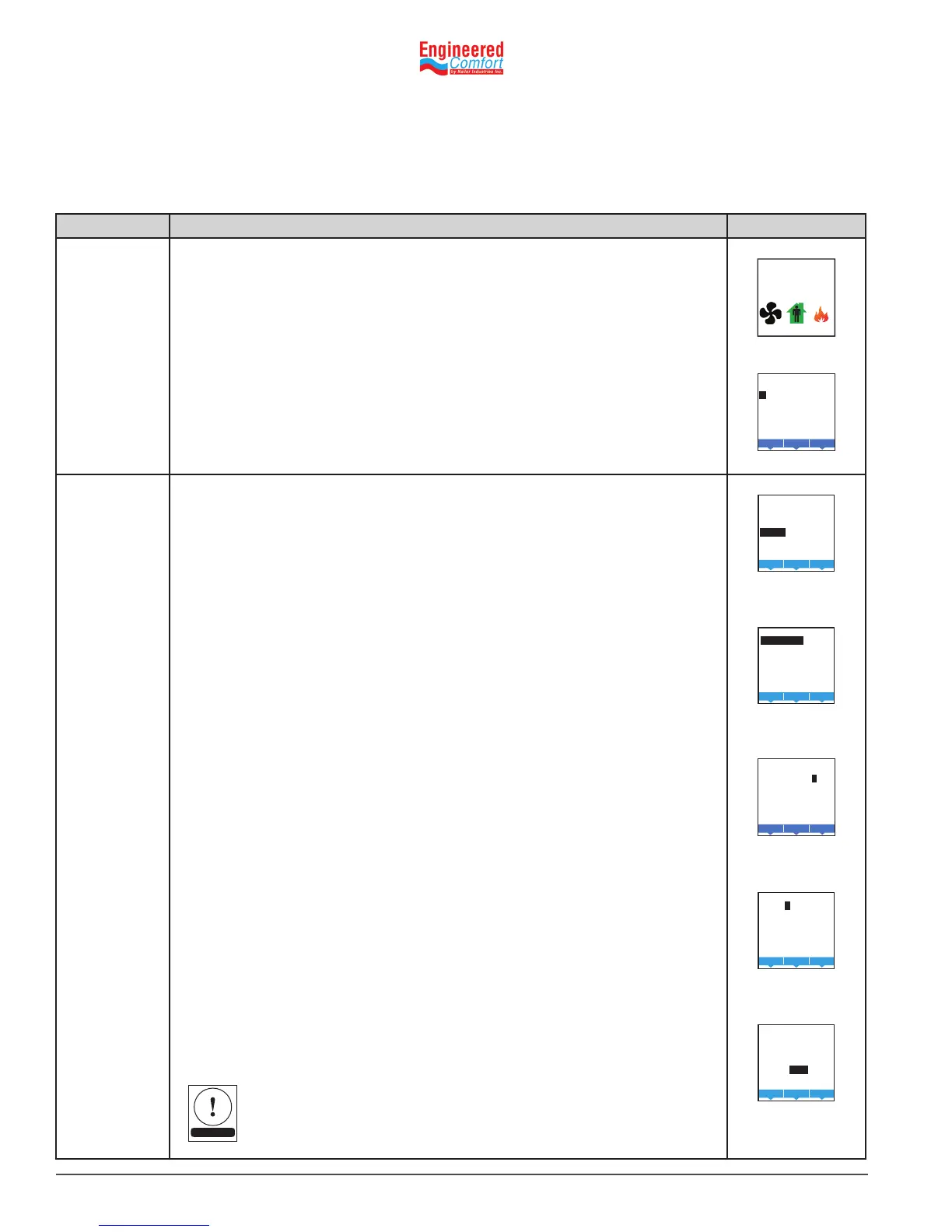
1. Start at the temperature display.
2. Enter Password 2. The display changes to the MAIN menu display.
F
°
AUTO AUTO
Enter
ADMIN LEVEL
0 0 0 0
Change the
network
communicaon
properes.
1. From the MAIN menu, press either the or buon to select COMM.
2. Press Enter. The COMM menu opens.
3. Choose and set the following properes:
• DEVICE ID—This is the BACnet device instance. The device instance
must be within the range of 1 to 4,194,302.
• MAC—The MAC address must be in the range of 1‑127.
• BAUD—Set to match other devices on the BACnet MS/TP network.
The choices are Auto, 9600, 19,200, 38,400, or 76,800.
Note: Aer changing a communicaon property, the EZstat will reset.
Back
Enter
DEVICE ID:
0000000
NOTE


 To Next Page