Quick start g uide
Start r iding
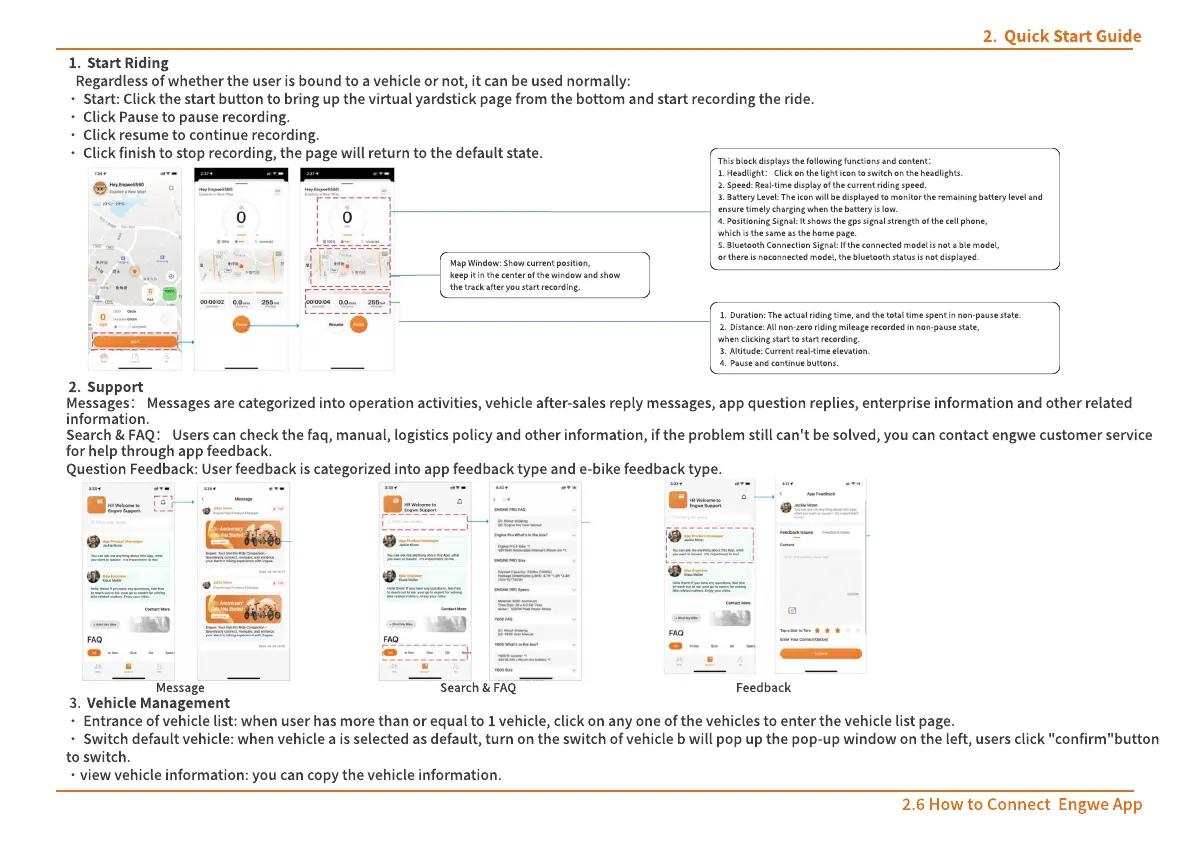
Regardless of whether the user is bound to a vehicle or not, it can be used normally:
·
start: Click the start button to bring up the virtual yardstick page from the bottom and start recording the ride.
·
Click pause to pause recording.
·
Click resume to continue recording.
·
Click finish to stop recording, the page will return to the default state.
Support
Messages
:
Messages are categorized into operation activities, vehicle after-sales reply messages, App question replies, enterprise information and other related
information.
Search & FAQ
:
Users can check the FAQ, manual, logistics policy and other information, if the problem still can't be solved, you can contact Engwe customer service
for help through APP feedback.
Question Feedback: User feedback is categorized into App feedback type and E-Bike feedback type.
Vehicle Management
·
Entrance of vehicle list: when user has more than or equal to 1 vehicle, click on any one of the vehicles to enter the vehicle list page.
·
Switch default vehicle: when vehicle A is selected as default, turn on the switch of vehicle B will pop up the pop-up window on the left, users click "confirm"button
to switch.
·
View Vehicle Information: you can copy the vehicle information.
This block displays the following functions and content
:
1. Headlight
:
Click on the light icon to switch on the headlights.
2. Speed: Real-time display of the current riding speed.
3. Battery l evel: The icon will be displayed to monitor the remaining battery level and
ensure timely charging when the battery is low.
4. Positioning Signal: It shows the GPS signal strength of the cell phone,
which is the same as the home page.
5. Bluetooth c onnection signal: If the connected model is not a BLE model,
or there is noconnected model, the Bluetooth status is not displayed.
Map Window: Show current position,
keep it in the center of the window and show
the track after you start recording.
Duration: t he actual riding time, and the total time spent in non-pause state.
Distance: all non-zero riding mileage recorded in non-pause state,
when clicking start to start recording.
Altitude: current real-time elevation.
Pause and Continue buttons.
Message Search & FAQ Feedback
2.6 How to cONNECT ENGWE APP


 To Next Page