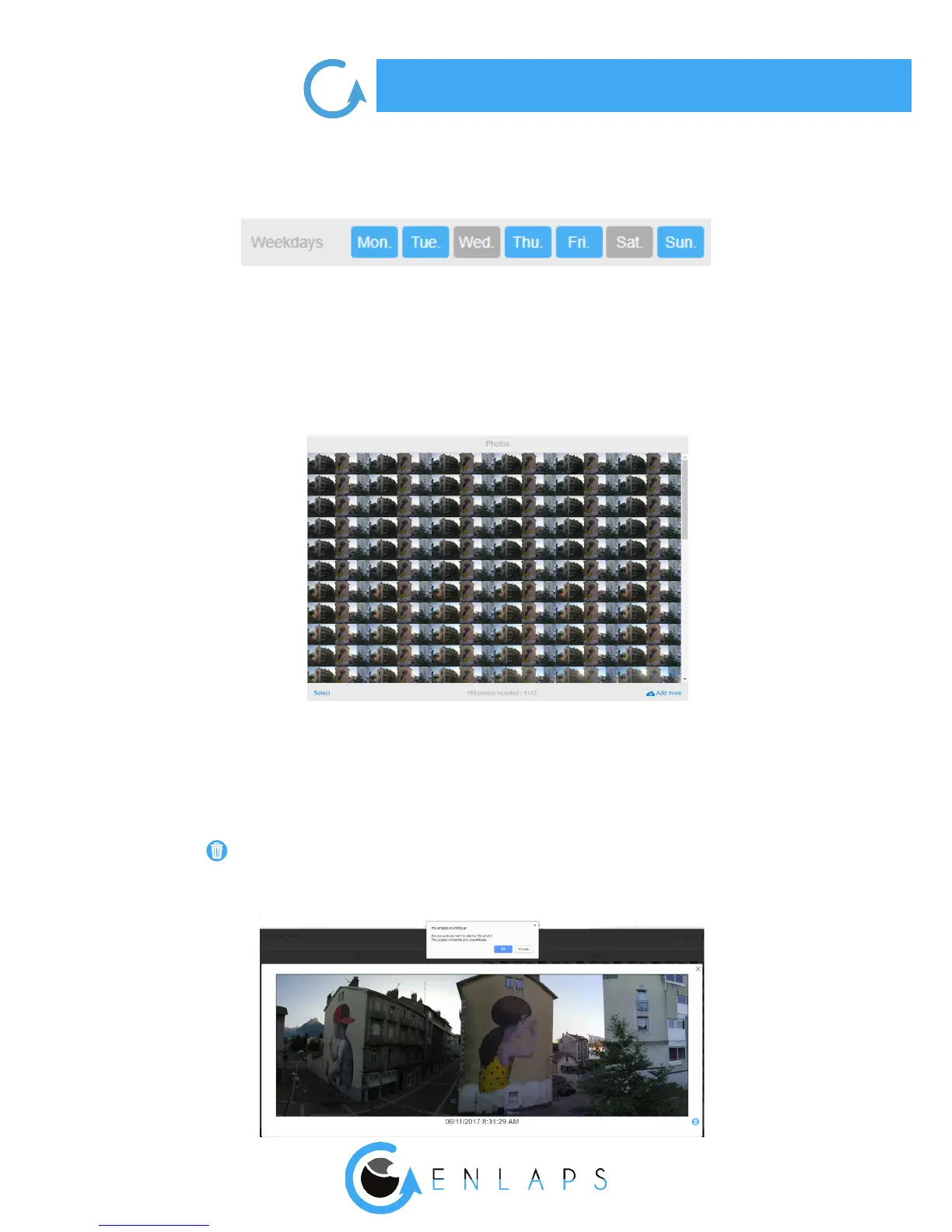
You can also select photos shot only some days of the week.
In the example below: Monday, Tuesday, Thursday, Saturday and Sunday:
Mosaic
Total number of images of the project vs Filtered photos
In the example below, with the selected lters in previous examples, 169 photos meet the
ltering criteria on a total of 1143 photos included in the photo set.
Deleting an image and a selection of images
To delete a photo:
• Select the photo by clicking on it; it will then open it in full screen;
• Click on at the bottom right of the screen. A conrmation message is displayed, indicating
the projects that will be aected by the removal of the photo;
• Click on ‘’OK’’ to conrm the deletion or ‘’Cancel’’ to return to the selected photo in full-screen.


 To Next Page