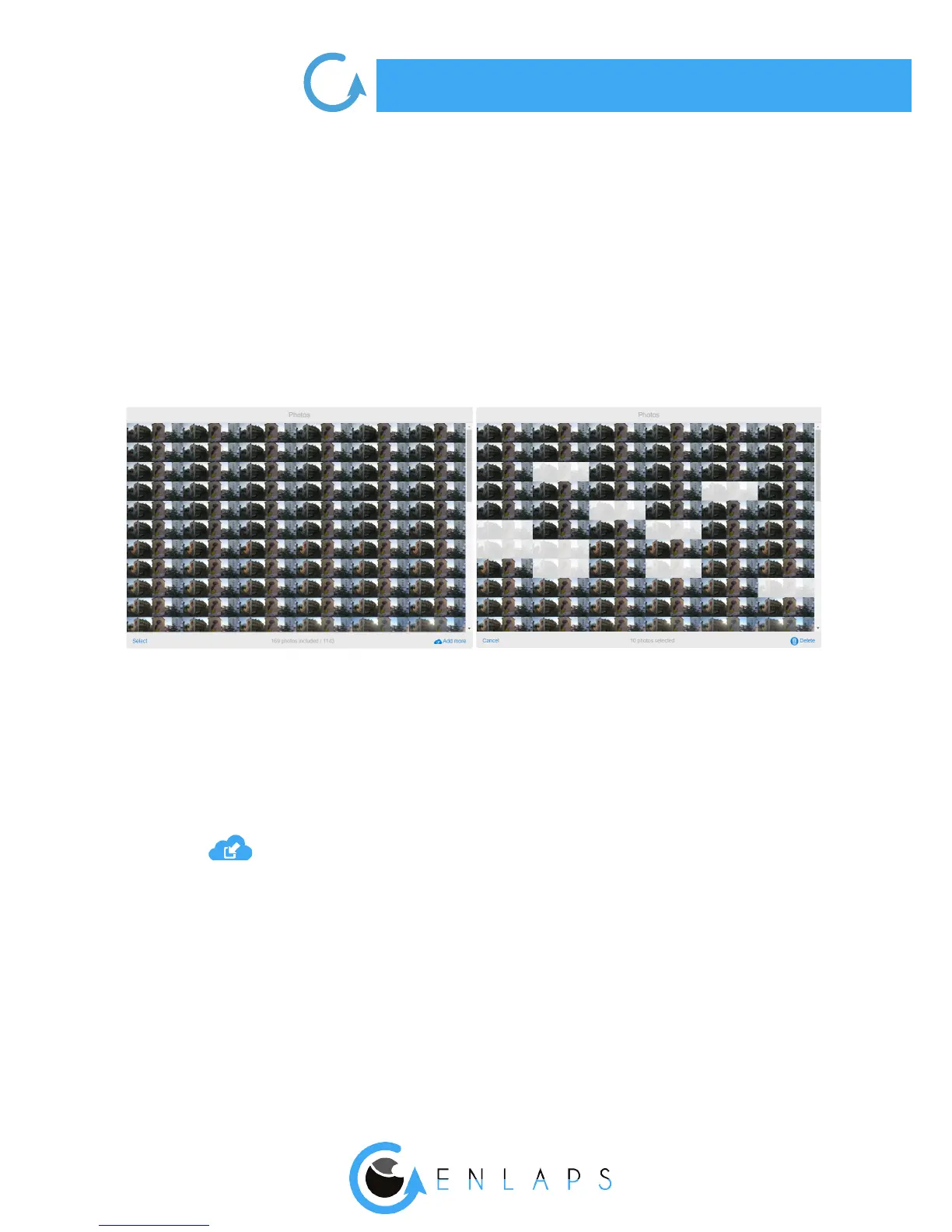
To delete multiple photos:
1. Click on the button ‘’Select’’ at the bottom right of the mosaic
2. Click on the photo (s) you want to delete.
3. A photo is selected when it appears in gray.
To deselect a photo click on it again.
Once your selection is made, click on the trash at the bottom right of the mosaic. A
conrmation message is displayed, indicating the projects that will be aected by the
removal of the photo(s).
4. Click on ‘’OK’’ to conrm the deletion or ‘’Cancel’’ to return to the selected photo in full-
screen. You can cancel the process at any time by clicking on ‘’Cancel’’.
Caution! The removal of an image of the mosaic deletes this image from all the projects that use it.
The removal is nal and irreversible.
Manually adding photos to a photoset
To add photos to an existing photo set, click on ‘’Add photos’’ in the bottom left of the mosaic.
The addition is done then or by a ‘’Drag&Drop’’, either by clicking on the
upload icon and then by selecting the photos on your computer.
Caution! To create your timelapse, uploaded photos must be in the same format as the existing
photos in the mosaic of the set.
The fusion of left and right images is automatically done with the drag&drop of the photoset
if left images names contain ‘_LEFT’ and if right images names contain ‘_RIGHT’.


 To Next Page