OPERATION
a
LED overview
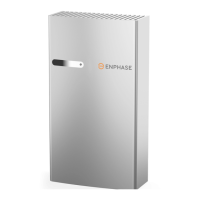
After being commissioned, the LED ashes yellow while each IQ Battery
boots up. If the LED rapidly ashes green for more than two minutes,
the battery is in trickle charge mode and will remain so until it reaches
a minimum state of charge (up to 30 minutes). After the IQ Battery is
booted up, the LED becomes blue or green depending on the charge
level. If the LED ashes yellow after one hour or changes to a ashing
red state, contact Enphase Support at
enphase.com/en-us/support/contact.
State Description
Uncommissioned
Flashing blue
After booting up, when the IQ Battery has
paired with an IQ Gateway but has not passed
the commissioning three-way handshake to
conrm that it is an Enphase device.
Flashing green After passing the three-way handshake with
the IQ Gateway.
After commissioning (normal operation)*
Rapidly ashing yellow
Starting up/Establishing communications
Red ashes in sequences of 2
Error. See “Troubleshooting”.
Solid yellow
Not operating due to high temperature. See
“Troubleshooting”.
Solid blue or green
Idle. Color transitions from blue to green as
the state of charge increases. You can check
the Enphase Installer Platform for charge
status.
Soft pulse blue
Discharging
Soft pulse green
Charging
Soft pulse yellow
Sleep mode activated
Off
Not operating. See “Troubleshooting”.
* IQ Battery batteries have a one-hour orphan timer. If the IQ Gateway stops communi-
cating with them, after one hour, the IQ Battery batteries return to an “uncommissioned”
state.
b
Troubleshooting
If the IQ Battery(ies) are not operating correctly, perform the following
steps. If the issue persists, contact Enphase Support at
enphase.com/en-us/support/contact.
A ) If the IQ Battery(ies) do not operate, check the temperature in the
room and increase cooling and/or ventilation as required. Check that
the front, top, and sides of the IQ Battery batteries have at least 15 cm
(6 inches) of unobstructed clearance.
B ) If the IQ Battery LED is off, turn off the breaker for the branch circuit,
wait for at least one minute, and turn it back on.
✓ NOTE: During a brownout or blackout, the IQ Battery powers down
automatically. This is normal. When power is restored, it automatically
starts up again.
C ) If you do not see IQ Battery information in the Enphase Installer
Platform, check that the IQ Gateway and the Internet connection are
working. If the issue persists, contact Enphase Support at
enphase.com/en-us/support/contact.
Limitation of Use :
Your IQ Battery unit is not intended for use as a primary or backup power
source for life-support systems, other medical equipment, or any other use
where product failure could lead to injury, loss of life, or catastrophic prop-
erty damage. Enphase disclaims any and all liability arising out of any such
use of your IQ Battery unit. Further, Enphase reserves the right to refuse to
provide support in connection with any such use and disclaims any and all
liability arising out of Enphase’s provision of, or refusal to provide, support
for your IQ Battery device in such circumstances.
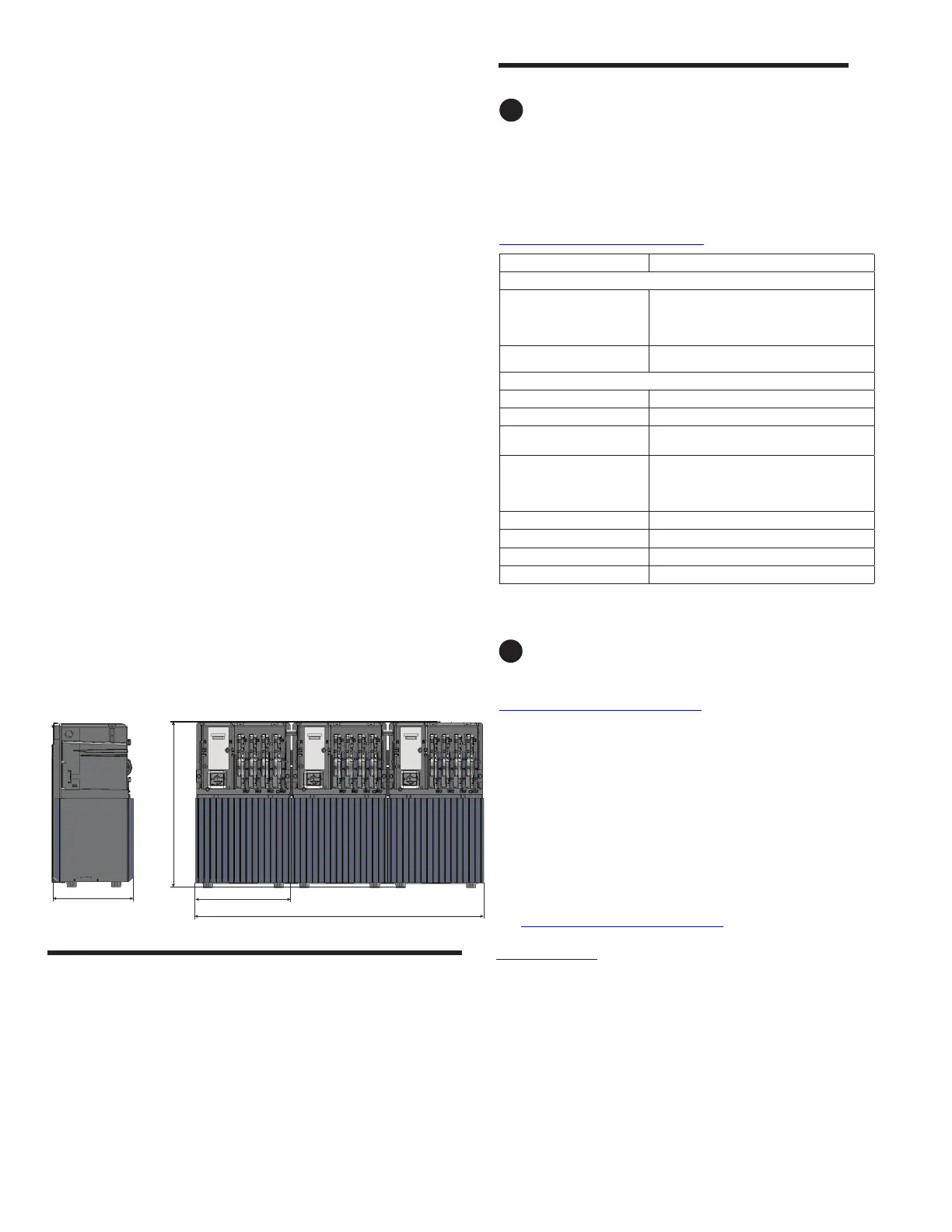
648 mm
1036 mm
287 mm
345 mm
IQ Battery 10 without cover
B ) Connect the AC power (branch circuit protection On) to the IQ Battery and com
mission the IQ Battery using the Enphase Installer App with the DC switch in
the Off position. Wait for IQ Gateway to update the IQ Battery rmware. Turn
the DC switch On only after you see a message in the Enphase Installer App
asking you to turn it On.
* WARNING: After commissioning, always follow the sequence to supply
the AC power rst and then turn the DC switch On. The turn-off sequence for
AC power or DC switch does not matter.
✓ NOTE: Do not leave the IQ Battery unit’s DC switch in the On position for any
extended period of time (such as overnight or for more than 24 hours) unless
IQ Battery is commissioned (communicating with IQ Gateway), connected
to AC, and has passed functional testing and is operational. Leaving the DC
switch On without an AC connection and communication with the system
will drain the battery and may cause damage to the battery cells such that
they will no longer be able to charge. Damage resulting from this improper
installation and misuse is not covered under the product’s limited warranty.
C ) Place enclosure cover(s) over the battery(ies) as follows.
IQ Battery 3 (single-width battery cover)
•
Pick up the IQ Battery 3 Battery cover, stand in front of the battery so that
the cover and battery are on a level, and slide the cover over the battery
so that the interior guides of the cover slide easily over the guides on the
battery unit.
•
Check that the screw hole on top of the battery cover aligns with that on the
battery.
•
Use the included screw to attach the cover to the battery. Tighten the screw
as needed.
IQ Battery 10 (triple-width battery cover)
•
The IQ Battery 10 Battery cover is wide and may require two persons to
guide smoothly over the battery units.
•
Pick up the IQ Battery 10 battery cover, stand in front of the battery so that
the cover and battery are on a level, and slide the cover over the battery
so that the interior guides of the cover slide easily over the guides on the
battery units.
•
Check that the screw holes on top of the battery cover align with those on
the batteries.
•
Use the included screws to attach the cover to the batteries. Tighten the
screws as needed.
A ) Use the Enphase Installer App to commission the IQ Battery(ies). Once
connected to the IQ Gateway, refer to the Enphase Installer App help
topics for more information.
B ) After the IQ Gateway has detected the IQ Battery(ies), the IQ Battery
LEDs operate as described in the following section.
CONFIGURE and ACTIVATE


 To Next Page
 Loading...