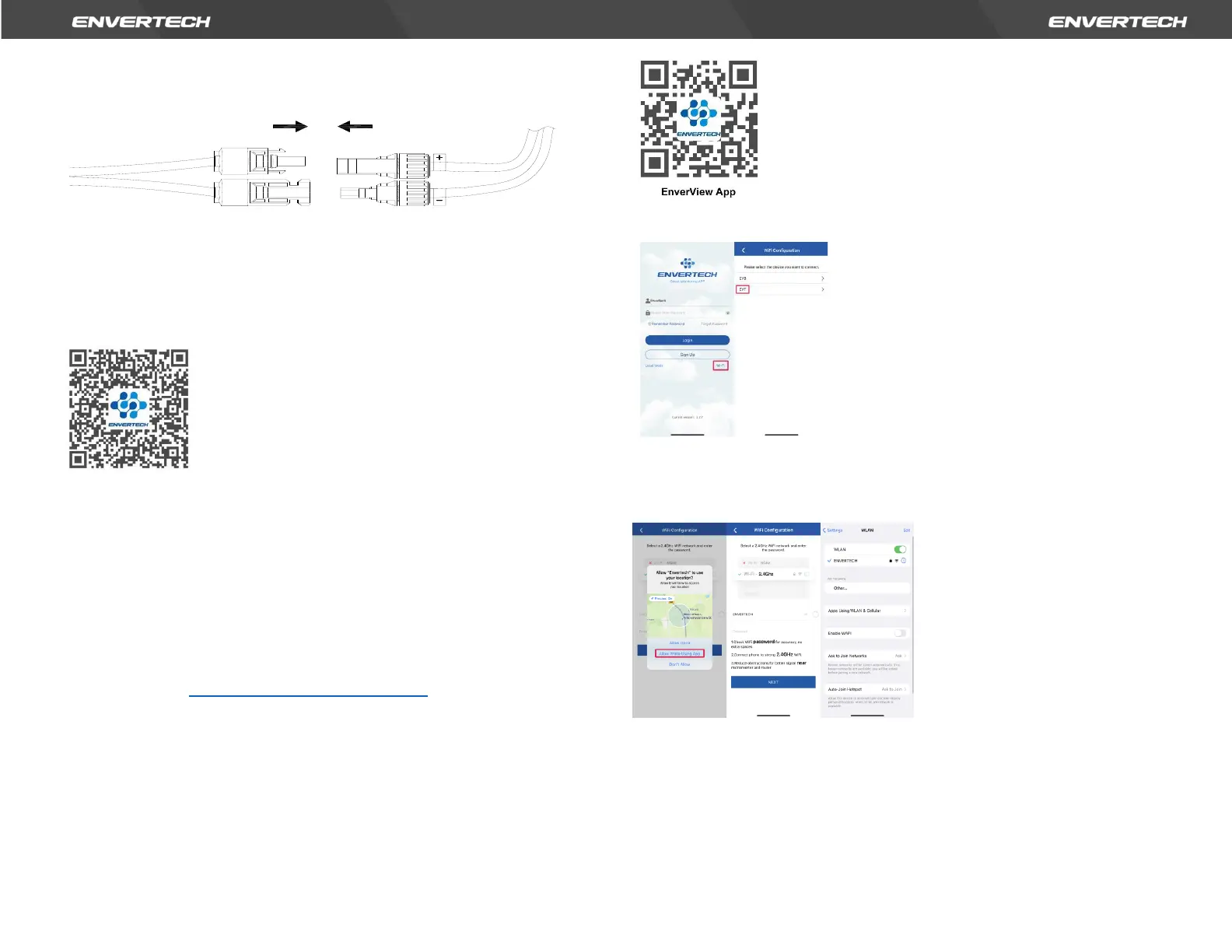
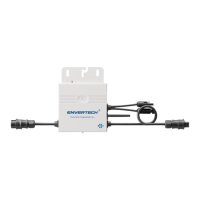
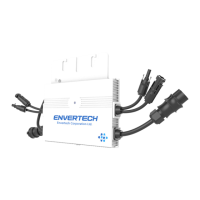
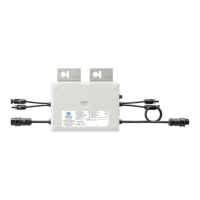
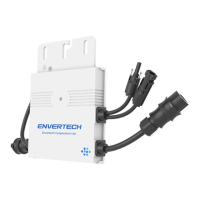
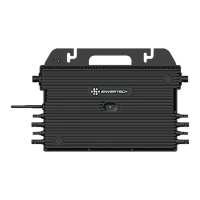
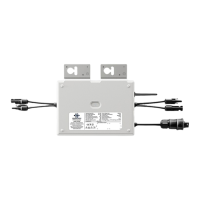
Mount the PV modules on top of the microinverters; Connect each PV
module with the DC input cables of the microinverter.
Step 8. Switch on the PV system
Ensure all connection is completed and then turn on the air switch.
For the monitoring system (EnverBridge) installation please scan this
QR
code.
EnverBridge Installation
Step 9. WI-FI Configuration
Option
1. Use EnverView app to configure Wi-Fi
Note: Please place the EVT400 as close as possible to the router.
The EVT400 has built-in WI-FI modular which is able to connect the router
directly.
Web Portal address: https://www.envertecportal.com/
To access our application, you can scan the QR code provided below or search
for 'EnverView' on Google Play Store or Apple Store for download.
a. Open EnverView app and click Wi-Fi. Select “EVT” to connect.
b. Select a 2.4GHz Wi-Fi network, and return to the app. Then enter the password
of 2.4GHz Wi-Fi network. Please allow EnverView app to use your location. Or
you will fail to configure Wi-Fi.
Note:
1. Please carefully check the Wi-Fi password, such as extra spaces.
2. Ensure that the Wi-Fi name and password do not contain , ; = or other special
characters.
3. Please ensure that the current network your phone connect to is 2.4GHz Wi-
Fi, and the connection between your router and the Internet is in good


 To Next Page