SET THE CAMERA RESOLUTION
Images can be captured in three different resolutions. The default setting is HI resolution.
1. Turn on the EPIC by pressing the (M) button once.
2. Press (M) once again to enter Still Image mode.
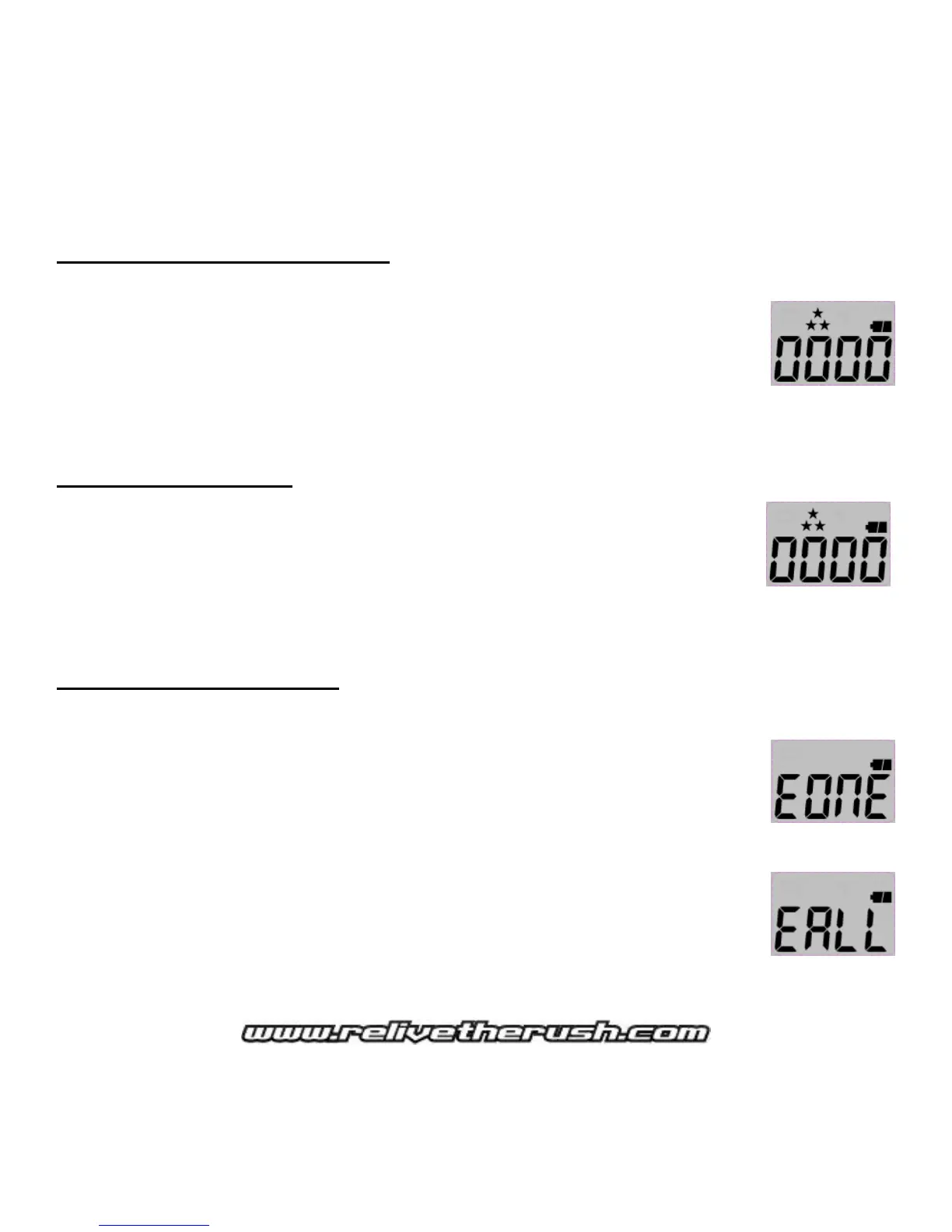
The video icon will disappear from the top left of the LCD screen (as
shown).
3. Press the UP or DOWN arrow to change resolution.
Three stars for HI (8Mp) / Two Stars for MID (5Mp) / One star for LO (1.3Mp).
TAKE STILL PICTURES
1. Turn on the EPIC by pressing the (M) button once.
2. Press (M) again to enter Still Image mode (as shown).
The video icon will disappear in the top left of the LCD screen.
3. Press (S) to capture still image(s).
Number count will go up incrementally depending on your Burst Mode
settings.
DELETE VIDEOS/PICTURES
The EPIC allows you to delete some or all your videos or images on the camera.
(ERASE ONE)
1. Turn on the EPIC by pressing the (M) button once.
2. Press (M) until you see the word EONE (Erase One) on the screen.
3. Press (S) to delete only the last image or video recorded in memory.
4. Press (M) four times to return to VIDEO mode.
(ERASE ALL)
1. Press (M) until EONE appears on the screen.
2. Press the UP or DOWN arrow to select EALL (Erase All).
3. Press (S) to confirm and delete all images & videos out of memory.
4. Press (M) four times; wait a few seconds to exit back to VIDEO mode.


 To Next Page