“HOW TO” - INSTRUCTIONS
POWER ON/OFF
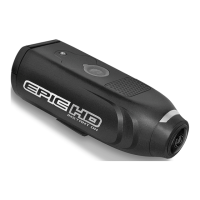
To turn the EPIC ON, press the (M) button once.
To turn the EPIC OFF, press and hold the (M) button for 2 seconds.
NOTE: After the camera is turned off, you will need to wait 5 seconds before turning the EPIC back
on.
SET THE VIDEO RESOLUTION
Videos can be captured in three different resolutions. The default setting is HD
resolution.
1. Turn on the EPIC by pressing the (M) button once.
By default, the camera will be in the Video mode when it’s turned on.
2. Press the UP or DOWN arrow to change resolution.
Three stars for HI (HD-1280x720) / Two stars for MID (D1-720x480) / One star for LO (VGA-
640x480).
SHOOT A VIDEO
1. Turn on the EPIC by pressing the (M) button once.
2. Press (S) to start recording a video.
3. Press (S) again to stop recording.
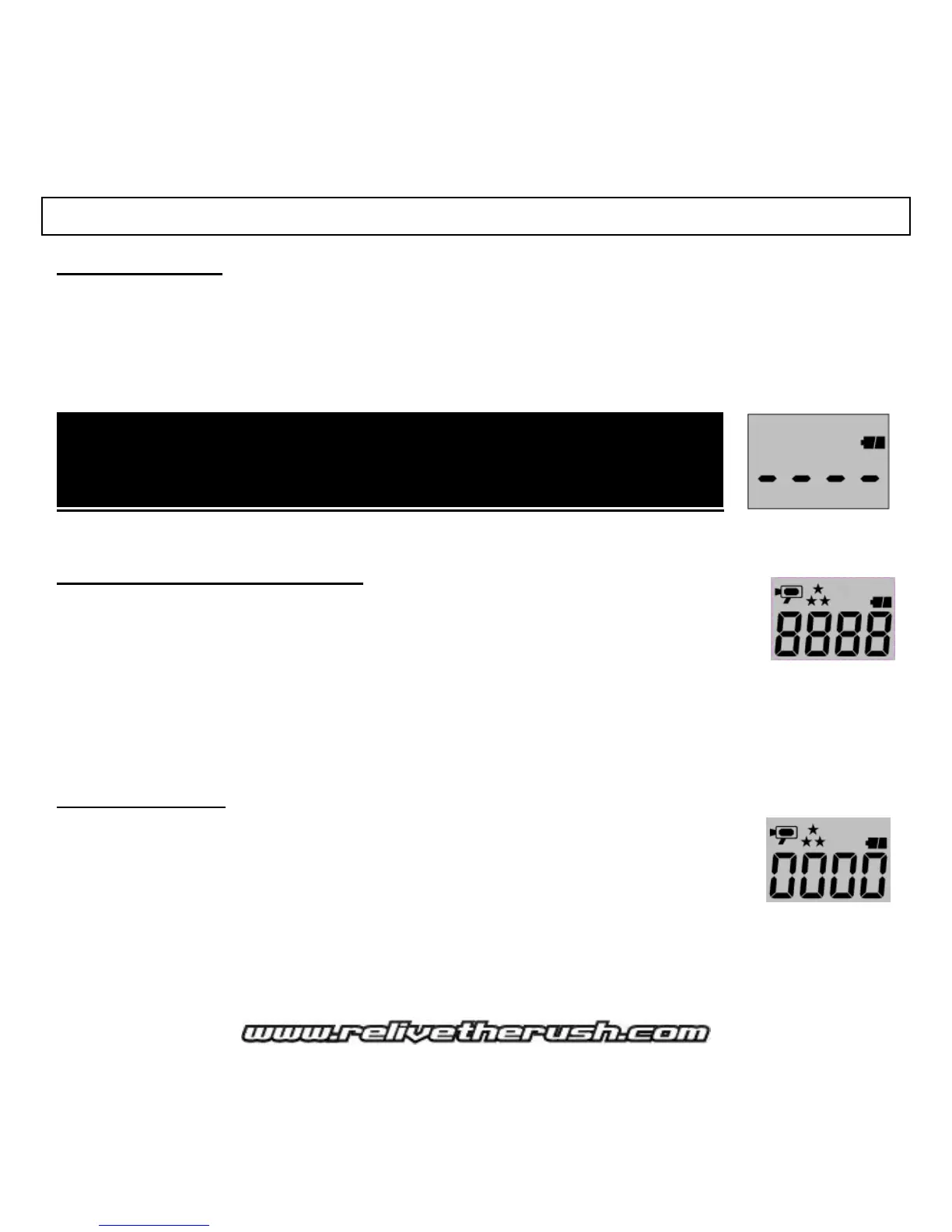
During video recording, the LCD screen will show recording length in
seconds.
NOTE: The camera’s LCD display will show four dashes and the battery
(as shown) for a few seconds as you toggle between some Menus and
Settings.



 To Next Page