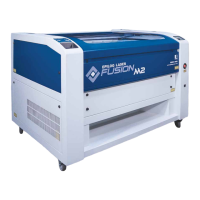
- i -
TABLE OF CONTENTS
Fire Warning 1
Introduction 2
How to Use This Owner’s Manual ..............................................................................................................................................2
Icons Used in this Manual .........................................................................................................................................................2
Section 1: Safety 3
Laser Safety ..............................................................................................................................................................................3
Electrical Safety .........................................................................................................................................................................4
Fire Warning ..............................................................................................................................................................................5
Safety Features and Regulatory Compliance .............................................................................................................................6
Do’s and Don’ts .......................................................................................................................................................................10
Section 2: Getting Started 11
1. Unpacking the Laser System ...............................................................................................................................................11
2. Choose Where to Locate the System...................................................................................................................................12
3. Connecting the Exhaust .......................................................................................................................................................13
4. Connecting Electrical Power ................................................................................................................................................15
5. Setting Vector Cutting Table Default ....................................................................................................................................15
6. Connect the Laser to Your Computer ..................................................................................................................................15
7. Set the Fusion’s IP Address .................................................................................................................................................16
9. Sign Up for Driver Updates and Register Your System .......................................................................................................18
Section 3: Driver Installation 19
Windows 7: Ethernet Installation .............................................................................................................................................19
Windows 7: USB Installation ...................................................................................................................................................22
Windows 8 and 10: Ethernet Installation .................................................................................................................................25
Windows 8 and 10: USB Installation .......................................................................................................................................28
Setting Up CorelDRAW Beziers Setting ...................................................................................................................................31
Mac Driver Installation ............................................................................................................................................................32
Section 4: The Epilog Job Manager 37
Epilog Job Manager Instructions.............................................................................................................................................37
How to Install the Epilog Job Manager ....................................................................................................................................37
Trouble Shooting Job Manager Installation .............................................................................................................................39
Important Epilog Job Manager Notes ......................................................................................................................................40
Using the Epilog Job Manager ................................................................................................................................................40
Section 5: Using The Laser Dashboard™ 49
Changing Laser Dashboard Defaults .......................................................................................................................................49
General Tab .............................................................................................................................................................................50
Advanced Tab ..........................................................................................................................................................................54
Color Mapping Tab ..................................................................................................................................................................56
Additional CorelDRAW Laser Dashboard Features ..................................................................................................................57
Section 6: Using The Epilog Mac Driver 59
Mac Driver Settings .................................................................................................................................................................59
Project Setup...........................................................................................................................................................................62
Vector Cutting Lines ................................................................................................................................................................63
Section 7: Fusion Control Panel 65
Display ....................................................................................................................................................................................65


 To Next Page
 Loading...