EasyManua.ls Logo

Epson C11CA31121 - User Manual

Epson C11CA31121
168 pages
Print Icon
To Next Page IconTo Next Page
Loading...
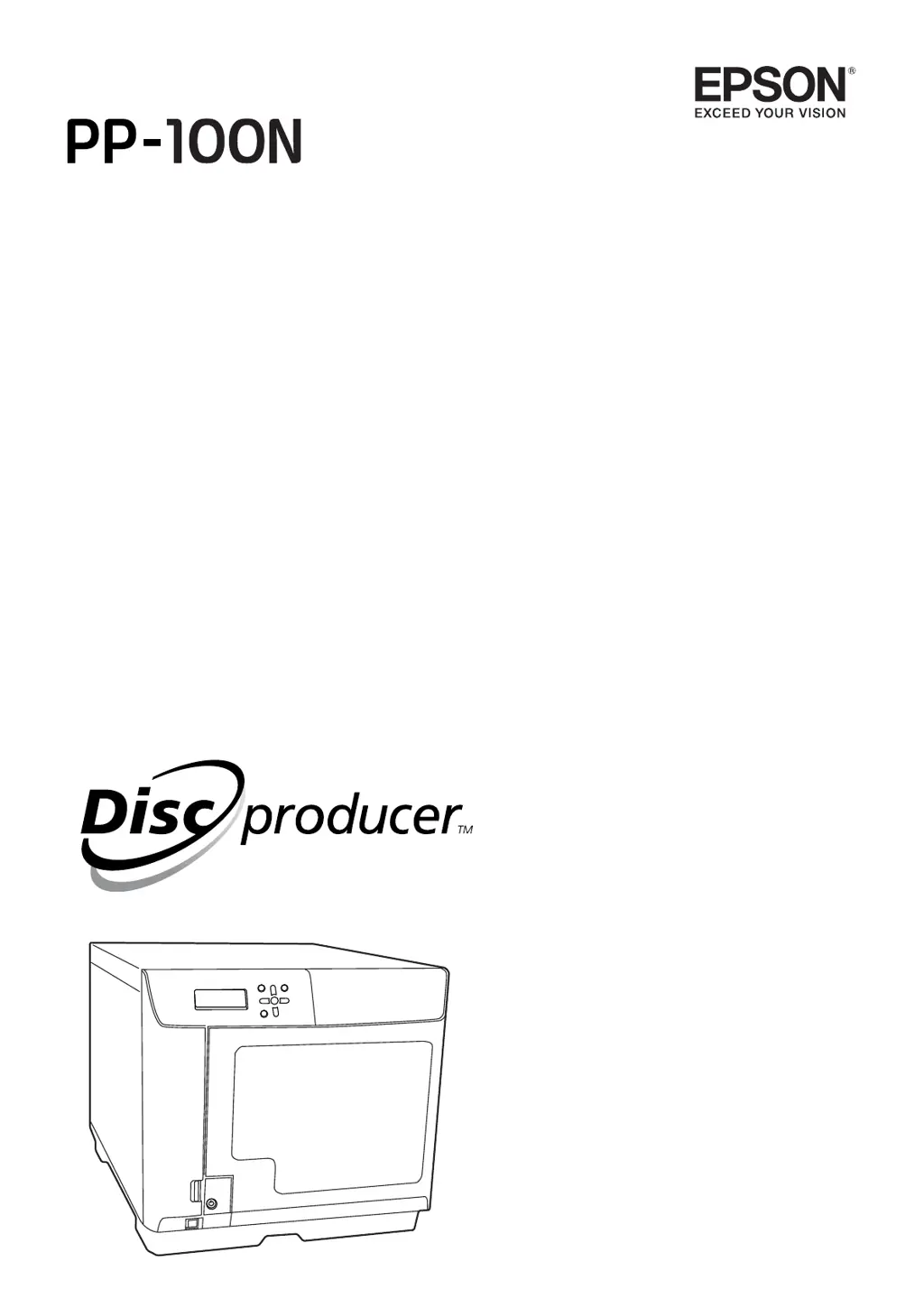
User’s Guide
M00010607EN

Table of Contents

Questions and Answers

  • B
    Barbara ClarkSep 1, 2025
    What to do if my Epson C11CA31121 Computer Hardware has a drive tray open/close error?
    • V
      vaughnmichaelSep 1, 2025
      If your Epson Computer Hardware drive tray doesn't come out, turn off the power, and then turn it on again. If the drive tray does not close, remove any remaining discs, turn off the power, and then turn it on again.
  • E
    Erin MarshallSep 12, 2025
    What does it mean when Epson C11CA31121 says 'Discs ejected from ST2'?
    • A
      Angela FloresSep 12, 2025
      If your Epson Computer Hardware displays 'Discs ejected from ST2', remove the published discs from Stacker 2, refill the discs if necessary, and press the button.
  • I
    Ian KelleyAug 30, 2025
    What to do if my Epson Computer Hardware has an invalid state error?
    • J
      Jason MorganAug 30, 2025
      If your Epson Computer Hardware displays an invalid state error, turn off the power, and then turn it on again.
  • M
    mthompsonSep 13, 2025
    What to do if my Epson C11CA31121 says 'Stacker 3 not installed'?
    • P
      Paige JohnsonSep 13, 2025
      If your Epson Computer Hardware displays 'Stacker 3 not installed', load Stacker 3 and close the disc cover.
  • M
    Michael AdamsSep 13, 2025
    What to do if my Epson C11CA31121 Computer Hardware says 'Stacker 3 installed'?
    • P
      patricia84Sep 13, 2025
      If your Epson Computer Hardware displays 'Stacker 3 installed', remove Stacker 3 and close the disc cover.
  • C
    Christine ArellanoSep 18, 2025
    What does 'Non-standard ink Continue?' mean on Epson C11CA31121 Computer Hardware?
    • C
      Candace FuentesSep 18, 2025
      If your Epson Computer Hardware displays 'Non-standard ink Continue?', to use the ink cartridge, press the button (Yes). To change to a Epson brand ink cartridge, press the CANCEL button (No), and change the ink cartridge.
  • L
    Lawrence RichardsonSep 23, 2025
    What to do if Epson Computer Hardware shows 'Disc cover open'?
    • A
      avilaaustinSep 23, 2025
      If your Epson Computer Hardware indicates that the disc cover is open, simply close the disc cover.
  • E
    Eric YoungAug 27, 2025
    What to do if my Epson C11CA31121 Computer Hardware has an internal drive error (DRV 1/2)?
    • P
      Patricia WilliamsAug 27, 2025
      If your Epson Computer Hardware shows an internal drive error (DRV 1/2), turn off the power, and then turn it on again.
  • C
    christopherlewisAug 26, 2025
    What to do if my Epson C11CA31121 Computer Hardware has an internal printer error?
    • A
      Ashley WeaverAug 26, 2025
      If your Epson Computer Hardware is displaying an internal printer error, turn off the power, and then turn it on again.
  • L
    Lucas JohnsonAug 25, 2025
    What to do if Epson Computer Hardware says 'No ink cartridge (C,LC,LM,M,Y,K)'?
    • J
      johnsontracyAug 26, 2025
      If your Epson Computer Hardware shows 'No ink cartridge (C,LC,LM,M,Y,K)', correctly install the cartridge of the displayed color.

Summary

Product Safety and Usage Guidelines

Product Part Identification

Control Panel Interface

Indicator Light Status Interpretation

Basic Product Operations

Powering Off the Device

Software Installation Preparation

Installing the Software

Describes the installation procedure of the software required for using this product.

Pre-installation Checklist

Lists the software to be installed and important notes regarding installation.

Software System Requirements

Operating System and CPU Requirements

Lists the minimum hardware and software requirements for the OS and CPU.

User Account Management

Software Uninstallation Process

Using Product Applications

EPSON Total Disc Maker Overview

Introduces EPSON Total Disc Maker software for editing data and publishing discs.

Starting EPSON Total Disc Maker

Provides steps to launch the EPSON Total Disc Maker application.

EPSON Total Disc Setup Utility

Utility Overview

Explains EPSON Total Disc Setup software for registering the product and basic settings.

Starting the Utility

Provides instructions on how to launch the EPSON Total Disc Setup application.

EPSON Total Disc Monitor Utility

Monitor Utility Overview

Explains EPSON Total Disc Monitor for displaying product status and job information.

Starting the Monitor Utility

Provides instructions on how to launch the EPSON Total Disc Monitor application.

EPSON Total Disc Net Administrator

Administrator Overview

Introduces the Web application for managing jobs, users, and maintenance.

Logging In to Administrator

Provides steps to access EPSON Total Disc Net Administrator via a web browser.

Printer Driver Usage

Printer Driver Configuration

Printer Driver Utility Functions

Nozzle Check Procedure

Print a pattern to check print head nozzle status.

Head Cleaning Procedure

Perform print head cleaning to improve print quality.

Print Head Alignment Procedure

Align the print head for accurate printing.

Correcting Printing Position

Adjust the final print position on the disc.

Publishing Discs Guide

Understanding Publish Modes

Describes the available Publish Modes: Standard, External Output, and Batch.

Disc Publishing Workflow

Creating Disc Labels

Job Operation Management

Product Maintenance Information

Ink Cartridge Management

Print Head Nozzle Diagnostics

Performing a Nozzle Check

Instructions for checking print head nozzles via PC or product control panel.

Print Head Maintenance

Ink Pad Maintenance

Troubleshooting Common Errors

Error Messages and Remedies

Lists common error messages and their corresponding remedies and notification sounds.

Troubleshooting Product Issues

Password and Access Issues

Troubleshooting with Monitor Utility

Resolving Disc Publishing Failures

Checking Monitor for Errors

Verify status and errors within EPSON Total Disc Monitor.

Verifying Product and Computer Connection

Verify product power, LED status, and error indicators.

Checking Printer Driver Settings

Verify Ethernet cable connection and compatibility.

Printer Driver Troubleshooting

Appendix: Consumables

Epson C11CA31121 Specifications

General IconGeneral
BrandEpson
ModelC11CA31121
CategoryComputer Hardware
LanguageEnglish

Related product manuals