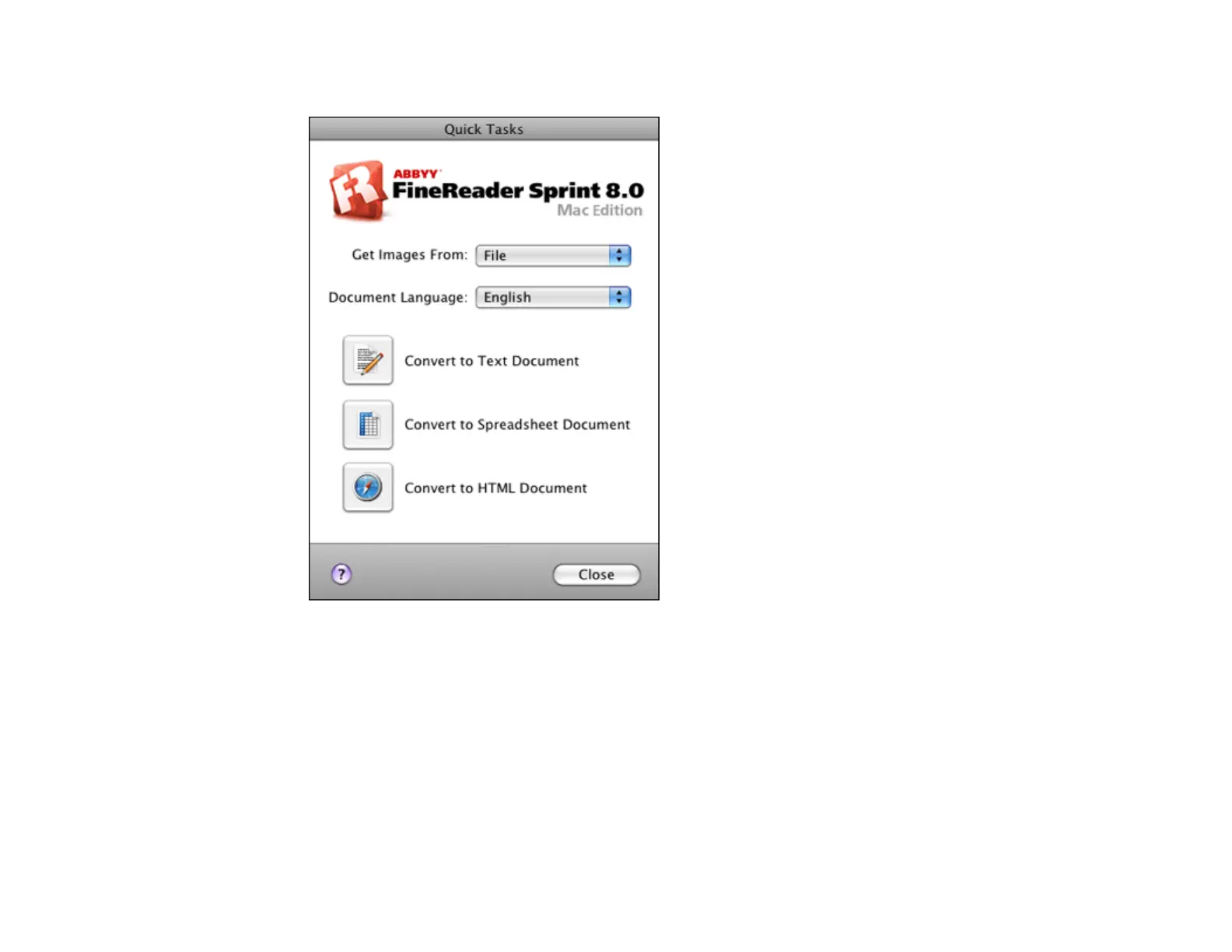
You see a window like this:
3. Open the Get Images From pop-up menu and select your product.
4. Select the language used in the document you are going to scan as the Document Language
setting.
5. Select the type of document you are going to scan.
Epson Scan starts in the last scan mode you used.
6. Select your scan settings and click Scan.
Your document is scanned and you see the Epson Scan window while your document is converted
to editable text.
48



 To Next Page