Setting Up the Projector 25
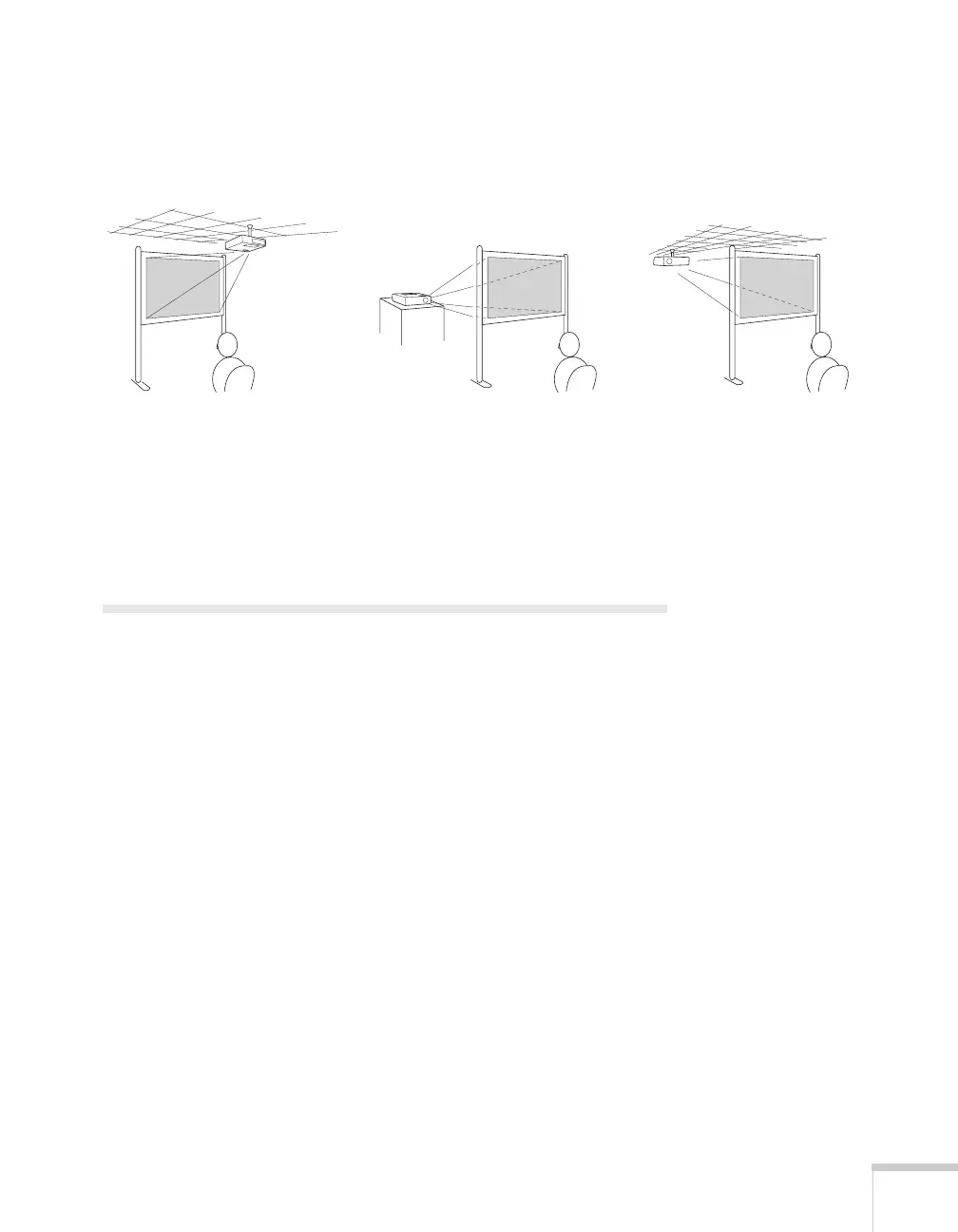
You can also install the projector in three other viewing setups: ceiling
projection, rear projection onto a semi-transparent screen, or
rear/ceiling projection.
To project from overhead, you’ll need the optional ceiling mounting
hardware (see page 16). You’ll also need to select the appropriate
Projection setting in the projector’s Extended menu to orient the
image correctly (see page 69).
Connecting to a Computer
You can connect the projector to a Windows computer using the
projector’s
TypeB USB port. This lets you carry a lightweight cable
with you when you transport the projector (see page 26).
You can connect the projector to any computer that has a standard
video output (monitor) port, including desktop models, PC notebook
computers, Macintosh PowerBook
®
and iBook
®
computers, and
hand-held devices. See page 28 for instructions.
To play sound through the projector, connect an audio cable (see
page 35).
You may be able to use your remote control as a wireless mouse when
projecting from a computer (see page 54).
Rear projectionCeiling projection Rear/ceiling projection


 To Next Page