Printing Photos From the LCD Screen 25
Printing Photos From the LCD Screen
You can select individual photos for printing as you view them on the LCD
display screen.
1. Load several sheets of 4 × 6-inch Epson photo paper (various types available;
see page 20).
2. Press the
Print photos button.
3. Press l or r until you see
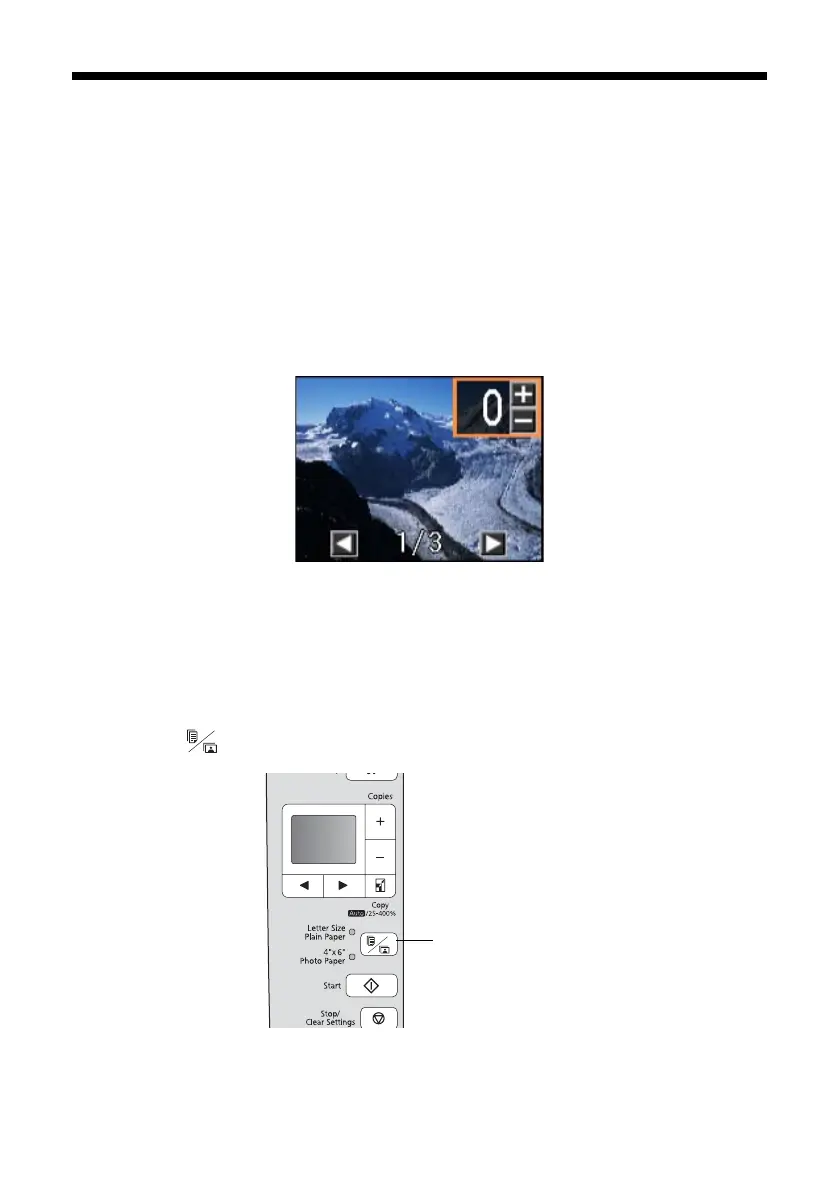
Select Photos, then press x Start. You see this
screen:
4. Press l or r to scroll through your photos and display one that you want to
print.
5. Press the
+ or – button to select the number of copies you want of that photo.
6. Repeat steps 3 to 5 to select more photos.
7. Press the paper size button, if necessary, to select
4"× 6" Photo Paper.
8. When you’re ready to print, press x
Start.
To cancel printing, press
y Stop/Clear Settings.
Paper size button


 To Next Page
 Loading...