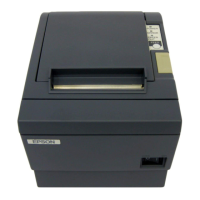
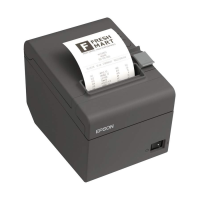
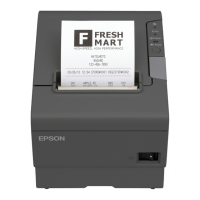
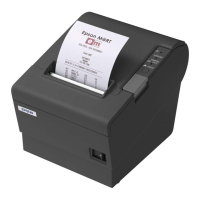
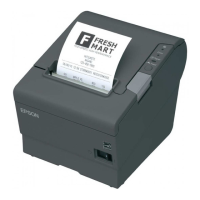
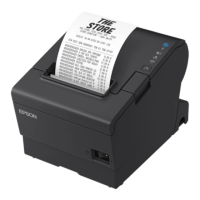
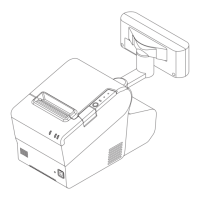
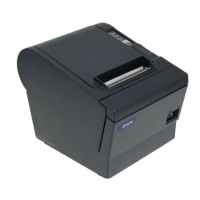
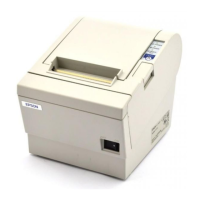
This document is the User's Manual for the EPSON TM-T83II thermal line printer. It provides essential information for the safe and effective use, setup, operation, and maintenance of the device.
The EPSON TM-T83II is a thermal line printer designed for point-of-sale (POS) applications. Its primary function is to print receipts and other transactional documents quickly and reliably using thermal paper.
Important Technical Specifications:
- Printing Method: Thermal line printing.
- Roll Paper Dimensions:
- Paper width: 79.5 mm ± 0.5 mm {3.13" ± 0.02"}
- Diameter: 83 mm {3.27"} maximum
- Inside diameter of core: 12 mm {0.47"}
- Outside diameter of core: 18 mm {0.71"}
- Thermal Paper Type: NTP080-80
- Interfaces:
- Serial: 1 x RS-232
- Parallel: 1 x IEEE1284
- USB: 1 x USB 2.0 (Full-speed, 12 Mbps communication speed)
- Drawer Kick Connector: 1
- Current Consumption: 1.8 A
- AC Power Consumption (based on Epson operating conditions):
- Operating: 230 V/50 Hz: 26.4 W; 115 V/60 Hz: 26.6 W
- Standby: 230 V/50 Hz: 0.83 W; 115 V/60 Hz: 0.73 W
- Temperature:
- Operating: 5 to 45°C {41 to 113°F}
- Storage: -10 to 50°C {14 to 122°F} (except for paper)
- Humidity:
- Operating: 10 to 90% RH
- Storage: 10 to 90% RH
- Overall Dimensions (W x D x H): 140 x 199 x 146mm {5.51 × 7.83 × 5.75"}
- Weight (mass): Approx. 1.7 kg {3.74 lb}
Usage Features:
- Installation Flexibility: The printer can be installed horizontally on a flat surface or vertically. For vertical installation, specific accessories like a control panel label, rubber feet, and a waterproof power switch cover are provided. It can also be hung on a wall using an included wall hanging bracket, requiring specific wall thickness and screw pull-out strength for secure mounting.
- Control Panel: Features a Power LED (on when the printer is on), an Error LED (indicates errors such as paper jams or overheating), a Paper LED (on when paper is near end or out), and a Feed button for manual paper feeding.
- Roll Paper Handling: The printer has a roll paper cover that opens to allow installation or replacement of thermal paper rolls. A manual cutter is available for cutting paper manually. The autocutter automatically cuts paper after installation when the printer is powered on.
- Cover Open Lever: Used to open the roll paper cover.
- Cutter Cover: Can be opened to unlock the autocutter blade in case of a paper jam, allowing the roll paper cover to be opened.
- Power Switch Cover (Waterproof): An included accessory that prevents accidental power switch changes and tampering. It also provides water resistance, especially useful for vertical installations. A sharp-pointed object is needed to operate the power switch with the cover attached.
- External Device Connectivity: Supports various interfaces including RS-232, IEEE1284, USB, and a drawer kick connector for connecting external devices like cash drawers. The USB cable can be secured with a hook to prevent accidental disconnection.
Maintenance Features:
- Cleaning the Printer Case: The printer case should be cleaned with a dry or damp cloth. Alcohol, benzine, thinner, or other solvents should not be used as they can damage plastic and rubber parts.
- Cleaning the Thermal Head: To maintain print quality, Epson recommends cleaning the thermal head periodically (generally every 3 months). This involves turning off the printer, opening the roll paper cover, and cleaning the thermal elements with a cotton swab moistened with an alcohol solvent (ethanol or IPA). A caution is given that the thermal head can be very hot after printing, and it should not be touched with fingers or hard objects to prevent damage or burns.
- Troubleshooting:
- No lights on the control panel: Check AC and DC cable connections.
- Error LED is on: Check if the roll paper cover is closed, and if the Paper LED is on, verify paper installation and remaining paper.
- Error LED is flashing: Check for paper jams. If jammed, remove the paper. Printing stops if the head overheats and resumes automatically when it cools. For other cases, power cycle the printer.
- Paper is jammed: Never pull paper forcibly. Open the roll paper cover and remove the jammed paper.
- Roll paper cover will not open: This indicates the autocutter blade is locked. The manual provides steps to return the autocutter blade to its normal position by opening the cutter cover and turning a knob until a triangle appears in the frame opening, then closing the cutter cover to allow the roll paper cover to open.
Safety Precautions:
The manual emphasizes several safety precautions, categorized as WARNINGS and CAUTIONS.
- WARNINGS: Highlight risks of serious bodily injury. These include immediately shutting down equipment if smoke, strange odor, or unusual noise occurs; preventing foreign matter or liquids from entering the equipment; never disassembling or modifying the product; avoiding self-repair; not using flammable aerosol sprayers; connecting cables correctly; and using only the specified AC adapter (PS-180, Model: M159D).
- CAUTIONS: Highlight risks of minor injury, equipment damage, or data loss. These include setting the equipment on a firm, stable, horizontal surface; avoiding locations with high humidity or dust; not placing heavy objects on top of the product; being aware that the print head can be very hot after printing; taking care not to injure fingers on the manual cutter; not connecting a telephone line to the drawer kick connector; and unplugging the product if left unused for an extended period.
- Caution Labels: The product itself has caution labels, specifically warning not to touch the thermal head because it can be very hot after printing.
Restriction of Use:
The manual includes a restriction of use statement, indicating that for applications requiring high reliability/safety (e.g., aviation, rail, marine, automotive, disaster prevention, safety, or functional/precision devices), the product should only be used after incorporating fail-safes and redundancies into the design to ensure safety and total system reliability. It explicitly states that the product was not intended for applications requiring extremely high reliability/safety, such as aerospace equipment, main communication equipment, nuclear power control equipment, or medical equipment related to direct medical care, and advises users to make their own judgment on the product's suitability after a full evaluation for such uses.
Downloading Resources:
The latest versions of drivers, utilities, and manuals can be downloaded from the Epson business support website: http://download.epson-biz.com/?service=pos.

 Need help?

 To Next Page

 General