2-4 Using the Printer
Validation Paper Handling
Notes:
Use only validation paper that matches the printer’s specifications.
See Paper Specifications in Chapter 4.
Be sure that a paper roll is loaded before you use validation paper.
Be sure that the validation paper is flat, without curls, folds, or
wrinkles.
1. Send appropriate control commands from the computer to
print on validation paper.
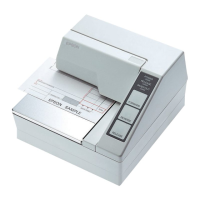
2. When the VALIDATION light blinks, insert the validation paper
into the validation paper inlet using the right edge of the
validation paper inlet as a guide. (Follow steps ➀ and ➁ in the
illustration.)
3. Make sure you insert the validation paper into the inlet as far as
it will go.
4. When the validation paper is detected by the sensor, the
VALIDATION light is changed from blinking to on and the
paper is automatically drawn into the printer and printing
begins.
5. When the VALIDATION light begins blinking after printing,
remove the validation.
RECEIPT
OUT
VALIDATION
POWER
ERROR
FEED
RELEASE
EPSON
2
1








 To Next Page