158
• To select all photos, select the menu icon and select Select all photos.
6. Select Print Settings.
7. Select Letter as the Paper Size to print a template for three cards on one letter-size sheet or 4x6in
to print a template for one card.
8. Select the Paper Type and Layout settings, as necessary.
9. Select Select Photo and Print Template.
10. Select To Check Printing.
11. Select Copies and use the numeric keypad to select the number of copies (up to 99).
12. When you are ready to print, select the Print icon.
Note: To cancel printing, select Cancel, then select Cancel again to confirm.
Parent topic: Printing Photo Greeting Cards
Related tasks
Printing a Greeting Card from a Template
Printing a Greeting Card from a Template
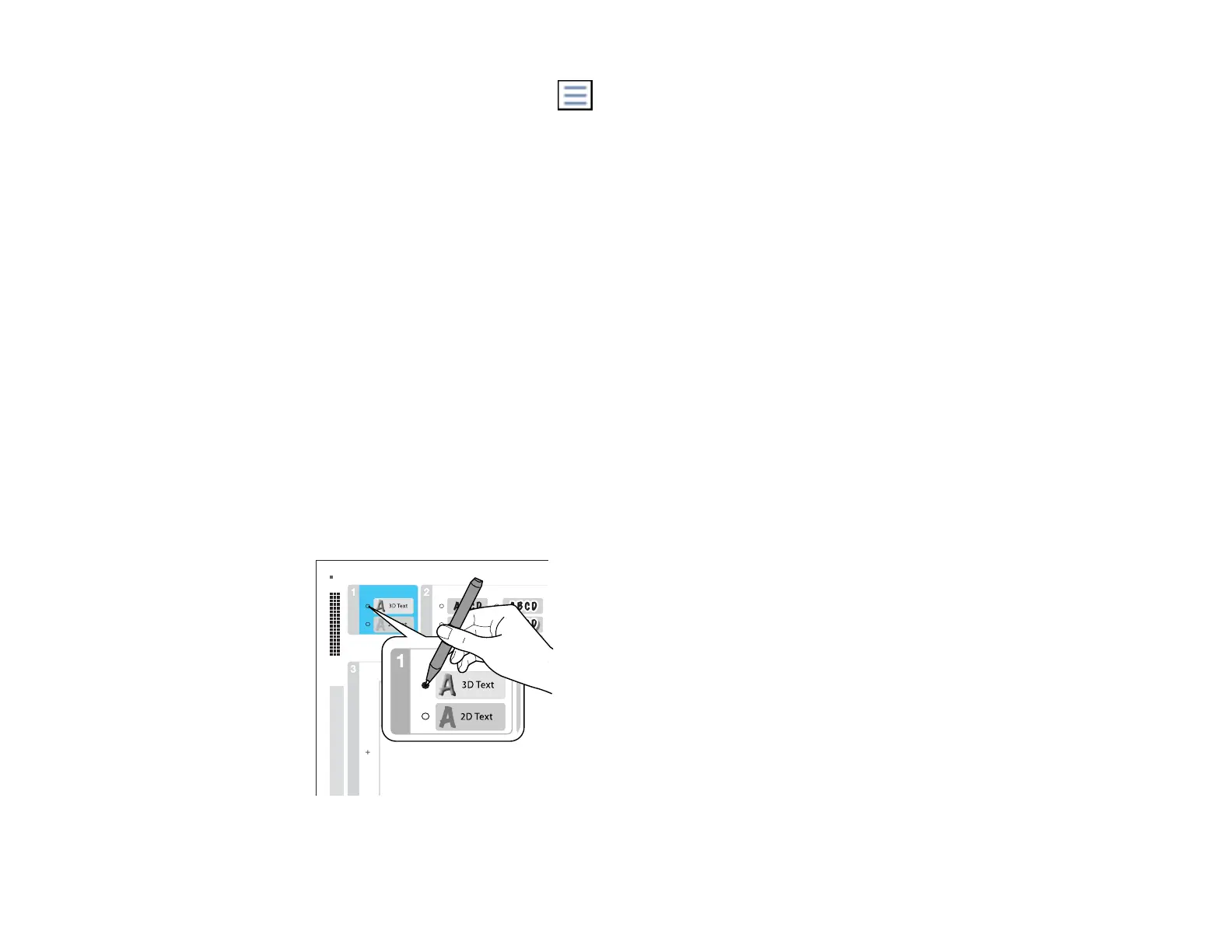
After your greeting card template is printed, you fill it out to create your card and add your message.
1. Use a dark pen or pencil to fill in the circles and select the Text Style and Text Effects.














 To Next Page