Step 6 - Set the Date and Time
This will allow the security video taken by GuardCam to display the correct date
and time it was taken.
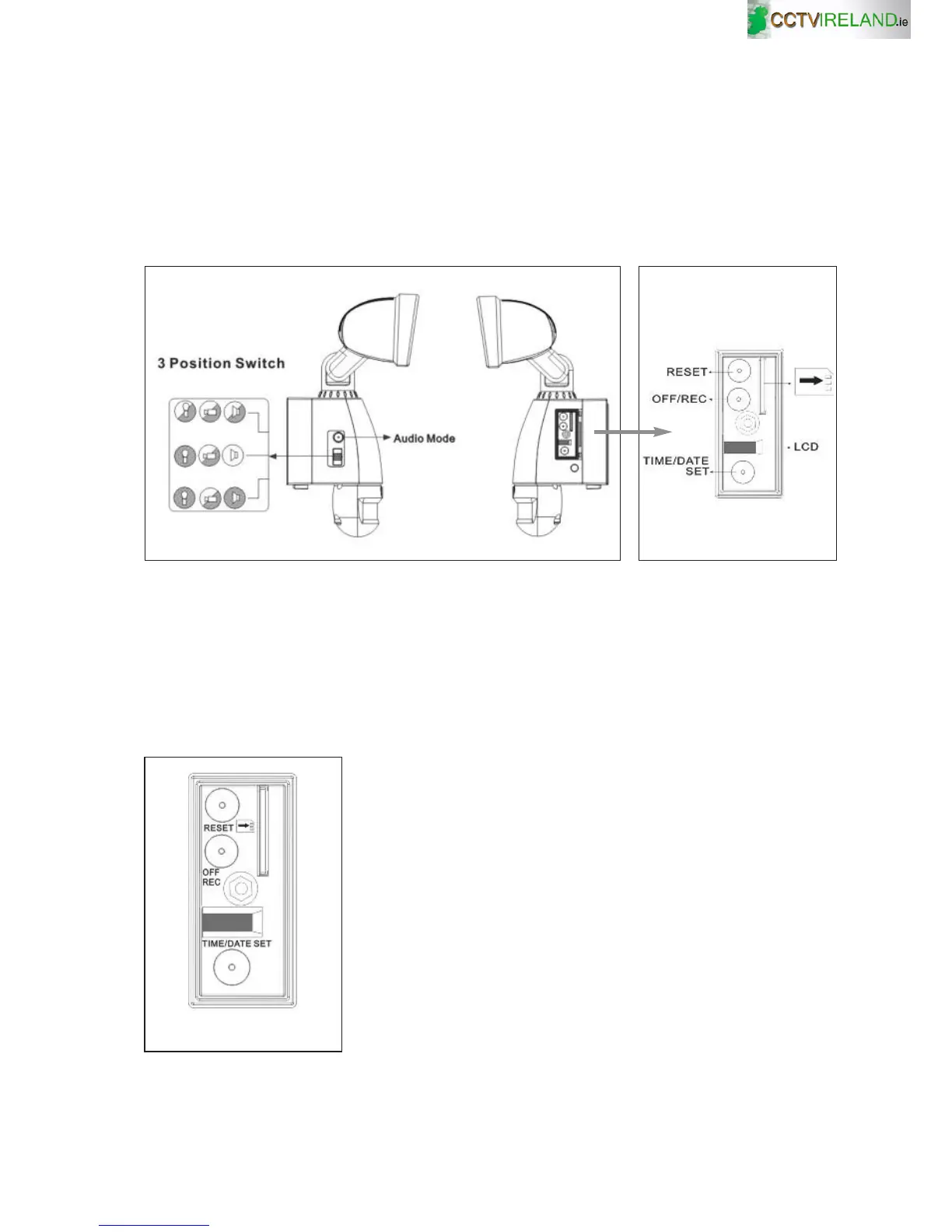
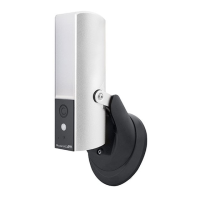
Push TIME/DATE SET button (see Fig. 10) for 3 seconds, The LCD screen will then
flash 3 times, indicating you have entered Time/Date setting mode.
G Please note when off/record button is pressed, remove SD card within 30
seconds (now the LED will turn red after SD card is removed from the slot)
I Reset button: restore functions to default settings
1) Press RESET button once each time you turn on unit.
2) Please press this button in case of system malfunction.
I Off/Rec: Please press Off/Rec button to remove SD card. Please remove card
within 30 seconds of pressing the Off/Rec button to avoid loss of data.
Fig. 8 Fig. 9
Fig. 10
9
1. “YEAR”setting: ”Y” and “08” are displayed on the
screen; push the button to set year from “08-99”,
push the button again and hold for 3 seconds to
scroll through numbers quickly. If you have not
pressed the button for 3 seconds, it will
automatically save the year and go on to allow
you to set the month.
Repeat the same setting procedure for
MONTH/DATE/HOUR/MINUTE.


 To Next Page