Step 7 - Viewing Video
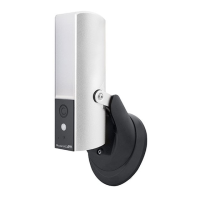
Viewing image by computer through a card reader (see Fig. 11)
I Open the waterproofed cover on the GuardCam Motion Light with Video Camera
I Press OFF/REC button and remove SD card from the slot.
I Put the SD card into the card reader supplied, then insert the card reader into PC
via a USB port and open Windows Media Player to view the video.
10
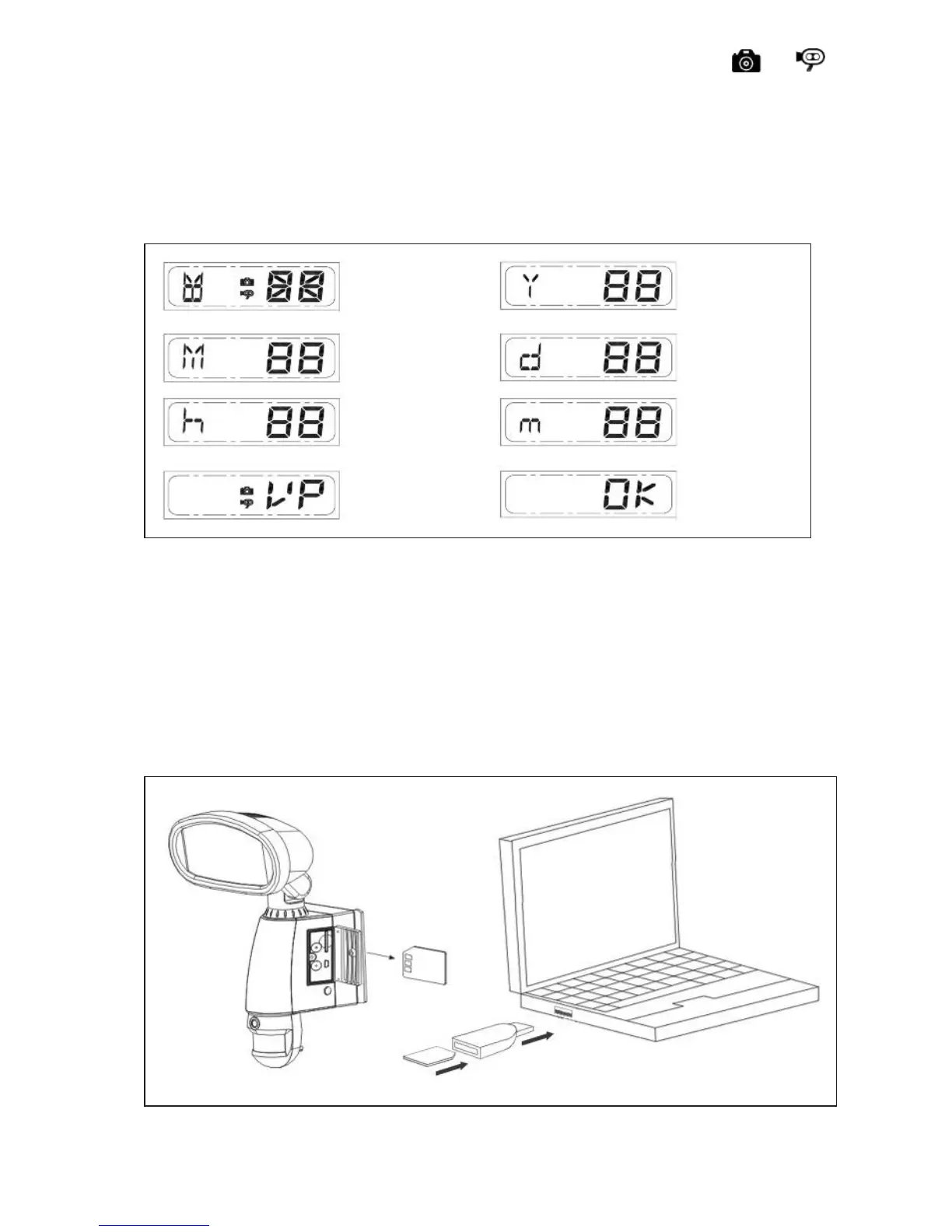
2. “VIDEO/PHOTO” setting: when entering this mode, these two icons and
“V” appear on the screen;push the button to choose ”V” (Video)or ”P” (Photo).
If you have not pushed any buttons for 3 second, “OK” will appear on the screen,
indicating it has automatically saved the current settings. The LCD screen will
shut off automatically 10 seconds later.
* On the ”P” (photo) setting, GuardCam will take a series of digital photographs at
a rate of 3 photos every second when the motion sensor is triggered.
1. START
3. MONTH
Setting
2. YEAR
Setting
4. DATE
Setting
MINUTE
Setting
FINISH
HOUR
Setting
VIDEO/PHOTO
Setting
Fig. 11


 To Next Page