22
Step1. Connecting the DVR to a network
To remotely view the system, the DVR needs to be added to a network.
Choose either a wired or Wi-Fi connection to add the DVR to the network.
Wired connection (Recommended)
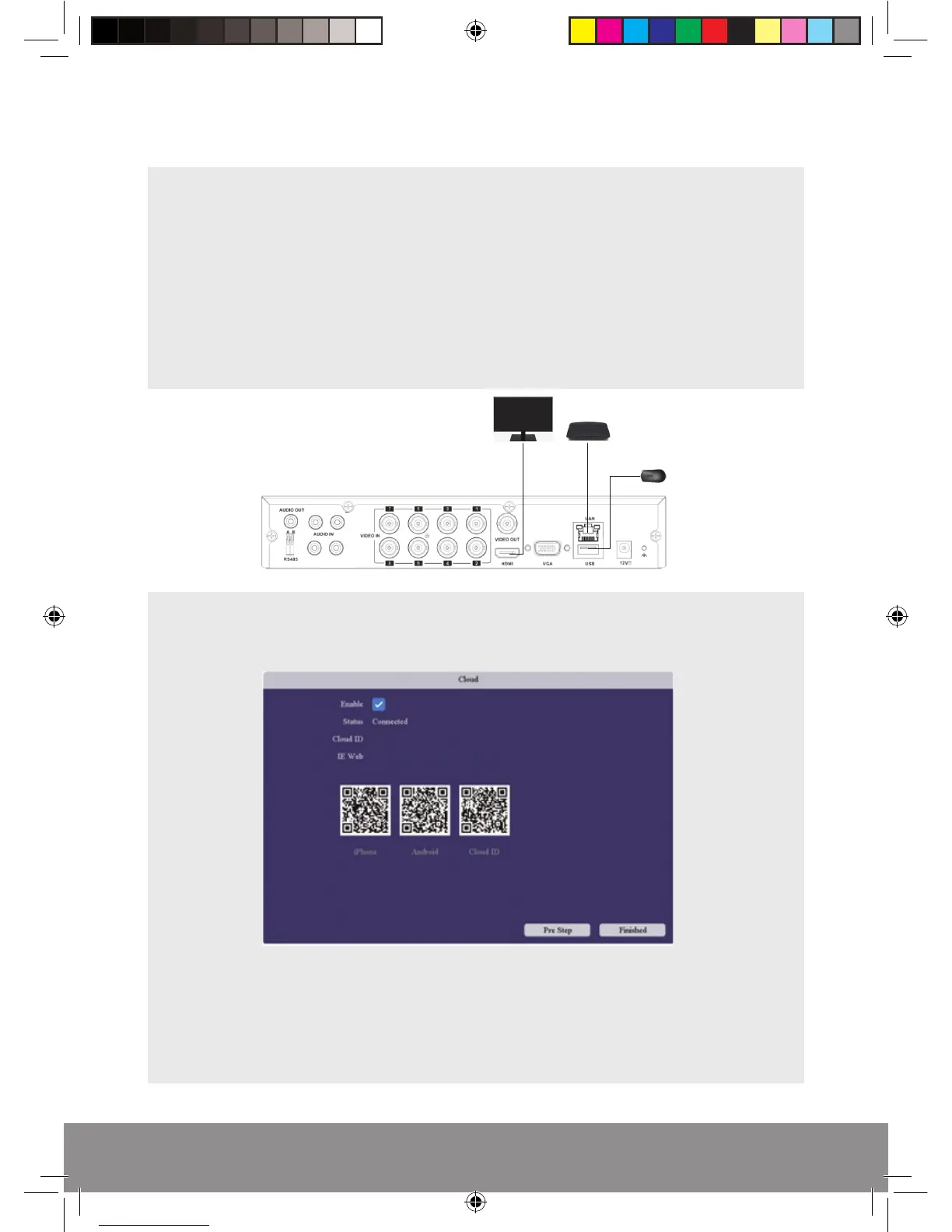
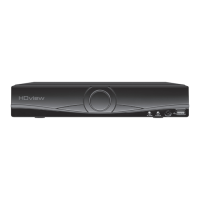
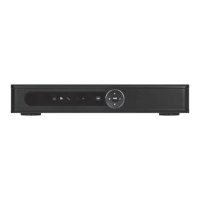
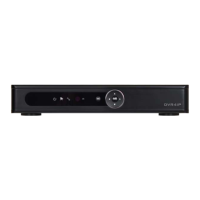
Connect the LAN socket of the DVR to the router using a network cable.
Power up/ Reboot the DVR, until the Start-up Wizard appears.
Click on ‘Next Step’ until the Cloud menu appears;
If the status is ‘Connected’ the system can now be remotely viewed using the
Cloud ID. Please progress to; Step 2. Remote Viewing Options. If the status is
not connected please retry the steps or view the help guide.
Remote Viewing Guide
Rekor HD Remote Viewing Guide.indd 2 09/05/2017 16:37:26
DVR Connections
Router
HDMI Lead
DVR Connections
Router
HDMI Lead
Mouse
Controller


 To Next Page